


When working with CNC laser cutting systems, one of the most frustrating issues I often encounter is a лазерная резка software CAD file problem, especially when files fail to import, display incorrectly, or lose geometry after conversion. If you’re facing this issue, you’re in the right place. In this article, I’ll explain the common causes and provide practical solutions to help you fix CAD file problems quickly and restore smooth production workflow.
Understanding Laser Cutting Software CAD File Problem
What Is a CAD File Problem in Лазерная резка Software?
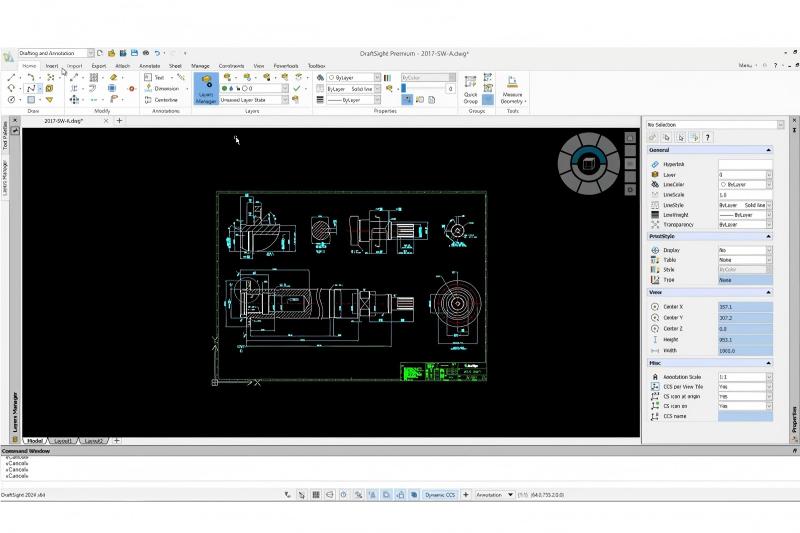
A laser cutting software CAD file problem usually occurs when design files such as DXF, DWG, or AI formats cannot be correctly read or interpreted by the laser cutting control software. This results in missing lines, broken contours, or unrecognized geometry.
Why It Happens in Real Production
Most issues come from compatibility gaps between CAD software and laser cutting software. Different export settings, version mismatches, or corrupted geometry often lead to import failures.
Common Causes of Laser Cutting Software CAD File Problem
File Format Compatibility Issues
Not all laser software supports every CAD format version. For example, an advanced DWG file may not be readable by older laser controllers.
Incorrect Layer or Line Type Settings
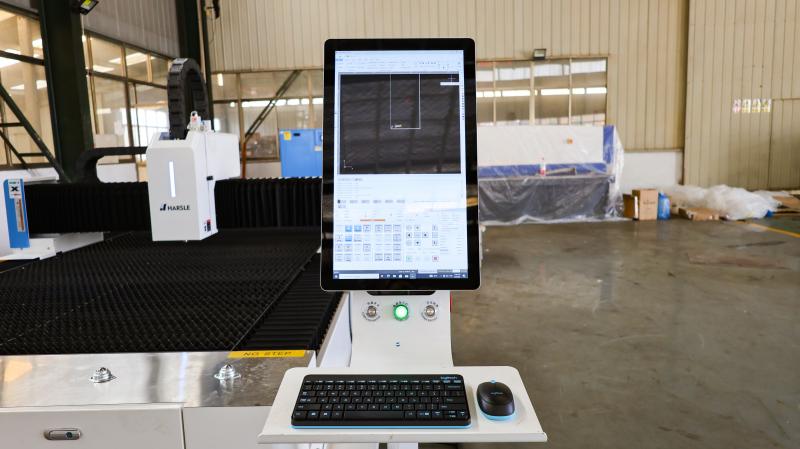
Laser machines rely on specific layers and line types. If the CAD file uses unsupported layers or hidden objects, the software may fail to interpret cutting paths.
Scaling and Unit Errors
One of the most common issues is mismatched units (mm vs inch), causing incorrect sizing or distorted geometry.
Corrupted or Overly Complex Geometry
Files with overlapping lines, duplicate nodes, or excessive splines can cause the laser software to freeze or misread the design.
How to Fix Laser Cutting Software CAD File Problem Quickly
Step 1: Convert File to Compatible Format
I always recommend exporting CAD files into a widely supported format such as DXF R14 or DWG 2000 version. This ensures better compatibility with most laser cutting systems.
Step 2: Simplify Geometry Before Import
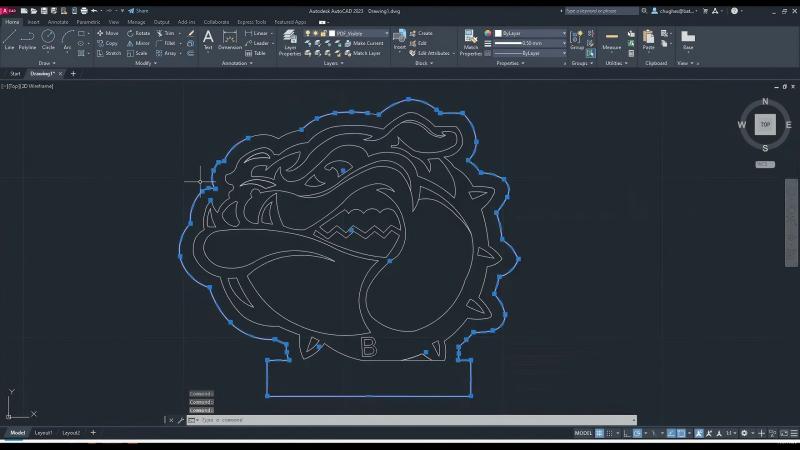
Remove duplicate lines, unnecessary nodes, and hidden layers in CAD software before exporting. Clean geometry ensures smoother processing in laser software.
Step 3: Check Units and Scale Settings
Always verify whether your CAD drawing uses millimeters or inches. Align it with the laser cutting software settings to avoid scaling errors.
Step 4: Assign Proper Cutting Layers
Ensure that cutting, engraving, and marking paths are assigned to correct layers. This helps the laser software correctly interpret processing instructions.
Step 5: Repair or Recreate Problematic Files
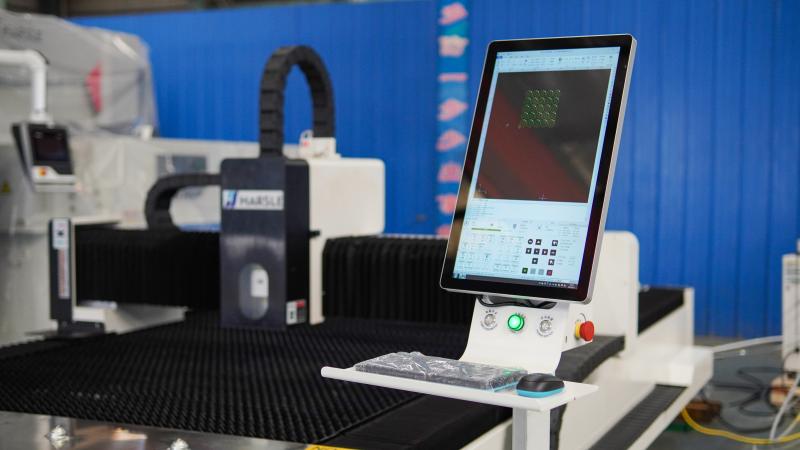
If the file is still not readable, I recommend reopening it in CAD software, running a repair tool, or recreating the drawing from scratch.
Best Practices to Avoid CAD File Problems
Use Standardized Export Settings
Always use consistent export presets across your design team to avoid version conflicts.
Regular Software Updates
Keep both CAD and laser cutting software updated to improve compatibility and reduce import errors.
Standardize File Management
Use a unified file structure and naming convention to avoid mixing incompatible file versions.
Вопросы и ответы
Why does my CAD file open in CAD software but not in laser cutting software?
This usually happens due to format version mismatch or unsupported geometry types in the laser software.
Q: What is the best file format for laser cutting machines?
DXF (R14 version) is the most widely supported and stable format for most laser cutting systems.
Can complex drawings cause laser cutting software CAD file problem?
Yes, overly complex geometry with many nodes or overlaps can cause import failures or slow performance.
Заключение
А laser cutting software CAD file problem can interrupt production and reduce efficiency, but most issues are easy to fix with proper file preparation and system settings. By using compatible formats, cleaning up geometry, checking units, and maintaining standardized workflows, you can significantly reduce file errors.
If you continue to experience CAD import issues, feel free to contact our technical team for further support.


