


The CybTouch 8 L-Alpha Mode provides an alternative programming method that allows operators to create bending programs using flange lengths (L) and bend angles (Alpha). Instead of drawing a workpiece profile or entering every bend graphically, this mode enables users to define each bending step through numerical values, making it ideal for parts with well-defined dimensions from engineering drawings. By combining flange lengths with bend angles, CybTouch 8 L-Alpha Mode offers a fast, accurate, and efficient workflow for programming multi-bend sheet metal components. In this guide, I will explain how to use CybTouch 8 L-Alpha Mode, configure bending steps, edit parameters, and prepare programs for reliable production.
Understanding CybTouch 8 L-Alpha Mode
ال CybTouch 8 L-Alpha Mode provides an efficient method for programming sheet metal parts by entering flange lengths (ل) and bend angles (ألفا) in a tabular format. Instead of drawing the complete workpiece profile as in وضع TouchProfile, operators define each segment individually by entering its length or bending angle.
This programming method combines the simplicity of numerical data entry with the convenience of profile-based programming. It is particularly suitable for parts whose dimensions are already available on engineering drawings and for operators who prefer entering values directly rather than creating a graphical profile.
The L-Alpha Mode page is only available when the Show Page L-Alpha option has been enabled in the controller’s User Preferences.
Creating a New L-Alpha Program
To create a new program, begin from the ثني الصفحة الرقمية.
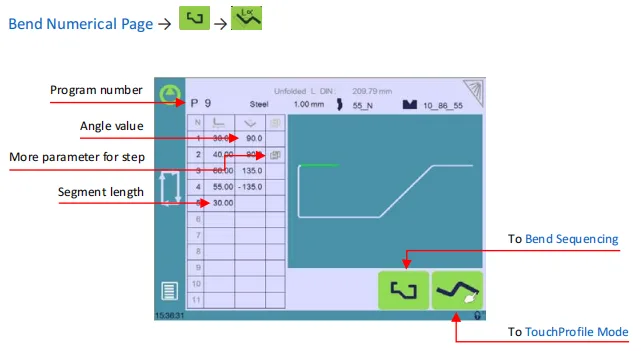
Select the program number, create a برنامج جديد, and choose رسومية programming. Then press the L-Alpha button to switch to CybTouch 8 L-Alpha Mode.
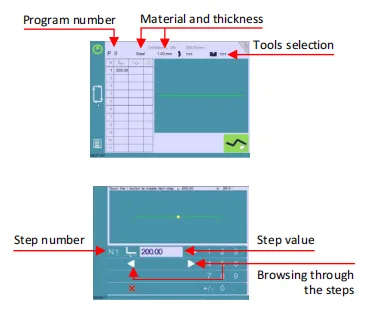
Before entering any profile data, configure the basic program information, including:
- نوع المادة
- سمك المادة
- Punch selection
- Die selection
These settings ensure that the controller uses the correct tooling and bending calculations throughout the programming process.
After the initial setup has been completed, the operator can begin defining each segment of the workpiece.
Entering Segment Lengths and Bend Angles
The workpiece is programmed one segment at a time using the numerical table displayed on the left side of the screen.
For each step, operators enter either a segment length (L) or a bend angle (Alpha) according to the workpiece drawing.
The controller displays the corresponding profile on the right side of the screen, allowing users to verify the programmed geometry while entering data.
Programming typically follows this workflow:
- Select the current step.
- Enter the segment length.
- Enter the bend angle.
- Add the next step.
- Repeat until the complete profile has been defined.
Because every bend is displayed immediately, operators can easily identify programming mistakes before moving to the next stage.
Managing Multiple Programming Steps
Most workpieces contain multiple bends, and CybTouch 8 L-Alpha Mode provides convenient tools for managing each programming step.
Operators can:
- Create a new step.
- Browse through programmed steps.
- Modify an existing step.
- Delete the current step.
- Insert a new step between existing operations.
This flexible editing process allows dimensional changes to be made without recreating the entire program, making the controller particularly efficient for prototype work and design revisions.
Configuring Special Bending Functions
For more advanced bending applications, CybTouch 8 L-Alpha Mode allows additional functions to be assigned to individual bends.
By opening the أكثر menu, operators can configure special bending parameters such as:
- Special punch or die
- Large radius bending
- انحناء الخطوة
- Maximum distance
- عدد خطوات الانحناء
When a large radius is required, the controller can automatically divide the radius into multiple bending operations according to the programmed number of steps.
If a special punch or die is assigned to a bend, the controller indicates that an additional tooling station is required for that operation.
After a special function has been applied, the corresponding bend is marked accordingly, allowing operators to identify programmed special operations easily during program review.
Preparing for Bend Sequencing
Once all segment lengths, bend angles, and optional bending functions have been completed, the profile is ready for the next programming stage.
Before leaving CybTouch 8 L-Alpha Mode, operators should verify that:
- Every segment has been entered correctly.
- Bend angles match the engineering drawing.
- Material and tooling selections are correct.
- Any special bending functions have been configured properly.
After verification, press the تسلسل الانحناء button to generate or edit the bending order before production begins.
Best Practices for Using CybTouch 8 L-Alpha Mode
To improve programming efficiency and reduce setup errors, operators should follow several recommended practices when using CybTouch 8 L-Alpha Mode.
- Enable the L-Alpha page in User Preferences before programming.
- Select the correct material and tooling before entering segment data.
- Review each segment immediately after entering its length and angle.
- Use special bending functions only when required by the workpiece design.
- Verify the graphical profile before proceeding to Bend Sequencing.
- Save the completed program after confirming all dimensions and bending parameters.
Following these recommendations helps ensure accurate programming, minimizes editing time, and improves the overall efficiency of press brake production.
الأسئلة الشائعة
How do I create multiple bends?
After entering the length and angle for the first segment, press the add button to create the next step. Continue entering the required values until the complete workpiece profile has been programmed.
What are the Special Bending Functions?
Through the أكثر menu, operators can assign additional functions to a specific bend, including special tooling, large-radius bending, step bending, maximum distance, and the number of bending steps. These options are intended for more advanced bending applications.
What should I do after completing all segments?
After verifying the segment lengths, bend angles, material settings, and any special bending functions, press the تسلسل الانحناء button to continue configuring the bending order before production.
خاتمة
The CybTouch 8 L-Alpha Mode offers an efficient alternative to graphical programming by allowing operators to define a workpiece using flange lengths and bend angles. As values are entered, the controller automatically generates the corresponding profile, combining the speed of numerical programming with the convenience of graphical verification.
With support for step-by-step editing, multiple programming steps, and advanced functions such as large-radius bending, step bending, and special tooling, CybTouch 8 L-Alpha Mode is well suited for producing accurate programs from engineering drawings while reducing programming time.
Once the profile has been completed and verified, the program can be transferred to Bend Sequencing, where the optimal bending order is determined before production. Mastering CybTouch 8 L-Alpha Mode enables operators to program complex sheet metal parts more efficiently while maintaining reliable bending accuracy and consistent production quality.


