


Laser Cutting Software System Update is essential for maintaining stable machine performance, improving cutting precision, and ensuring compatibility with the latest production features. A proper software update can fix bugs, optimize motion control, enhance nesting efficiency, and improve overall machine safety. In this article, I’ll guide you through the correct process for updating your laser cutting software system safely and efficiently. Whether you’re a machine operator, maintenance engineer, or production manager, following these steps will help you avoid software-related downtime and keep your laser cutting system running smoothly.
Why Laser Cutting Software Updates Are Important
Improve Cutting Performance
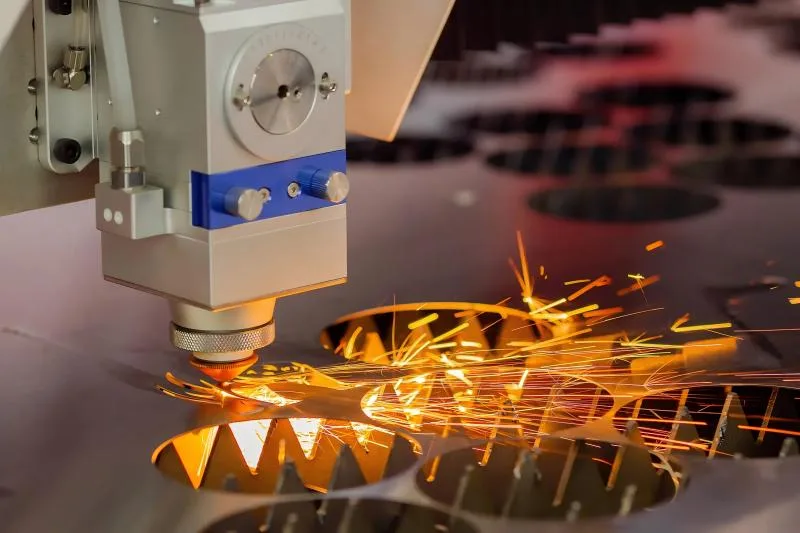
Software updates often optimize motion algorithms, cutting paths, and parameter libraries. This helps improve cutting speed, edge quality, and positioning accuracy.
Fix System Bugs and Errors
Older software versions may contain bugs that cause freezing, communication failures, or unstable cutting performance. Updating the system can resolve these issues.
Enhance Compatibility
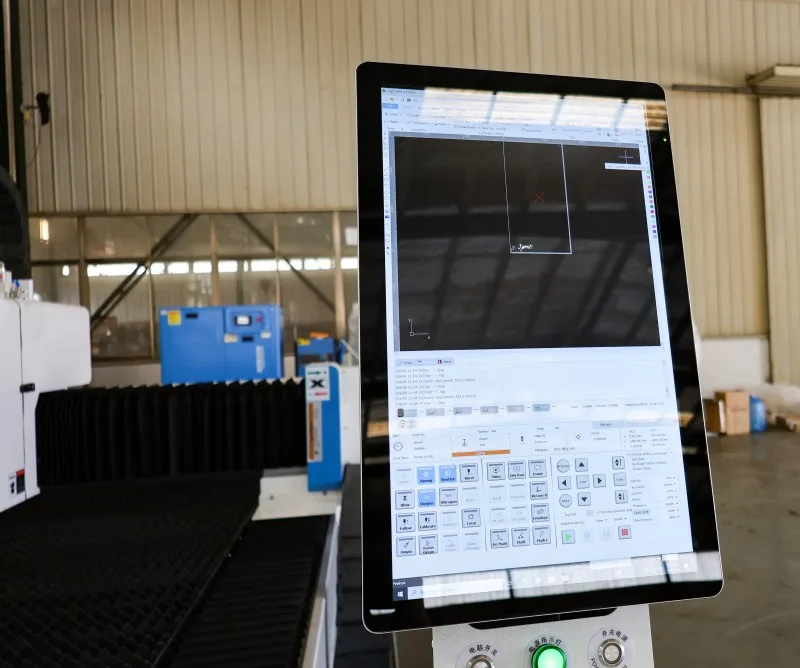
Modern software updates improve compatibility with CAD/CAM programs, controllers, servo systems, and nesting software.
Increase Operational Safety
Manufacturers frequently include safety improvements in software updates, helping prevent machine crashes, axis errors, or parameter conflicts.
Step-by-Step Laser Cutting Software System Update Process
Step 1: Back Up Current System Data
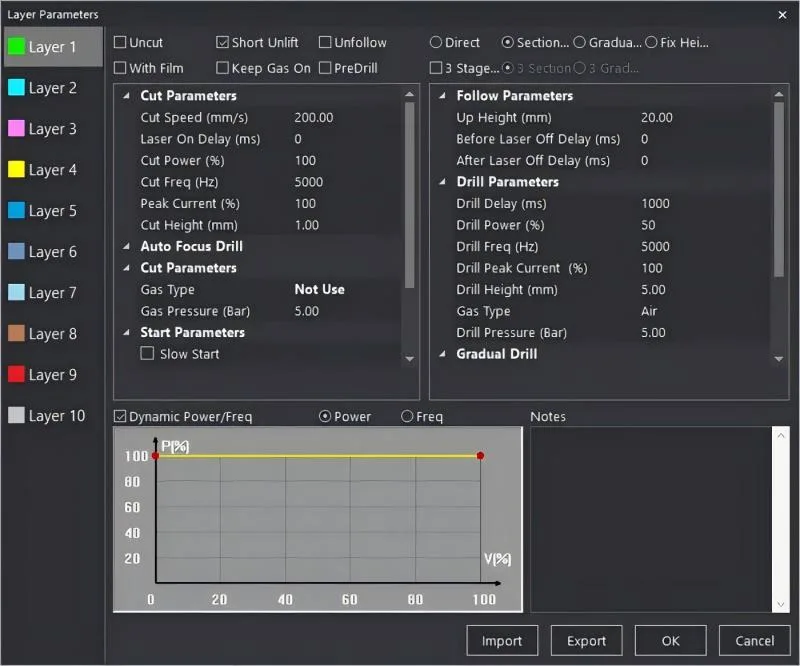
Before starting the update, I always back up all important machine data, including:
- Cutting parameter libraries
- Machine configuration files
- User programs and nesting files
- Servo and axis settings
This ensures the system can be restored if any issue occurs during the update process.
Step 2: Verify the Software Version
Check the current software version installed on the machine controller. Compare it with the latest version provided by the manufacturer or authorized supplier.
Step 3: Download the Correct Update Package
Always download update files from an official source. Using incorrect or modified software can cause compatibility issues or controller failure.
Step 4: Prepare the Update Device
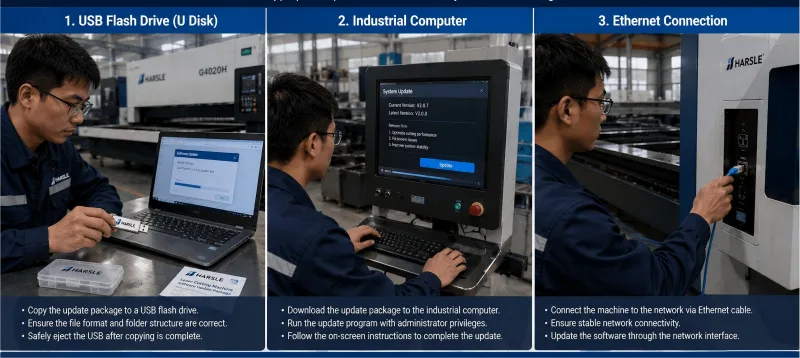
Most laser cutting machines update through:
- USB flash drives
- Industrial computers
- Ethernet connections
Format the storage device properly and ensure it is free from viruses or corrupted files.
Step 5: Stop Machine Operation Safely
Before updating, stop all machine operations and return the laser head to a safe position. Shut down unnecessary programs to avoid interruptions.
Step 6: Install the Software Update
Insert the update device and follow the controller instructions carefully. During installation:
- Do not disconnect power
- Do not remove the USB device
- Avoid restarting the controller manually
Interrupting the update process may damage the control system.
Step 7: Restart and Verify the System
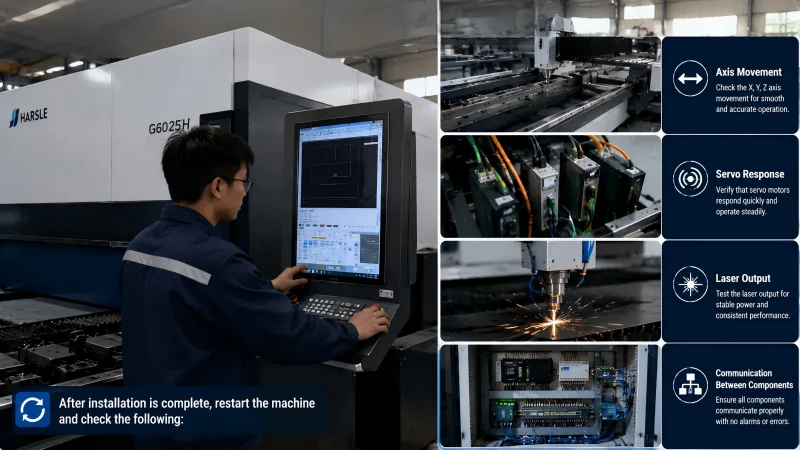
After installation is complete, restart the machine and check:
- Axis movement
- Servo response
- Laser output
- Communication between components
Run a simple cutting test to confirm the update was successful.
Common Problems During Laser Cutting Software Updates
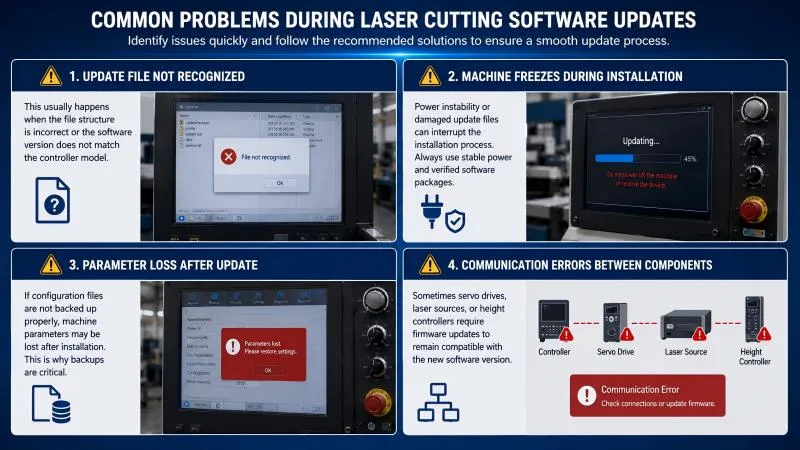
Update File Not Recognized
This usually happens when the file structure is incorrect or the software version does not match the controller model.
Machine Freezes During Installation
Power instability or damaged update files can interrupt the installation process. Always use stable power and verified software packages.
Parameter Loss After Update
If configuration files are not backed up properly, machine parameters may be lost after installation. This is why backups are critical.
Communication Errors Between Components
Sometimes servo drives, laser sources, or height controllers require firmware updates to remain compatible with the new software version.
Best Practices for Laser Cutting Software Maintenance
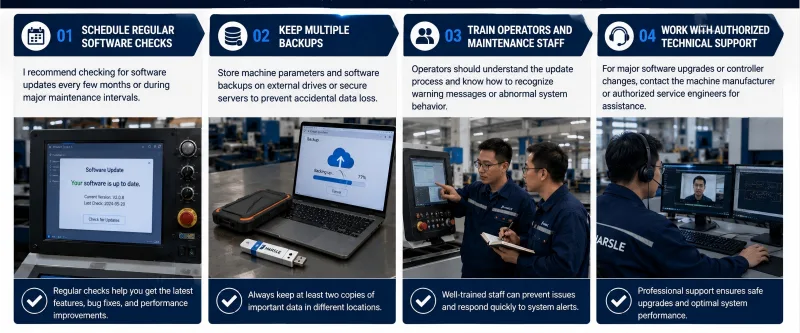
Schedule Regular Software Checks
I recommend checking for software updates every few months or during major maintenance intervals.
Keep Multiple Backups
Store machine parameters and software backups on external drives or secure servers to prevent accidental data loss.
Train Operators and Maintenance Staff
Operators should understand the update process and know how to recognize warning messages or abnormal system behavior.
Work With Authorized Technical Support
For major software upgrades or controller changes, contact the machine manufacturer or authorized service engineers for assistance.
FAQs
How often should I perform a Laser Cutting Software System Update?
I recommend updating the system when official improvements, bug fixes, or compatibility updates are released by the manufacturer.
Can software updates improve cutting quality?
Yes, updates often optimize motion control, cutting algorithms, and parameter databases, which can improve cutting accuracy and efficiency.
Is it risky to update laser cutting software?
The process is generally safe if you back up system data, use official software packages, and follow the correct installation procedure.
Conclusion
A proper Laser Cutting Software System Update is essential for maintaining reliable machine performance, improving cutting quality, and preventing unexpected software-related issues. By backing up data, verifying software compatibility, following the correct installation process, and testing the machine afterward, you can safely update your laser cutting system without unnecessary risks.
Regular software maintenance helps maximize machine efficiency, reduce downtime, and extend the lifespan of your laser cutting equipment. If you need professional technical support or assistance with software updates, feel free to contact our team for expert guidance.


