


CybTouch 8 Navigation is the foundation of efficient and accurate operation on a CybTouch 8 press brake controller. By understanding how to navigate the interface, access different pages, and use key functions such as the Menu Button and Status Page, operators can complete programming and machine setup more quickly. If you are new to the CybTouch 8 controller or want to improve your daily workflow, this guide will introduce the essential navigation features step by step. I will explain the screen layout, touchscreen operation, navigation shortcuts, and basic interface functions so that you can master CybTouch 8 Navigation confidently and work more efficiently with your press brake.
Getting Started with CybTouch 8 Navigation
Before operating the controller, it is important to understand the basic principles of CybTouch 8 Navigation. The CybTouch 8 interface is designed around a touchscreen system, allowing operators to access programming functions, machine settings, and production pages through simple touch gestures.
Proper navigation not only improves working efficiency but also reduces programming errors and shortens machine setup time.
When using the controller for the first time, familiarize yourself with the screen layout and avoid pressing the display with excessive force or sharp objects.
Understanding the CybTouch 8 Touchscreen
CybTouch 8 Navigation relies entirely on touchscreen interaction. Unlike conventional keyboards, all functions are accessed directly from the display.
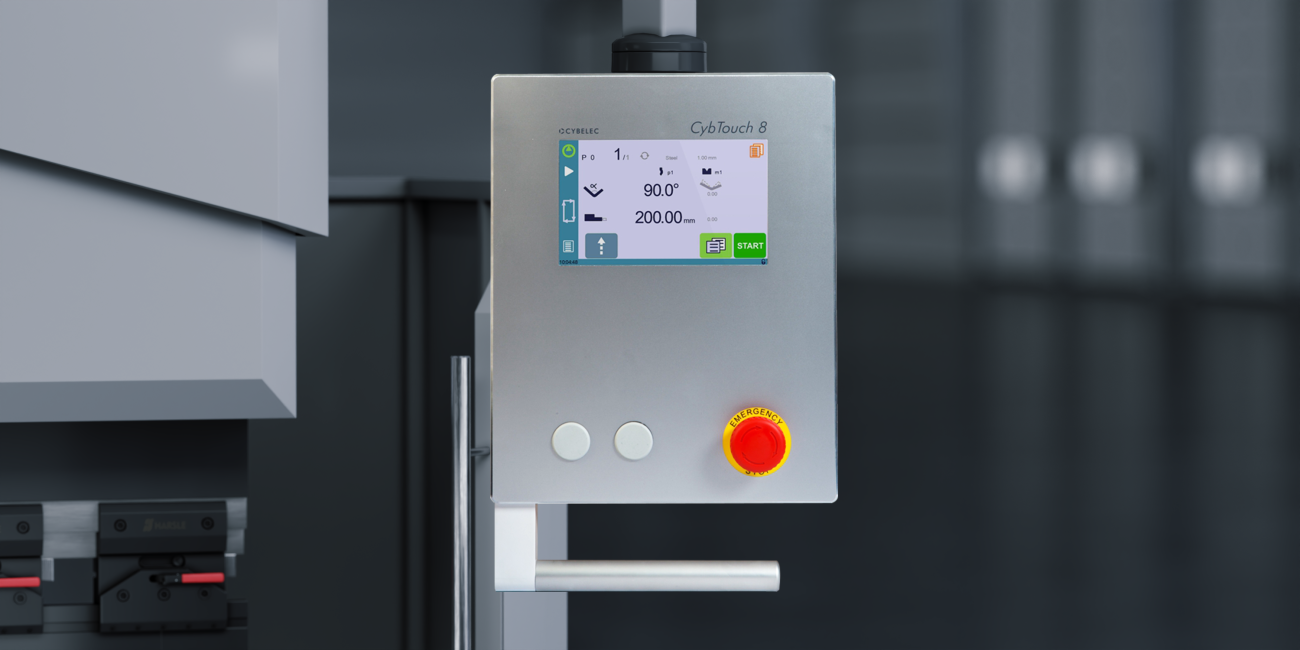
How to Operate the Touchscreen Correctly
The touchscreen should only be operated with clean fingers. Avoid using screwdrivers, pens, metal tools, or any sharp objects that may scratch or permanently damage the display surface.
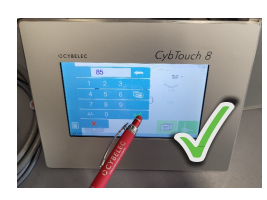
Light finger pressure is sufficient for normal operation. Excessive force does not improve responsiveness and may reduce the lifespan of the touchscreen.
Keeping the Screen Clean
Dust, oil, and metal particles may affect touchscreen sensitivity.
To clean the display safely:
- Turn off the controller if possible.
- Use a soft microfiber cloth.
- Remove fingerprints and dust gently.
- Do not use abrasive materials.
- Avoid spraying liquid directly onto the screen.
Proper cleaning helps maintain reliable touch performance during daily production.
Understanding the CybTouch 8 Screen Map
One of the most important aspects of CybTouch 8 Navigation is understanding the overall screen structure.
The interface consists of several dedicated functional areas that allow operators to move between programming pages and machine settings efficiently.
The main navigation layout includes:
- Page title area
- Main working page
- Menu button
- Status page zone
- Navigation icons
- Interactive function buttons
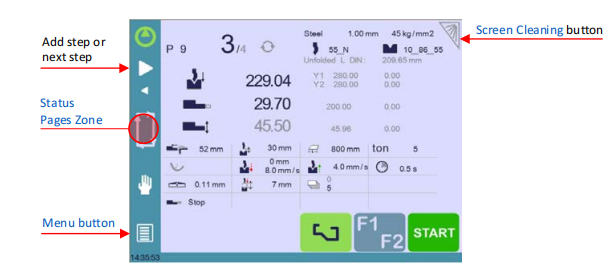
Learning the purpose of each area makes daily operation much faster and more intuitive.
How to Use the Menu Button in CybTouch 8 Navigation
The Menu Button provides quick access to additional commands and configuration options related to the current page.
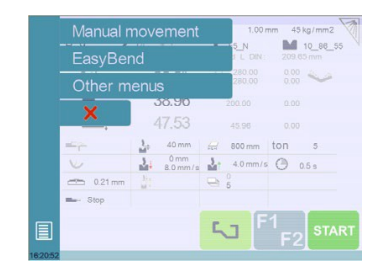
Accessing Page Functions
Whenever the Menu Button appears on the screen, touch it to display the available actions for that specific page.
Depending on the operating mode, the menu may include functions such as:
- Create
- Copiar
- Rebautizar
- Borrar
- Ahorrar
- Importar
- Exportar
- Ajustes
The available options change automatically according to the current interface.
Returning to the Previous Screen
After completing an operation, simply close the menu or select another page to continue working.
This contextual design reduces unnecessary navigation steps and improves operator efficiency.
Understanding the Status Page Zone
The Status Page Zone provides continuous access to important machine information while navigating through different functions.
It serves as a shortcut for monitoring controller status without interrupting the current workflow.
Opening the Status Page
Touch the Status Page Zone to display the detailed machine status screen.
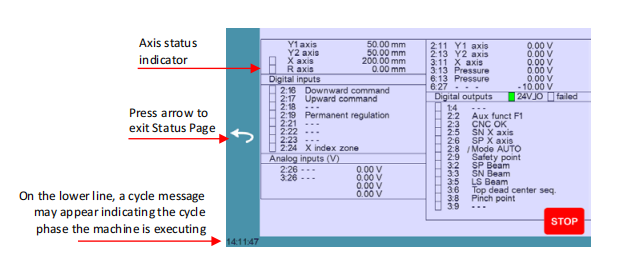
The controller will provide information about active machine conditions and operating states, allowing operators to verify whether the system is functioning normally.
This feature is particularly useful during machine startup and troubleshooting procedures.
General Navigation Principles in CybTouch 8
The CybTouch 8 interface has been designed to minimize operator actions while maintaining clear access to all major functions.
Navigating Between Pages
Most pages can be opened by simply touching their corresponding icons.
The touchscreen responds immediately to valid selections, allowing operators to switch quickly between programming, production, and configuration pages.
Using Interactive Buttons
Interactive buttons are displayed throughout the interface for executing commands.
Depending on the current page, these buttons may:
- Open configuration windows
- Confirm parameter changes
- Start operations
- Cancel actions
- Display additional information
Operators should verify the selected function before confirming any operation.
Touchscreen Best Practices for Daily Operation
Correct touchscreen usage improves both productivity and equipment reliability.
To maintain optimal CybTouch 8 Navigation performance:
- Keep fingers clean before touching the display.
- Avoid using gloves that reduce touch sensitivity unless specifically supported.
- Never strike or press the screen with hard objects.
- Keep the controller free from excessive dust and oil contamination.
- Clean the display regularly using approved methods.
Following these recommendations helps preserve touchscreen accuracy and extends controller service life.
Why Efficient CybTouch 8 Navigation Matters
Efficient CybTouch 8 Navigation allows operators to complete programming tasks faster while reducing the likelihood of operational errors. Understanding the screen map, using the Menu Button correctly, and becoming familiar with the Status Page Zone all contribute to a smoother production workflow.
For both new and experienced users, investing time in learning the controller layout can significantly improve programming speed, simplify machine operation, and increase overall productivity during press brake manufacturing.
Preguntas frecuentes (FAQ)
How do I navigate between different pages on CybTouch 8?
Simply touch the corresponding icon or function button on the screen. The controller is designed with an intuitive touchscreen interface, allowing users to switch quickly between programming, configuration, and status pages.
Can I use a pen or metal object on the CybTouch 8 touchscreen?
No. The touchscreen should only be operated with clean fingers. Using pens, screwdrivers, or other sharp objects may scratch or permanently damage the display surface.
Does CybTouch 8 Navigation support touchscreen-only operation?
Yes. CybTouch 8 is primarily designed as a touchscreen controller, allowing users to perform programming and navigation tasks directly through the display without requiring an external keyboard or mouse.
Conclusión
Mastering CybTouch 8 Navigation is the first step toward efficient and reliable operation of a CybTouch 8 press brake controller. By understanding the touchscreen interface, screen layout, Menu Button, and Status Page Zone, operators can access key functions quickly and perform programming tasks with greater confidence.
In addition, following proper touchscreen handling and cleaning practices helps maintain long-term controller performance and ensures responsive operation during daily production. Becoming familiar with the navigation structure also reduces setup time and minimizes the risk of user errors.
If you need further assistance with CybTouch 8 Navigation or other controller functions, feel free to contact the HARSLE technical support team. You can also explore additional HARSLE documentation and tutorials to learn more about CybTouch programming, machine configuration, and advanced press brake operation.


