


ESA S929 Programs List is the central location where operators can create, organize, edit, copy, search, and manage bending programs within the controller. Proper program management helps reduce setup time, improve production efficiency, and ensure that frequently used jobs can be accessed quickly when needed. If you want to learn how to manage programs more effectively on the ESA S929 controller, this guide will walk you through the most important functions available in the ESA S929 Programs List, including program creation, modification, duplication, deletion, and data organization. Whether you are handling a small number of jobs or managing a large production library, these practical steps will help streamline your daily programming workflow.
Accessing the ESA S929 Programs List
The ESA S929 Programs List is the main area where operators can view, organize, and manage all bending programs stored in the controller. Proper program management helps reduce setup time, improve production efficiency, and ensure that frequently used jobs are easy to locate.
Per aprire il ESA S929 Programs List, enter the Editor page and press the Programs List icon.

A window will appear showing all available programs stored in the controller.
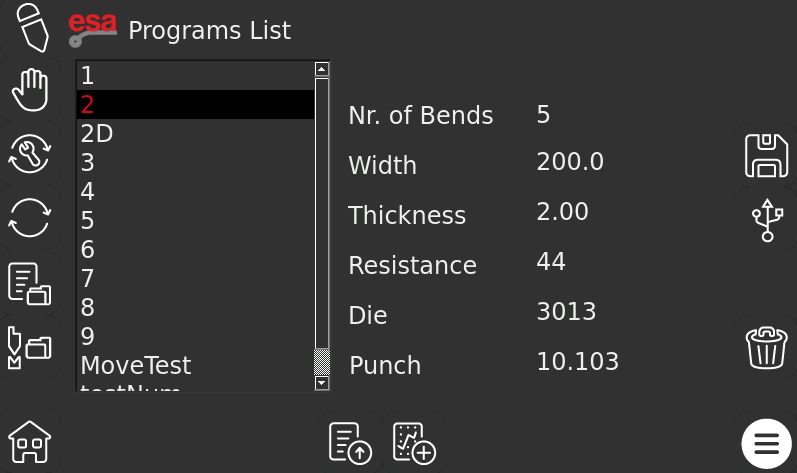
The left side of the screen displays the complete program list, while the center area shows important information about the selected program, including:
- Numero di curve
- Material width
- Spessore del materiale
- Resistenza del materiale
- Assigned die
- Assigned punch
This overview allows operators to quickly verify program information before starting production.
How to Browse Programs in ESA S929 Programs List
When multiple programs are stored in the controller, you can scroll through the list using the touchscreen scroll bar.
Selecting a program automatically displays its parameters, allowing operators to review job details without opening the entire program. This makes it easier to identify the correct bending program, especially in environments where many similar parts are produced.
How to Copy Programs in ESA S929 Programs List
Copying a program is one of the most useful functions when creating similar bending jobs.
Step 1: Select the Source Program
Choose the program you want to duplicate from the ESA S929 Programs List.
Step 2: Open the Program Menu
Press the Menu button to access additional program management functions.

Step 3: Create the Copy
Select the “Copy” function. A keyboard window will appear, prompting you to enter a new program name.

Step 4: Save the New Program
Enter the desired name and confirm the operation. The controller will create a new program while preserving the original version.
This method significantly reduces programming time when only minor modifications are required.
How to Rename Programs in ESA S929 Programs List
As production libraries grow, clear program naming becomes increasingly important.
Selecting the Program to Rename
Locate and select the target program from the ESA S929 Programs List.
Using the Rename Function
Open the Menu and choose the “Rename” option.

Assigning a New Program Name
Enter the updated name using the touchscreen keyboard and confirm the change.
A consistent naming convention helps operators find programs faster and reduces the risk of loading the wrong job.
How to Save Individual Programs to USB
Saving individual programs is useful when transferring jobs between machines or creating backups of important projects.
Step 1: Select the Program
Choose the program you want to export.
Step 2: Save the Program
Press the Save icon. The selected program will be copied to the connected USB storage device.

This function allows operators to archive important jobs and transfer them to other compatible ESA controllers.
How to Delete Programs from ESA S929 Programs List
Over time, outdated or unused programs may accumulate in the controller database.
Selecting the Program
Choose the program that needs to be removed.
Deleting the Program
Press the Delete icon and confirm the operation by selecting “Yes.”

The program will be permanently removed from the ESA S929 Programs List.
Before deleting any program, it is recommended to create a backup to avoid accidental data loss.
How to Save All Programs to a USB Drive
Creating a complete backup of all programs is highly recommended before performing maintenance, software updates, or controller replacement.
Step 1: Insert a USB Device
Connect a formatted USB drive with sufficient storage capacity.
Step 2: Open the Program Menu
Press the Menu button to access advanced program management functions.
Step 3: Export All Programs
Select “Save Programs.”

The ESA S929 controller will save all stored programs to the USB drive, creating a complete backup of the production library.
How to Delete All Programs from the Controller
In some situations, operators may need to clear the entire program database.
Opening the Menu
From the ESA S929 Programs List, press the Menu button.
Selecting Delete Programs
Choose the “Delete Programs” function.

Confirming Deletion
The controller will request confirmation before deleting each stored program.
This function should be used carefully because deleted programs cannot be recovered unless a backup exists.
How to View Programs Stored on a USB Drive
The ESA S929 controller allows users to browse programs directly from a USB storage device.
Connecting the USB Device
Insert the USB drive containing saved program files.
Opening the USB Program List
Press the USB icon.

The controller will display all programs available on the USB device.
From this list, operators can perform several actions, including:
- Viewing programs
- Copying programs
- Renaming programs
- Deleting programs
This feature simplifies data exchange between controllers and production facilities.
How to Import Programs from USB to ESA S929
Importing programs allows users to restore backups or transfer jobs from another controller.
Importing a Single Program
Select the desired program from the USB program list and press the import function.
The selected program will be copied from the USB device into the controller memory.
Importing All Programs
To import the complete program library, open the Menu and select “Save Programs”.

The ESA S929 controller will automatically transfer all available programs from the USB drive into the CNC system.
This function is particularly useful when setting up a new controller or restoring production data after maintenance.
How to Update Programs After Tool Modifications
Program updates are required whenever tooling data changes.
If a punch or die already used inside a program is modified, the program calculations must be updated to maintain accuracy.
Step 1: Load the Program
Open the program that requires updating.
Step 2: Access the Program Update Function
Press the Menu button and select “Program Update.”

Step 3: Recalculate Program Data
The ESA S929 controller will automatically recalculate all relevant bending parameters based on the updated tooling information.
Step 4: Save the Updated Program
After the recalculation is complete, save the program to preserve the new settings.
Updating programs after tooling modifications helps maintain bending accuracy and prevents inconsistencies during production.
Best Practices for Managing ESA S929 Programs List
Efficient management of the ESA S929 Programs List can significantly improve production workflow. Operators should use clear naming conventions, organize programs logically, perform regular USB backups, and remove outdated files when necessary.
By maintaining a clean and well-structured program database, users can locate jobs faster, reduce programming mistakes, and ensure reliable production performance across all bending operations.
Domande frequenti (FAQ)
How do I save a program from ESA S929 Programs List to a USB drive?
Select the program you want to export and press the Save icon. The ESA S929 controller will store the selected program on the connected USB device for backup or transfer purposes.
Can the ESA S929 Programs List display program details before loading a program?
Yes. When a program is selected, the controller displays information such as the number of bends, material thickness, material width, material resistance, punch, and die. This allows operators to verify job details before production begins.
Conclusione
Effective management of the ESA S929 Programs List is essential for maintaining an organized production environment and improving press brake efficiency. By understanding how to create, copy, rename, save, delete, import, export, and update programs, operators can reduce setup times, protect valuable production data, and streamline daily operations.
Regularly backing up programs to a USB drive and keeping the program library well organized can help prevent data loss and ensure quick access to frequently used jobs. In addition, updating programs after tooling modifications helps maintain accurate bending calculations and consistent production quality.
If you need further assistance with the ESA S929 Programs List, controller programming, or press brake operation, feel free to contact the HARSLE technical support team. You can also explore additional HARSLE documentation for more advanced programming, tooling, and machine management tutorials.


