


Effective ESA S650 program management starts with a clean and well-organized program list. When your ESA S650 control fills up with dozens or even hundreds of bending programs, finding the right one can become a daily challenge. In this guide, I’ll show you how to navigate the program list, rename, copy, delete, and sort programs so you can quickly locate any job. Whether you need to archive old programs or group new ones by customer or material, these simple organization techniques will save you time and reduce errors on the shop floor.
Understanding the ESA S650 Program List Interface
The foundation of effective ESA S650 program management is knowing how to use the program list window. This is where all your stored programs appear, and you can scroll through them using the scroll bar. The function keys at the bottom of the screen give you direct access to the most important management actions.
Key Function Buttons for Program Management
The following buttons are available on the program list screen:
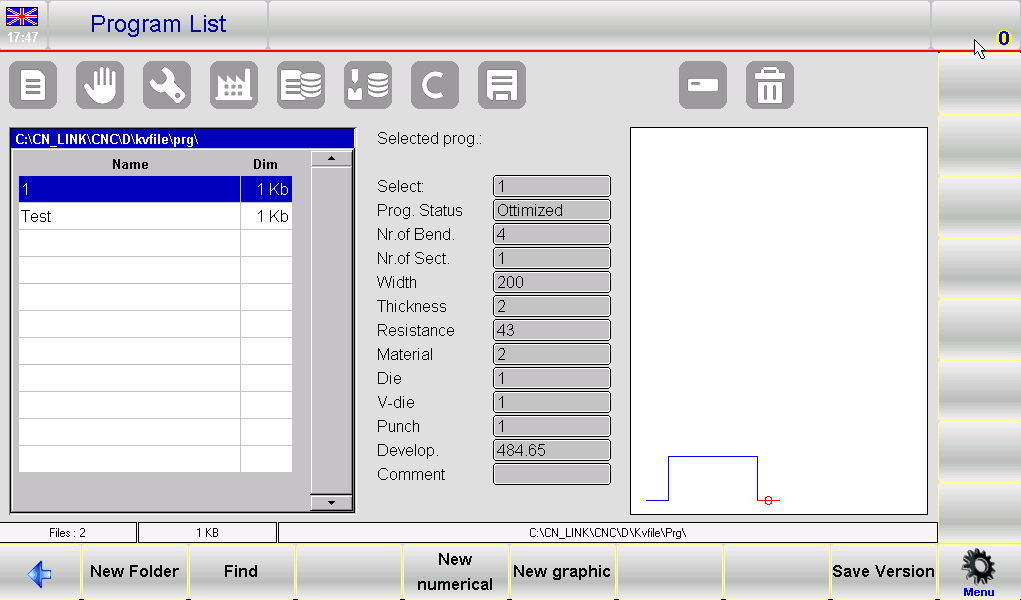
- [Новая папка] – Creates a new folder where you can save and organize related programs.
- [Найти]. – Searches for a specific program by name within the list window.
- [Новый числовой результат] – Starts a new numeric program entry.
- [Новая графика] – Starts a new graphic program entry (optional on some models).
- [Сохранить версию] – Saves the program in a previous version format for compatibility.
Mastering these buttons is the first step toward efficient ESA S650 program management.
Enabling or Disabling the Program Preview
If you work with graphic programs, the preview window helps you identify a program without opening it. The preview is normally enabled, but you can disable it if you prefer a cleaner interface:
- Нажмите кнопку Меню кнопка для открытия меню.
- Выберите товар 4>> Предварительный просмотр.
- The preview window will be disabled. Repeat the steps above to re-enable it.
This small adjustment can make your ESA S650 program management faster when you don’t need visual previews.
Basic Program Operations for Organizing Your List
A clean program list is the heart of good ESA S650 program management. Here are the essential operations you’ll use most often.
Как скопировать программу
Copying a program allows you to create a duplicate under a new name. This is useful when you want to use an existing program as a template for a similar job. To copy a program:
- Move onto the program you wish to copy by selecting it with your finger.
- Нажмите кнопку Меню кнопка для открытия меню.
- Выберите товар 0>> Копировать.
- A window will open where you enter the new program name. Tap the field, type the name, then move to the [Ok] кнопка.
The copied program will appear in the list, ready for editing.
Как переименовать программу
Renaming helps you keep program names descriptive and consistent. To rename a program:
- Select the program with your finger.
- Нажмите кнопку Меню кнопка.
- Выбирать 1>> Переименовать.
- Enter the new name in the window and press [Ok].
For example, you might rename “PROG1” to “Bracket_90deg_2mm_SS”. Clear names are a cornerstone of effective ESA S650 program management.
How to Delete a Program
When a program is no longer needed, remove it to reduce clutter:
- Select the program you want to delete.
- Нажмите кнопку Удалить button (usually a trash icon or labeled button).
- Нажмите [Да] to confirm. The selected program will be deleted immediately.
Be careful – there is no undo for deletion. Regular cleanup keeps your ESA S650 program management efficient.
Backing Up and Restoring Programs with USB
Protecting your programs against machine failure is a critical part of ESA S650 program management. The system offers several USB-based backup and restore options.
Saving a Single Program to USB
To back up one program to an external USB device:
- Select the program you wish to save.
- Нажмите кнопку Save to USB button (labeled as Кнопка in the interface).
- The selected program will be saved to the USB device.
This is useful for transferring a specific job to another ESA control or for creating a quick backup of a recently modified program.
Saving All Programs to USB
For a complete backup of your entire program library:
- Insert a FAT32-formatted USB device with enough free space into the USB port.
- Нажмите кнопку Меню кнопка для открытия меню.
- Выберите товар 2>> Save programs.
- All programs will be saved to the USB device.
Perform this full backup regularly as part of your ESA S650 program management routine.
Deleting All Programs
Use this option with extreme caution. It erases every program from the internal memory:
- Нажмите кнопку Меню кнопка.
- Выбирать 3>> Delete programs.
- При появлении соответствующего запроса подтвердите удаление.
Only do this if you have a valid USB backup or you are resetting the machine for a new operator.
Viewing the Program List on a USB Device
You can browse programs stored on a USB drive just like the internal list:
- Insert the USB device containing programs into the USB port.
- Нажмите кнопку USB List кнопка.
- The programs list on the USB device will be displayed. From here, you can copy, rename, or delete programs on the USB drive.
Restoring a Single Program from USB to NC
To recover one program from a USB backup:
- Insert the USB device.
- Нажмите кнопку USB List button to see the programs on the USB.
- Select the program you wish to restore with your finger.
- Нажмите кнопку Save to NC button. The program will be copied from the USB device to the internal NC memory.
Restoring All Programs from USB to NC
To restore your entire program library from a USB backup:
- Insert the USB device containing the programs.
- Нажмите кнопку USB List button – the program list on the USB will be displayed.
- Нажмите кнопку Меню button and select 2>> Save programs.
- All programs will be saved from the USB device to the NC, overwriting any existing programs with the same names.
This full restore is invaluable after a system failure or when migrating to a new ESA S650 control.
Advanced ESA S650 Program Management – Changing the Work Unit
The ESA S650 allows you to change the work drive, which is useful when you have multiple storage locations (hard disk, network disks). To change the work unit:
- From the program list, press the Меню кнопка.
- Нажмите 5>> Change work drive.
- A list of available drives will appear.
- Select the desired drive with your finger.
- Нажмите [Подтверждать] to apply the change.
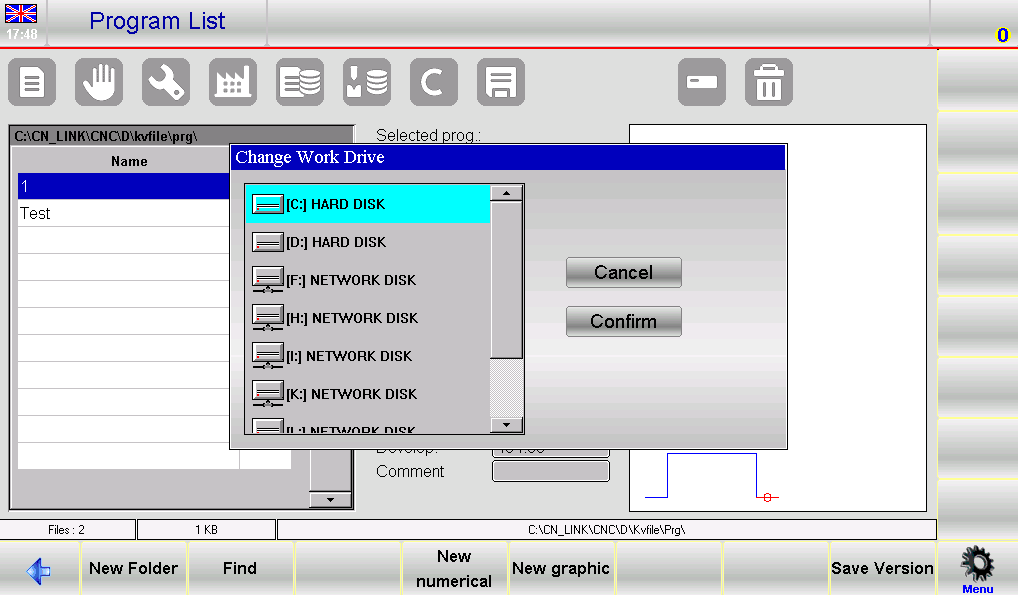
This feature is especially helpful when you have programs stored on network drives or multiple hard disks, allowing you to manage programs across different locations without re‑entering data.
Часто задаваемые вопросы (FAQ)
How many programs can I store on the ESA S650?
The maximum number depends on the internal memory size and program complexity. In practice, you can store hundreds of programs. Using folders and regular cleanup helps maintain performance.
Can I create folders to organize my programs?
Yes. Use the [Новая папка] button on the program list screen. You can name folders by customer, material, or part type. This is a key technique for effective ESA S650 program management.
Заключение
Organizing your ESA S650 program management doesn’t have to be a chore. By mastering the program list interface – using folders, copying and renaming programs, performing regular USB backups, and knowing how to restore data when needed – you can keep your machine running smoothly and reduce downtime. The ability to change work units and browse USB program lists gives you flexibility across multiple storage locations.
Now that you know how to organize ESA S650 program management, take 15 minutes today to clean up your program list. Delete obsolete files, rename unclear programs, and create a full USB backup. For more advanced topics like numeric program entry or graphic programming, check out our other guides in the ESA S650 series. If you have any questions, our technical support team is always ready to help.


