


ESA S840 tool management is a critical skill that every press brake operator needs to master for efficient and organized production. If you’ve ever struggled with copying, deleting, renaming, backing up, or restoring tools on your HARSLE press brake, you’re in the right place. In this article, I’ll show you how to quickly master every aspect of ESA S840 tool management, including editing your tool library, creating secure backups, and restoring tools when needed. Whether you’re setting up a new tool for the first time or recovering your tool data after a system issue, this guide will help you handle all tool management tasks with speed and confidence.
Understanding ESA S840 Tool Management Essentials
ESA S840 tool management gives you complete control over your tooling library, allowing you to edit, backup, and restore tools with ease. Whether you need to remove outdated tools, duplicate existing ones for similar jobs, or rename tools for better organization, mastering these functions will save you time and keep your tool library accurate. Additionally, backing up and restoring tools ensures your valuable tooling data is never lost, even after system issues or machine upgrades.
In this section of ESA S840 tool management, we’ll cover everything from basic editing operations to full library backup and recovery.
How to Edit Your Tool Library in ESA S840
The editing functions within ESA S840 tool management allow you to delete, copy, and rename tools as needed. These operations help you maintain a clean, organized, and efficient tool library.
How to Delete a Tool
Removing obsolete or incorrect tools from your library is straightforward in ESA S840 tool management. To delete a tool:
- From the tool list, click Выбирать on the tool you wish to remove
- Щелкните Удалить
- Confirm the deletion when prompted
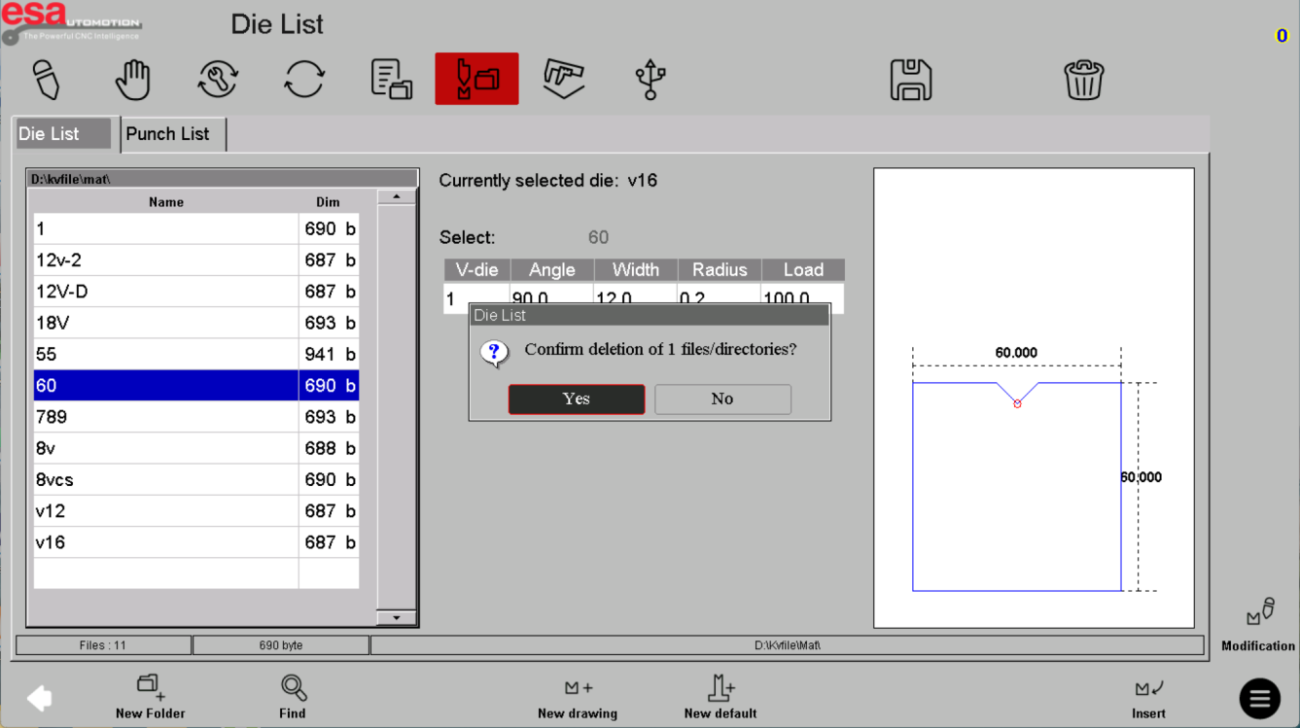
This action permanently removes the tool from your list, so be certain you no longer need it before confirming.
How to Copy a Tool
Copying a tool is useful when you need to create a variation of an existing tool rather than building one from scratch. Within ESA S840 tool management, follow these steps:
- Select the tool you want to copy from the tool list
- Нажмите на кнопка меню in the bottom right corner of the interface
- Выбирать Копировать из меню
- Enter the name for the new tool that needs to be saved
- Complete the copy operation
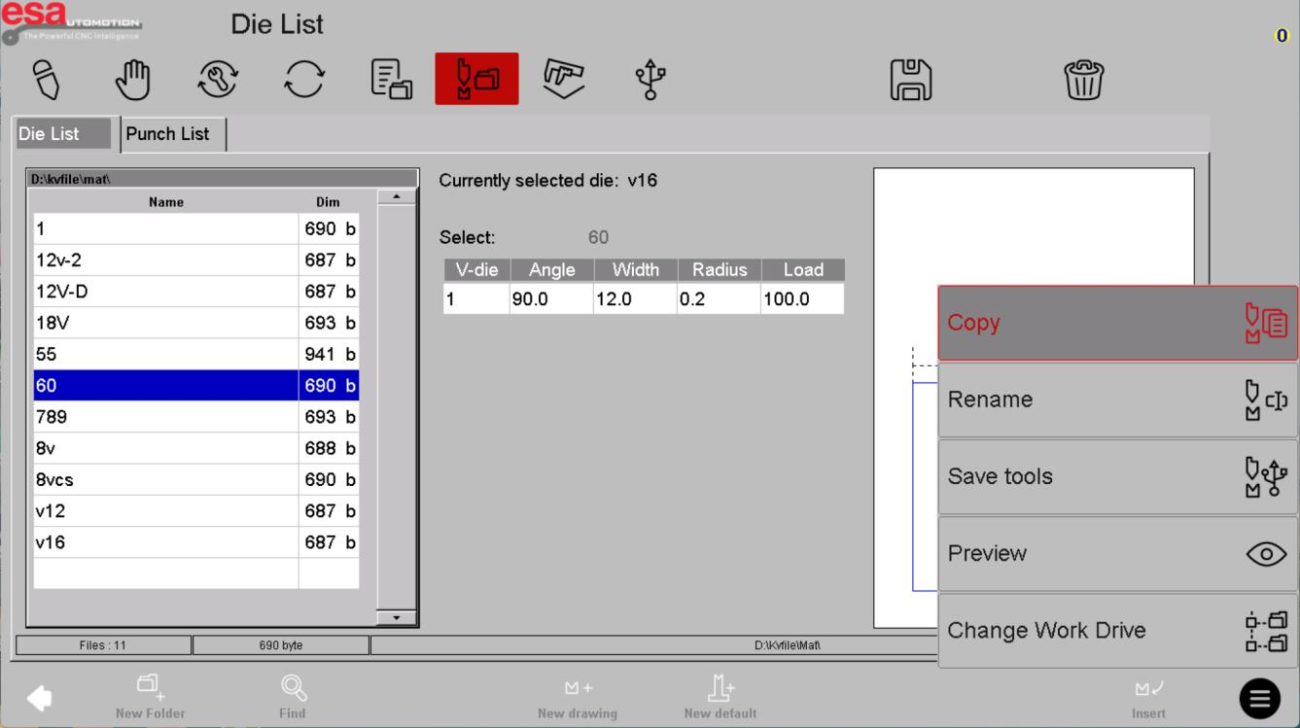
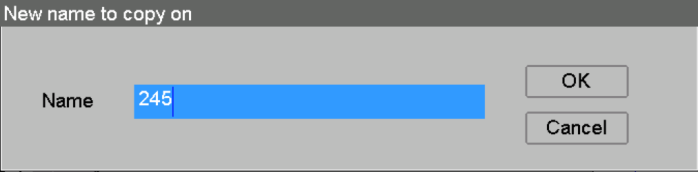
The copied tool will appear in your tool list with the new name, and you can then modify its parameters as needed.
How to Rename a Tool
Renaming a tool within ESA S840 tool management allows you to give a tool a new, more descriptive name for better organization. This simple step can greatly improve your workflow:
- Select the tool you wish to rename from the tool list
- Нажмите на кнопка меню in the bottom right corner of the interface
- Выбирать Переименовать from the list
- Enter the new name for the tool
- Confirm to save the change
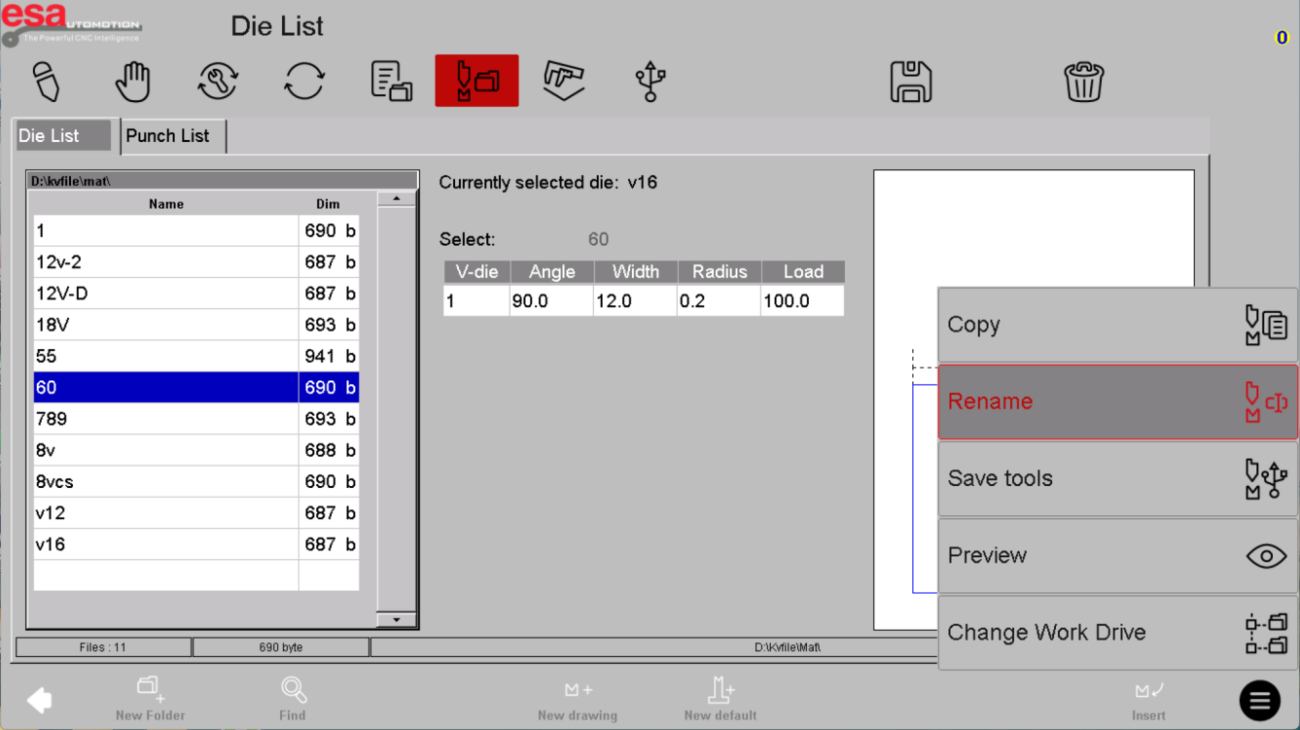

Using clear, consistent naming conventions when renaming tools makes future selection faster and reduces errors.
How to Backup Tools in ESA S840 Tool Management
Backing up your tool data is a critical part of ESA S840 tool management. Regular backups protect against data loss and allow you to transfer tools between machines or restore after system maintenance.
Backing Up a Single Tool
To backup an individual tool from the upper tool list or die list to external storage:
- Navigate to the tool list (either Punch list or Die list)
- Select the specific tool you wish to back up
- Нажмите на save button
The selected tool will be saved to your external storage device (such as a USB drive), preserving all its parameters for future restoration.
Backing Up All Tools
If you need to save every tool in your tool library to external storage, ESA S840 tool management provides a simple method:
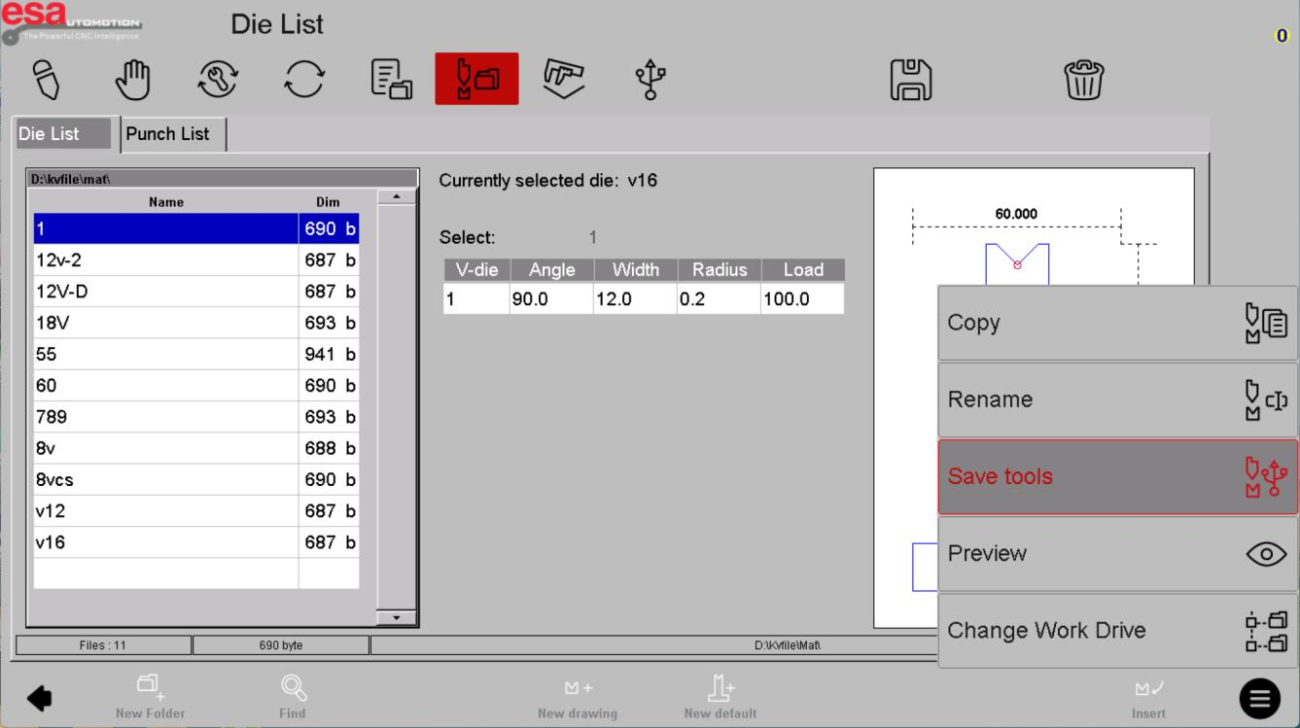
- Нажмите на кнопка меню in the bottom right corner of the interface
- Выбирать Save Tool from the list
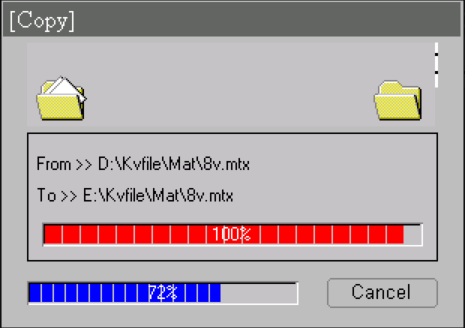
At this point, all tools in the current list (all punches and dies) will be saved to external storage. This is the most efficient way to create a complete backup of your entire tooling library, ensuring you never lose valuable tool definitions.
How to Restore Tools in ESA S840 Tool Management
Restoring tools from external storage is just as important as backing them up. Whether you need to recover a single tool or rebuild your entire library, ESA S840 tool management makes the process simple.
Restoring a Single Tool
To restore a single tool from external storage back to your tool list:
- Нажмите на External Storage to access the external device
- The list path will display as External Storage Path, Die Path, и Punch Path
- Navigate to the appropriate path (Die or Punch) and select the tool you need
- Нажмите на save button to restore the tool to your active tool list
The restored tool will appear in your tool library with all its original specifications intact.
Restoring All Tools
If you need to restore every tool from external storage to your tool list—for example, after a system reset or when setting up a new machine—follow these steps within ESA S840 tool management:
- Нажмите на External Storage to access the external device
- The list path will display as External Storage Path, Die Path, и Punch Path
- Нажмите на кнопка меню in the bottom right corner of the interface
- Выбирать Save Tool from the list

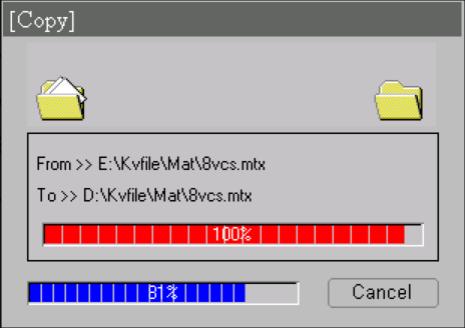
At this point, all tools stored in the external memory will be restored to your active tool list. This is a powerful feature for quickly rebuilding your tool library after maintenance or when moving to a new control unit.
Tips for Mastering ESA S840 Tool Management
Based on experience with ESA S840 tool management on HARSLE press brakes, here are some practical recommendations:
Back up regularly. Make it a habit to back up your entire tool library after adding or modifying any tool. This ensures you always have a recent recovery point.
Use clear naming conventions. When copying or renaming tools within ESA S840 tool management, use descriptive names that include key specifications like angle or V-opening. This makes future selection much faster.
Verify before deleting. Always double-check that you no longer need a tool before confirming deletion. Once deleted, a tool can only be recovered from an external backup.
Keep external storage organized. Use dedicated USB drives for tool backups and label them clearly. This prevents confusion and ensures you always know where your backup data resides.
Test your backups. Periodically restore a tool from external storage to verify that your backup process is working correctly. This gives you confidence that your ESA S840 tool management practices are truly protecting your data.
Часто задаваемые вопросы (FAQ)
What is the difference between backing up a single tool and all tools?
Within ESA S840 tool management, backing up a single tool allows you to save an individual punch or die to external storage by selecting it and clicking the save button. Backing up all tools saves your entire tool library at once by clicking the menu button and selecting Save Tool. Full backups are recommended for comprehensive data protection.
What happens if I delete a tool without having a backup?
If you delete a tool without having a backup through ESA S840 tool management, the tool cannot be recovered. This is why regular backups are strongly recommended. Always ensure you have a current backup before deleting tools, especially those you use frequently.
Заключение
Mastering ESA S840 tool management is essential for maintaining an organized, accurate, and secure tool library on your HARSLE press brake. By understanding how to delete, copy, and rename tools, you can keep your library clean and efficient. Regular backups—whether single tools or your entire library—protect against data loss, while restore functions allow quick recovery when needed. Remember to back up after adding or modifying tools, use clear naming conventions, and verify your backups periodically to ensure your valuable tooling data is always safe.
For more detailed support on ESA S840 tool management or any other questions about your HARSLE press brake, don’t hesitate to contact our technical support team. We’re here to help you optimize your tool management workflow and get the most from your equipment.


