


If you’re looking to effortlessly navigate the DELEM DA-41T interface, you’re in the right place. The DELEM DA-41T is renowned for its intuitive design and user-friendly features, making it an ideal choice for optimizing press brake operations. In this guide, I’ll walk you through the essential components of the DELEM DA-41T, covering everything from its user interface layout to the key lock and on-screen keyboard. Whether you’re a seasoned professional or new to operating CNC control systems, you’ll find valuable insights here to make the most of your DELEM DA-41T experience.
Introduction

The DELEM DA-41T is a sophisticated CNC control solution designed to optimize the functionality and precision of press brake machines. Its intuitive design and advanced features make it an invaluable tool for operators looking to enhance productivity and maintain high-quality standards in metal forming operations.
Using the Interface Effectively
User Interface Layout
Accessing the DELEM DA-41T controller offers an intuitive experience with its icon-based, user-friendly interface, perfect for torsion bar press brake machines. The 7″ high-resolution TFT Color LCD display with LED backlight provides clear real-time data visibility. Designed for durability, its industrial-grade glass panel with capacitive touch works reliably, even with gloves, optimizing efficiency in sheet metal production. Enjoy seamless operation through swift navigation and accurate control, enhancing productivity.
The user interface of the DA-40T is based on the proven Delem touch interface introduced in the Delem press brake controllers. In the picture below the main layout of the screen is explained. This layout is applicable for all the operating modes for the DA-40T, making the navigation easy and recognizable.
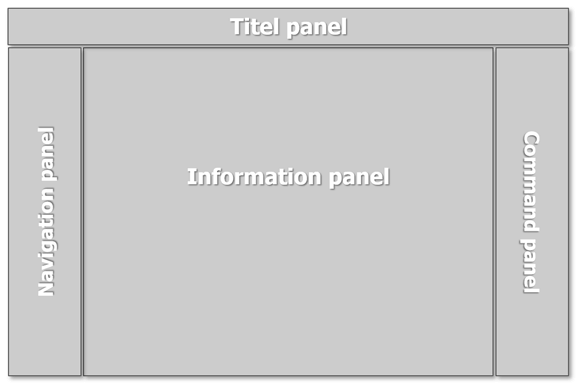
Navigation panel
• Direct access to all main functions
• Logically sorted to work step by step
• Recognizable in every mode
Title panel
• User level indication
• Product information
• Service row info
• Optional machine indicators
Information panel
• Large working area
• Context sensitive keyboard
Command panel
• Functions and soft keys belonging to the specific active function
In order to select a menu item or parameter simply tap the screen once at the position of the icon. If it is necessary to pan (for example in product select menu), keep your finger on screen and move in the desired direction. Pan is available to scroll in horizontal as well as vertical direction.
Exploring Available Menus
The DA-40T has several modes for programming and operation:

Program selection: Select an existing program, or create a new program.

Automatic mode: Execute a program, or program step parameters.

Manual mode: Execute a single program step.
Settings: Several control settings.
Enhancing Security with the Key Lock
For enhanced security and operational integrity, the control system is equipped with a versatile key lock feature to prevent unauthorized programming and access.

This function ensures that only qualified personnel can adjust the control settings, thereby safeguarding the machine and workpieces from unintended alterations and maintaining consistency in production quality.
The key lock can be accessed either via the touch screen interface located in the upper left corner or through an external physical key switch, depending on the machine model. To lock or unlock the controller, users can tap the key lock symbol to open the on-screen keyboard, enter code 42, and press enter. This action toggles the status of the key lock between closed and open.
When the control is unlocked (key lock is open), programming can proceed as described in this manual. However, if locked (key lock closed), several restrictions apply:
- Programs cannot be created, edited, or deleted.
- Tools cannot be created or edited.
Despite these restrictions, the following actions remain possible with the control locked:
- Selecting and executing programs (consisting of one or more steps).
- Changing Y-axis corrections within programs.
- Modifying settings.
- Moving axes in manual movement mode.
- Programming and executing one step in manual mode.
Additionally, entering code 21 instead of code 42 blocks the user interface, preventing unauthorized machine use without powering down. This blocked stage is indicated by an orange-colored key lock symbol.

To release and resume normal operation, tap the key lock symbol, enter code 21, and press enter.
Efficient Data Entry Using the On-Screen Keyboard
The on-screen keyboard on the DELEM DA-41T and DA-40T simplifies data entry during programming and setup, making it a crucial tool for entering precise data and commands that are vital for accurate machine operation. Its responsive design offers an ergonomic typing experience, further supporting efficient and error-free control management.
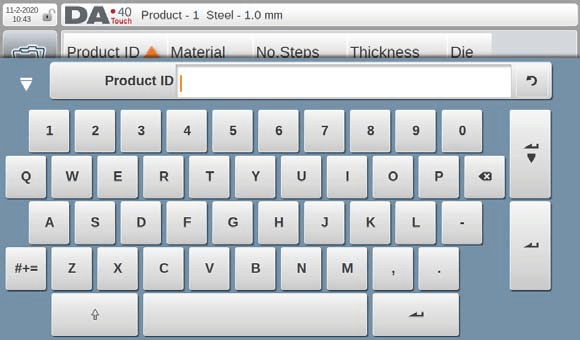
The DA-40T features a built-in on-screen keyboard with both numerical and alphanumerical keys, as well as several additional keys to enhance user functionality:

Keyboard Close: Allows users to close the on-screen keyboard when no longer needed.
Caps Lock: Switches between lower-case and upper-case characters, facilitating varied data entry needs.

Special Characters: Enables switching between normal and special characters; special characters (like á, à, â, ã, ä, å, æ) appear when holding a character (like ‘a’) pressed for about 2 seconds.

Enter Key: Confirms the entered value, maintains the cursor on the selected input field, and automatically closes the keyboard afterward—ideal when entering a single value.

Enter-Next Key: Confirms the entered value, selects the next input field, and keeps the keyboard open, which is particularly useful for entering multiple values.
This structured approach, by incorporating strategically placed keywords and detailed operational guidance, seeks to offer comprehensive help to users of the DELEM DA-41T and DA-40T, thereby enhancing both user experience and search engine visibility.
Frequently Asked Questions(FAQ)
How can I efficiently navigate the DELEM DA-41T interface?
The DELEM DA-41T interface is designed for ease of use. Familiarize yourself with the high-resolution display and intuitive layout that guides you through various menus. Practice using the on-screen keyboard for efficient data entry and make use of available resources or tutorials to enhance your proficiency.
What security features does the DELEM DA-41T offer?
The DELEM DA-41T includes a key lock function to restrict access to authorized personnel only. This feature is crucial in maintaining the system’s integrity and preventing unauthorized changes that could affect machine operations.
How do I customize the available menus on the DELEM DA-41T?
You can access and customize the DELEM DA-41T’s menus through the setup menu options. This allows you to tailor the system settings according to your operational requirements, ensuring optimal performance and efficiency.
Conclusion
Navigating the DELEM DA-41T interface is straightforward, thanks to its well-designed layout, comprehensive menus, and user-friendly features like the key lock and on-screen keyboard. By mastering these elements, operators can significantly boost their productivity and ensure precise control over their press brake operations. For those looking to delve deeper into the capabilities of their DELEM DA-41T system or for personalized guidance, we encourage you to contact our team or explore additional resources available on our website.


