


If you’re curious about how the E200PS Control Panel features can boost your operational efficiency, you’ve come to the right place. In this article, I’ll delve into how these features are specifically designed to streamline processes and enhance productivity in your workflow. By exploring the key functionalities of the E200PS Control Panel, you’ll gain insights into how it can optimize task management and improve accuracy. Whether you’re a seasoned professional or new to utilizing control panels, this guide will provide you with the essential information to make the most out of your equipment.
Introduction
When delving into the world of advanced machinery control, the E200PS Control Panel stands out as a paramount choice for enhancing operational efficiency. This innovative control panel is specifically designed to cater to various industrial needs, offering a seamless interface and robust functionality that streamline processes and elevate productivity.
E200PS CNC device is a very suitable for torsional axis shearing machine, providing solutions for most of the wiggle or gate machine both complete and economy, with high performance, flexible configuration, compact structure, easy to use, high reliability characteristic:
- Servo control, can realize the backgauge and high accuracy of control block.
- The gap (G-axis) is controllable.
- Unilateral and bilateral location, to improve the positioning precision and reduce screw clearance.
- The action CUT and EOS is controllable.
- Pneumatic feeding causes to convey the material to be nimble.
- Backgauge can automatic homing.
- Backgauge can be adjusted through the manual keys.
- The pages of SYSTEM PARAMETER and DIAGNOSIS are hidden, requires a specific password can enter into.
Operation Panel
The E200PS operation panel is intuitive and straightforward, designed to facilitate ease of use and efficiency. E200PS Operation panel is as shown in the figure below:
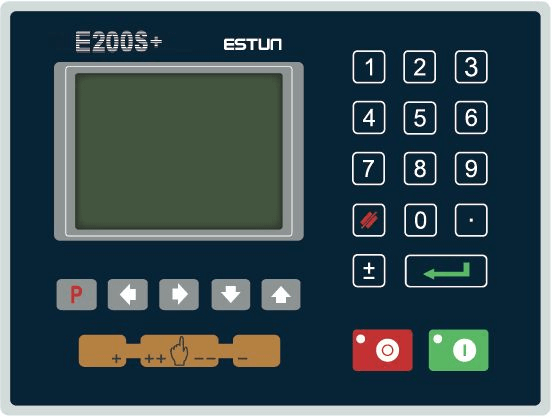
Below is the function description of the panel buttons:

Delete key: delete all data in input area on left bottom of displayer.

Enter key: confirm the input content. If no content is input, the key has the similar function to Down direction key.

Start key: automatic start-up, top left corner of the key is operation indicator LED. When operation is started, this indicator LED is on.

Stop key: stop operation, top left corner of the key is Stop indicator LED. When initialize normal start-up and no operation, this indicator LED is on.

Left direction key: page forward, cursor remove.

Right direction key: page backward, cursor remove.

Up direction key: select parameter upward

Down direction key: select parameter downward

Function switch: switch over different function pages.

Symbolic key: user input symbol, or start diagnosis.

Numeric key: when setting parameter, input value.

Decimal point key: when set up parameter, input decimal point.

Manual movement key: in case of manual adjustment, make adjustment object move in forward direction at low speed.

Manual movement key: in case of manual adjustment, make adjustment object move in backward direction at low speed.

High speed selection key: in case of manual adjustment, press this key and press ‘Plus’ simultaneously, make adjustment object move in increasing direction at high speed, then press ‘Minus‘, make adjustment object move in decreasing direction at high speed.
Display
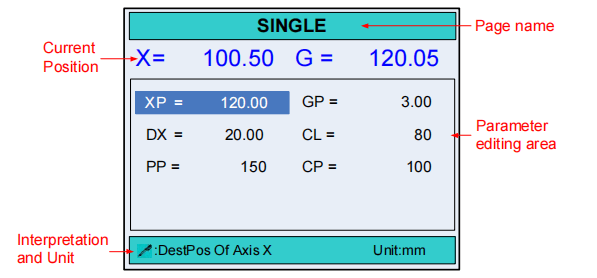
- Page Name: The E200PS Control Panel Features display the name of the current page.
- Current Position: Utilizing the E200PS Control Panel Features, it shows the relative position of the X-axis and G-axis.
- Parameter Editing Area: The E200PS Control Panel Features include an editable parameters section for convenience and efficiency.
- Interpretation and Unit: E200PS Control Panel Features offer interpretation and unit details for the parameters the cursor is on.
Operation Description and Tips
User Guide: Start and Stop
The E200PS Control Panel Features streamline the process of starting and stopping your device, ensuring efficiency and enhancing operational clarity.
- Program Completion: After finishing the programming, press the ‘start‘ button to run the device. This is a crucial step in utilizing the E200PS Control Panel Features for optimal setup.
- Operational Status: Upon starting, a green indicator light will signal that the machine is operational, ensuring you have visual confirmation of the device status.
- Page-Specific Functionality: The machine can only be initiated from specific pages like the SINGLE, PROGRAM, or STEP pages. Attempting to start from any other page is invalid, reinforcing the importance of navigating correctly within the E200PS Control Panel Features.
- Alarm Management: If any alarms are present, the machine cannot be started until the issue is resolved. Once cleared, the system can be restarted, demonstrating the E200PS Control Panel Features’ emphasis on safety and precaution.
- Emergency Stop: To halt operations immediately, press the stop button; this action will take you back to the previous programming page, allowing for quick adjustments or re-evaluations.
- Non-operational Status: If the device is not running, a red indicator light will display. This visual feedback is an essential part of the E200PS Control Panel Features, providing immediate awareness of machine status.
By understanding how the E200PS Control Panel Features can be optimized for starting and stopping the machine, operators can enhance their workflow and maintain high safety and efficiency standards.
Parameter Setting Steps
The E200PS Control Panel Features are designed for user-friendly parameter setting, making it intuitive for both new and experienced operators. Here’s how you can efficiently manage the parameters:
- Select and Modify Parameters: When editing any parameter, simply press the appropriate button to select the parameter you wish to change. Input the new value and press to confirm the modification. This step is straightforward and helps in maintaining a smooth workflow.
- Follow On-screen Tips: Always adhere to the on-screen tips provided within the E200PS Control Panel. These guidelines assist in accurate parameter adjustments and ensure that operational integrity is maintained.
- Range Verification: It’s crucial to ensure that all parameter values are within the acceptable range. If a value is out of range, the system will display a message indicating that the value is “Out of range, please input a correct value again.” This feature prevents errors and enhances the reliability of your operations.
The following table provides a detailed introduction to each parameter.
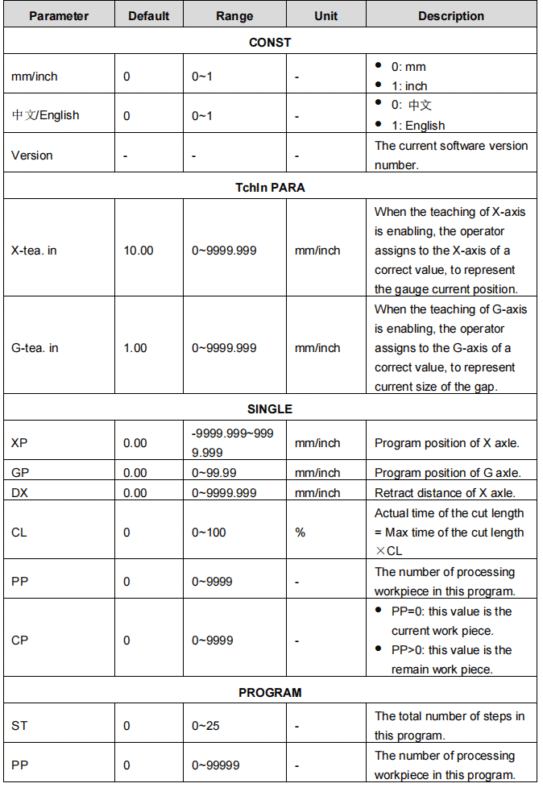
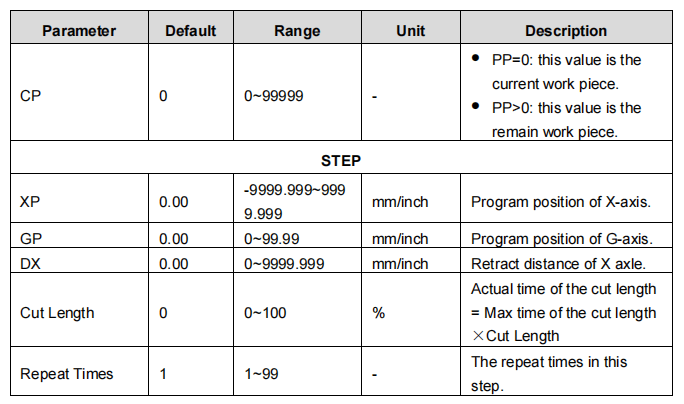
By integrating these E200PS Control Panel Features, your system not only becomes easier to operate but also amplifies precision and reliability, ensuring that your processes remain efficient and productive. This attention to detail in parameter management is what makes the E200PS Control Panel an essential component for optimizing task management and elevating overall workflow accuracy.
Frequently Asked Questions(FAQ)
How can I effectively use the E200PS Control Panel to enhance my workflow efficiency?
To make the most out of the E200PS Control Panel, familiarize yourself with its intuitive interface and customizable settings. Utilize the programmable features to automate repetitive tasks and adjust configurations according to specific project needs. This ensures that operations are both efficient and accurate.
What specific features of the E200PS Control Panel help in improving productivity?
The E200PS Control Panel includes features like a user-friendly touch screen, quick-access buttons, and integrated system diagnostics. These elements simplify navigation and allow for real-time monitoring and adjustments, contributing to improved productivity.
Can the E200PS Control Panel be customized for different operational requirements?
Absolutely, the E200PS Control Panel is highly customizable. Users can tailor settings based on specific operational needs, allowing for flexibility and improved efficiency across different tasks and projects.
Conclusion
In conclusion, the E200PS Control Panel is an invaluable asset for enhancing operational efficiency. By incorporating its advanced features into your workflow, you can significantly streamline processes, improve task management, and achieve higher precision in your operations. These core functionalities are designed to not only boost productivity but also ensure more accurate outcomes, making it a critical component for both experienced professionals and newcomers to control panel systems. For further assistance or details on maximizing the potential of your E200PS Control Panel, feel free to contact our team or explore our comprehensive documentation for more insights.


