


The ESA S650 General Data page is an important feature for efficiently managing bend program modifications across sections and entire programs. By understanding how to manage ESA S650 General Data properly, operators can quickly apply parameter changes, simplify bend editing, and maintain consistent bending accuracy throughout production.
This guide explains how to access the ESA S650 General Data page, modify bend values, apply corrections to multiple bends or sections, and safely manage recalculations within the program. Proper use of the ESA S650 General Data function helps reduce repetitive editing, improve workflow efficiency, and minimize programming errors during press brake operations.
What Is ESA S650 General Data?
Understanding the Purpose of the General Data Page
The ESA S650 General Data page allows operators to modify the parameters of a bend and then apply those changes to multiple bends within the program. Instead of editing each bend individually, the system provides several intelligent confirmation functions that simplify program management.
Operators can apply modifications to:
- All bends in the program
- All bends in the current section
- All bends with the same Y1 angle in the program
- All bends with the same Y1 angle in the current section
This centralized editing method improves efficiency, especially for programs containing repeated bend angles or complex multi-section parts.
Why ESA S650 General Data Is Important
Managing large bending programs manually can be time-consuming and error-prone. The ESA S650 General Data page helps operators:
- Reduce repetitive programming tasks
- Maintain consistent bend parameters
- Improve production efficiency
- Simplify recalculations after edits
By applying corrections globally or sectionally, operators can optimize workflow and reduce setup time significantly.
How to Access ESA S650 General Data Page
Step 1: Open the General Data Menu
To access the ESA S650 General Data page:
- Open the Editor page
- Press the menu button to display the available options
- Use the scroll bar to select 8 >> General Data
- Enter the General Data page
Once opened, the page displays the same setup and bend information as the Editor page.
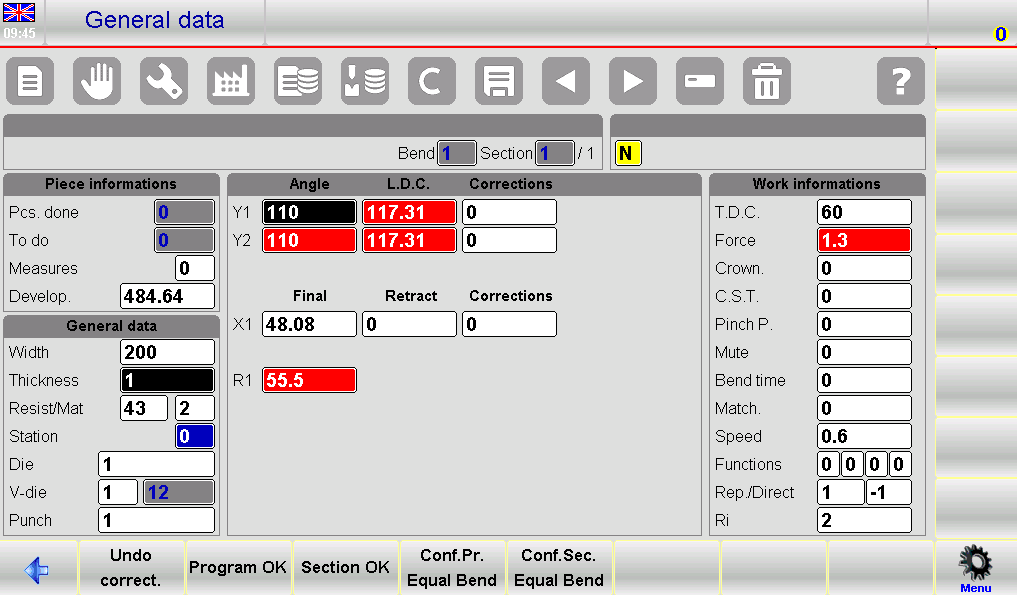
Step 2: Understand the Interface Layout
The ESA S650 General Data page includes several visual indicators and function keys to help operators monitor modifications.
Important interface elements include:
- Reversed colors for manually modified fields
- Red background for recalculated values
- Confirmation buttons for applying edits
- Undo correction functions
These visual indicators help users quickly identify which parameters have been changed or recalculated.
How to Modify Bend Data in ESA S650 General Data
Step 3: Editing Bend Parameters
When entering the General Data page, the system creates a temporary copy of the currently active bend. Operators can safely edit this copy without immediately affecting the original program.
This allows users to:
- Test modifications before confirmation
- Compare recalculated values
- Avoid accidental program changes
Modified fields automatically display with reversed colors, making them easy to identify.
Step 4: Understanding Recalculated Values
Some parameter changes automatically trigger recalculations within the ESA S650 system.
When recalculated values appear:
- The affected fields display with a red background
- The system updates dependent parameters automatically
- Operators can review changes before confirmation
This feature helps maintain consistency between bend parameters and machine calculations.
Step 5: Applying Changes to the Entire Program
To apply modifications to all bends in the active program:
- Press the [Program Ok] button
The ESA S650 will copy the modified values to every bend in the program and automatically perform the necessary recalculations.
This function is especially useful when:
- Material parameters change
- Tooling is updated
- Global bend adjustments are required
Applying changes globally reduces editing time and improves consistency across the entire workpiece.
How to Apply Changes to Specific Sections
Step 6: Applying Changes to the Current Section
If modifications should only affect the current section:
- Press the [Section Ok] button
The system will apply the edited values to all bends within the active section only.
This selective editing method is useful for:
- Multi-stage bending programs
- Parts with different bending requirements
- Section-specific tooling adjustments
Step 7: Applying Changes to Equal Bend Angles
The ESA S650 also supports angle-based confirmation functions.
To apply changes only to bends with the same Y1 angle:
- Use [Conf. Pr. Equal bend] for the entire program
- Use [Conf. Sec. Equal bend] for the current section only
These functions help operators efficiently update repeated bends without affecting unrelated bend angles.
For example:
- Multiple 90° bends can be corrected simultaneously
- Specific angle corrections can be isolated
- Complex programs become easier to manage
This feature significantly improves productivity when handling repetitive bending operations.
How to Cancel Changes in ESA S650 General Data
Step 8: Using the Undo Correction Function
If operators decide not to keep the temporary modifications:
- Press the [Undo correct.] button
This action removes all temporary edits made within the General Data page.
The undo function is useful when:
- Incorrect values were entered
- Recalculations produce unexpected results
- Operators want to restart the editing process
Using Undo Correct helps prevent accidental program errors before confirmation.
Step 9: Navigating Between Bends
Operators can move between bends directly within the General Data page using the navigation buttons.
This allows quick review of:
- Different bend parameters
- Section-specific configurations
- Recalculated values
However, the ESA S650 does not allow:
- Adding new bends
- Deleting bends
These operations must be performed from the main Editor page.
Best Practices for Managing ESA S650 General Data
Improving Programming Efficiency
To maximize the benefits of ESA S650 General Data:
- Review recalculated values carefully
- Use section-based confirmation for complex parts
- Apply equal-angle corrections when possible
- Verify tooling consistency before confirming changes
These practices help reduce programming time and improve production accuracy.
Avoiding Common Editing Mistakes
Operators should also avoid:
- Confirming changes without reviewing recalculated fields
- Applying global modifications unintentionally
- Ignoring visual color indicators
- Editing multiple parameters simultaneously without verification
Careful management of the General Data page helps maintain stable and accurate bending programs.
Frequently Asked Questions(FAQ)
What is the ESA S650 General Data page used for?
The ESA S650 General Data page is used to modify bend parameters and apply those changes to multiple bends, sections, or equal-angle bends within a program.
What do red background fields mean?
Red background fields indicate values automatically recalculated by the ESA S650 system.
Conclusion
The ESA S650 General Data page provides operators with a powerful and efficient way to manage bend modifications across programs and sections. By understanding how to properly edit, confirm, and apply changes, users can significantly reduce programming time while maintaining accurate and consistent bending results.
Features such as global updates, section-based corrections, equal-angle confirmation, and automatic recalculations help simplify complex programming tasks and improve overall workflow efficiency. Proper use of ESA S650 General Data also reduces repetitive manual editing and minimizes the risk of programming errors.
For additional technical support, machine operation assistance, or more detailed ESA S650 programming documentation, feel free to contact HARSLE or explore more resources available on our website.


