


When it comes to protecting your industrial equipment from unexpected failures, having a reliable ESA S840 Program Backup is essential. If you’re searching for a straightforward way to manage this process, you’re in the right place. In this guide, I’ll walk you through the steps to securely back up your ESA S840 program, covering the tools you’ll need and the best practices to avoid costly downtime. Whether you’re an experienced technician or handling this for the first time, my goal is to make the ESA S840 Program Backup process simple, reliable, and stress-free.
Step-by-Step Guide to Managing ESA S840 Program Backup and Product Operations
When working with the ESA S840 system, knowing how to manage your product list efficiently is just as important as performing a proper ESA S840 Program Backup. Whether you need to delete obsolete entries, copy existing configurations, or rename programs for better organization, the following steps will help you maintain a clean and functional workspace.
How to Delete a Product from the ESA S840 Product List
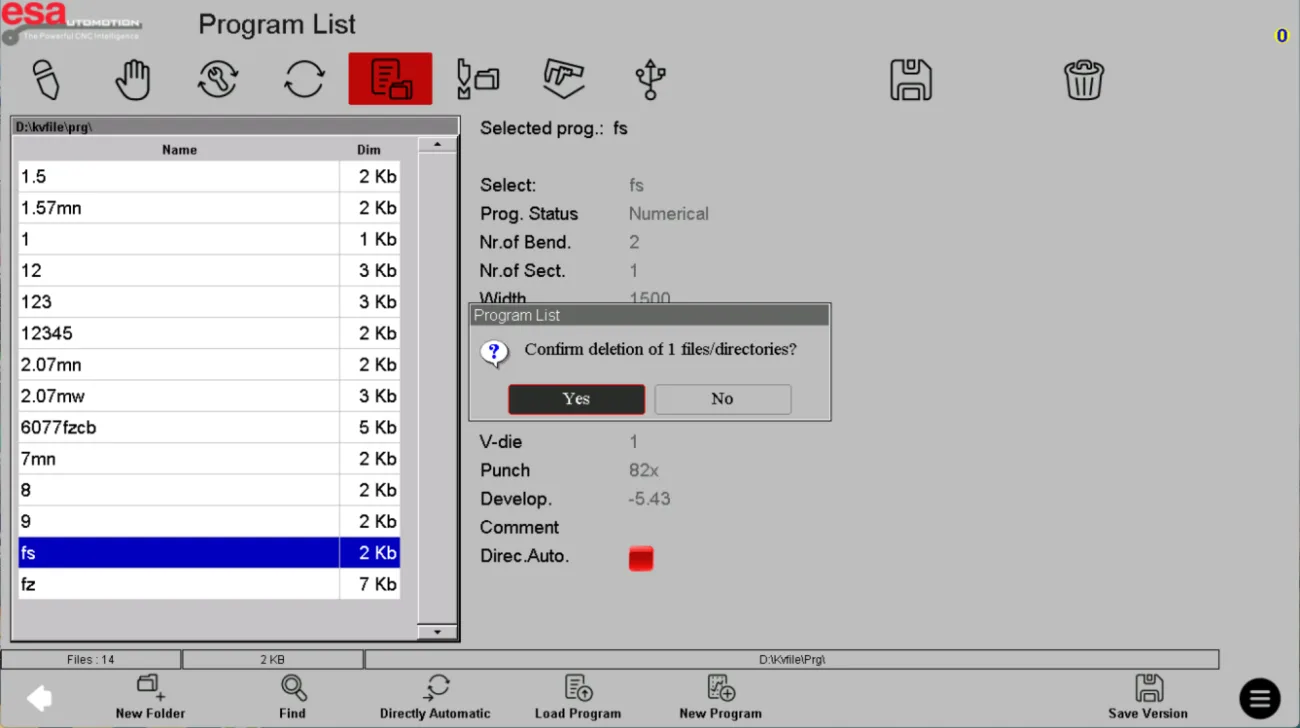
If you have outdated or incorrect programs cluttering your product list, removing them is straightforward. Start by selecting the product you wish to remove. Once selected, click the Delete button, and then confirm the deletion when prompted. This helps ensure that only relevant programs remain active, reducing the risk of selecting the wrong file during operations.
Copying and Renaming Products for Better Organization
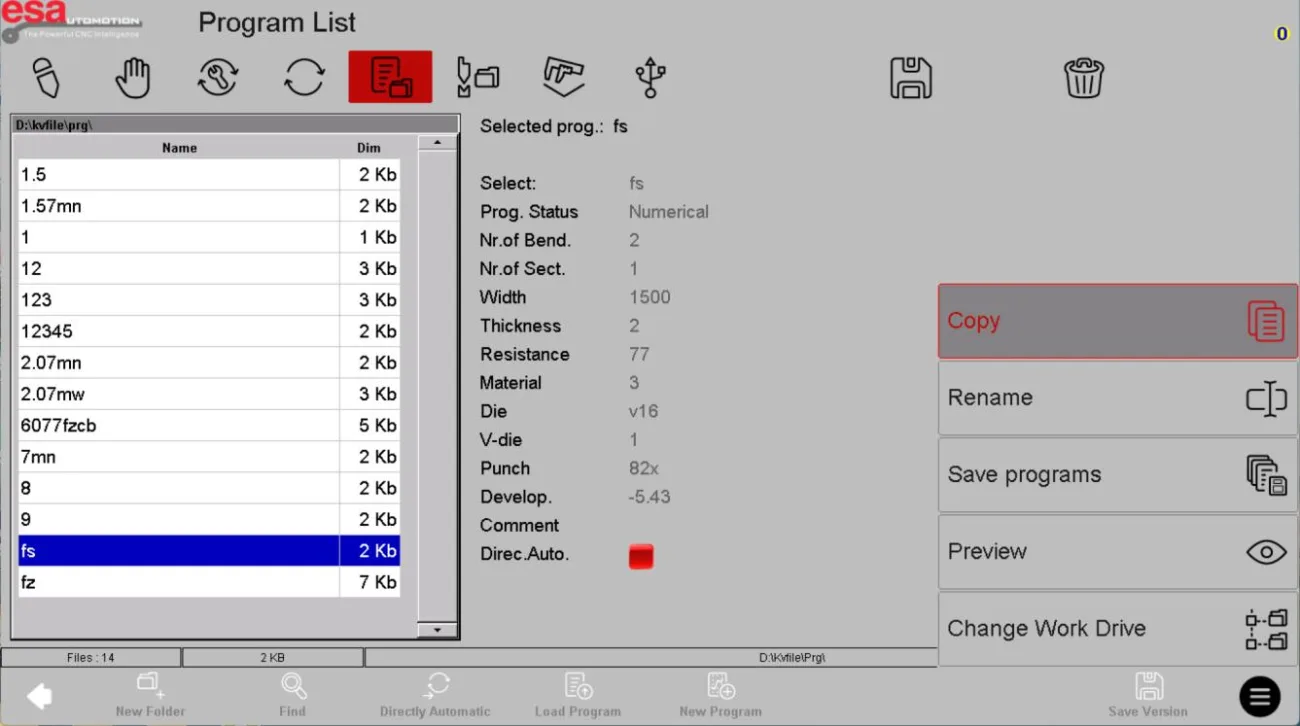
To streamline your workflow, you may want to duplicate an existing program as a template for a new project. To copy a product, first select the relevant program. Then, tap the menu button located in the bottom right corner of the interface and choose Copy from the list. You will be prompted to enter a new product name to save the copy. This is particularly useful when you need to create variations of an existing setup without starting from scratch.
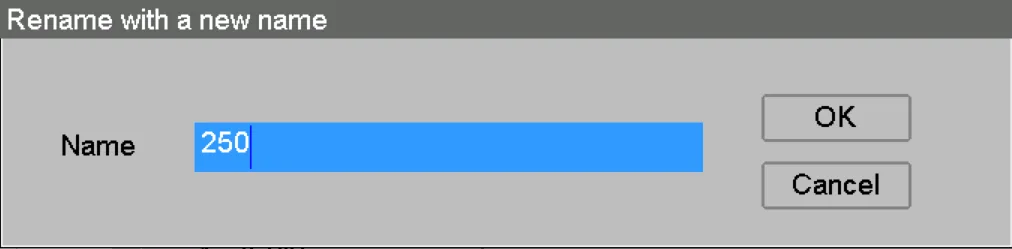
Renaming a product follows a similarly simple process. Select the program you wish to rename, click the same menu button in the bottom right corner, and choose Rename. Enter the new name, and the product will be updated instantly. This allows you to keep your product list organized with clear, descriptive labels.
Performing a Complete ESA S840 Program Backup to External Storage
One of the most critical maintenance tasks for any operator is ensuring a reliable ESA S840 Program Backup. Whether you are backing up a single product or safeguarding your entire library, the system offers flexible options to protect your data from loss.
How to Backup a Single Product
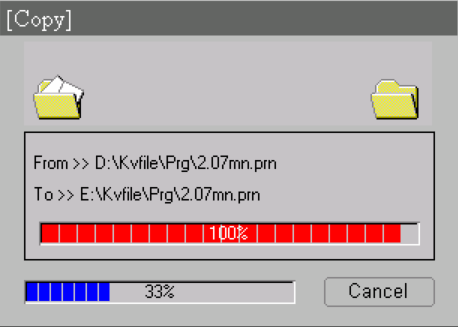
If you only need to save one specific program, navigate to the product list and select the desired program. Once selected, click the Save button. The system will then transfer that individual product to your connected external storage device. This method is ideal when you have made recent changes to a particular program and want to secure that version immediately.
How to Backup All Products at Once
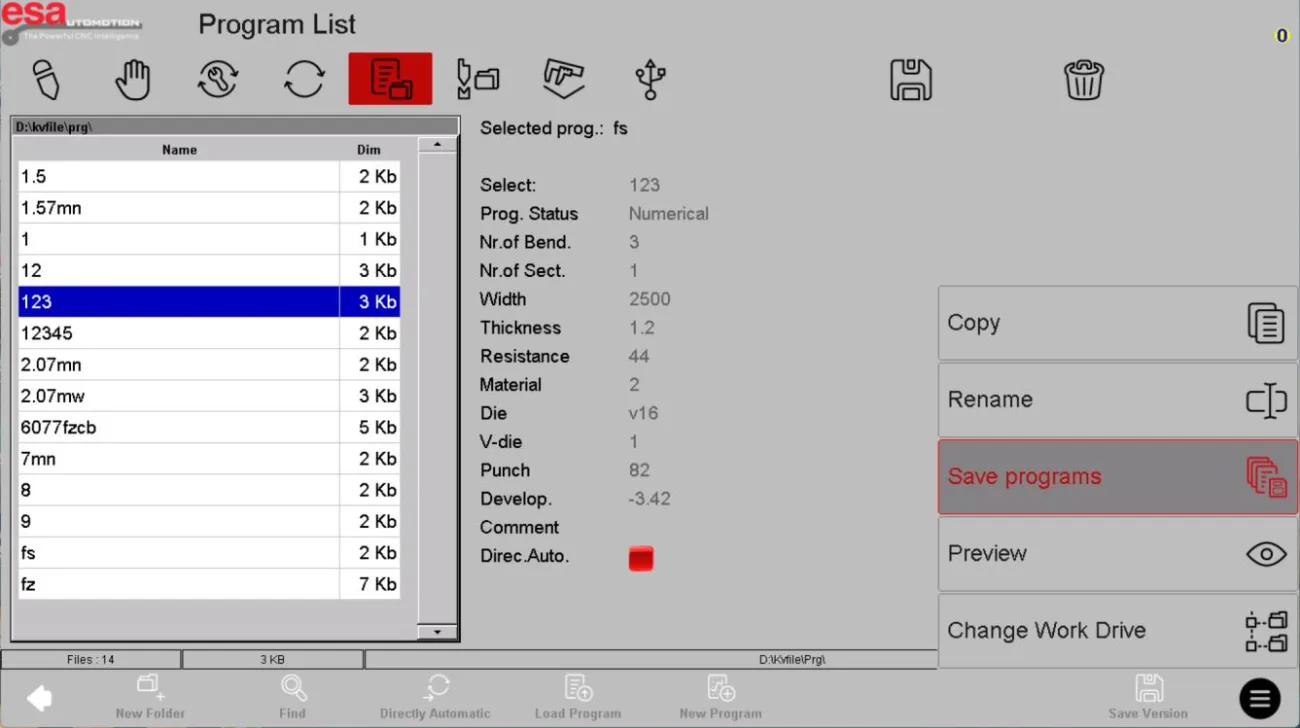
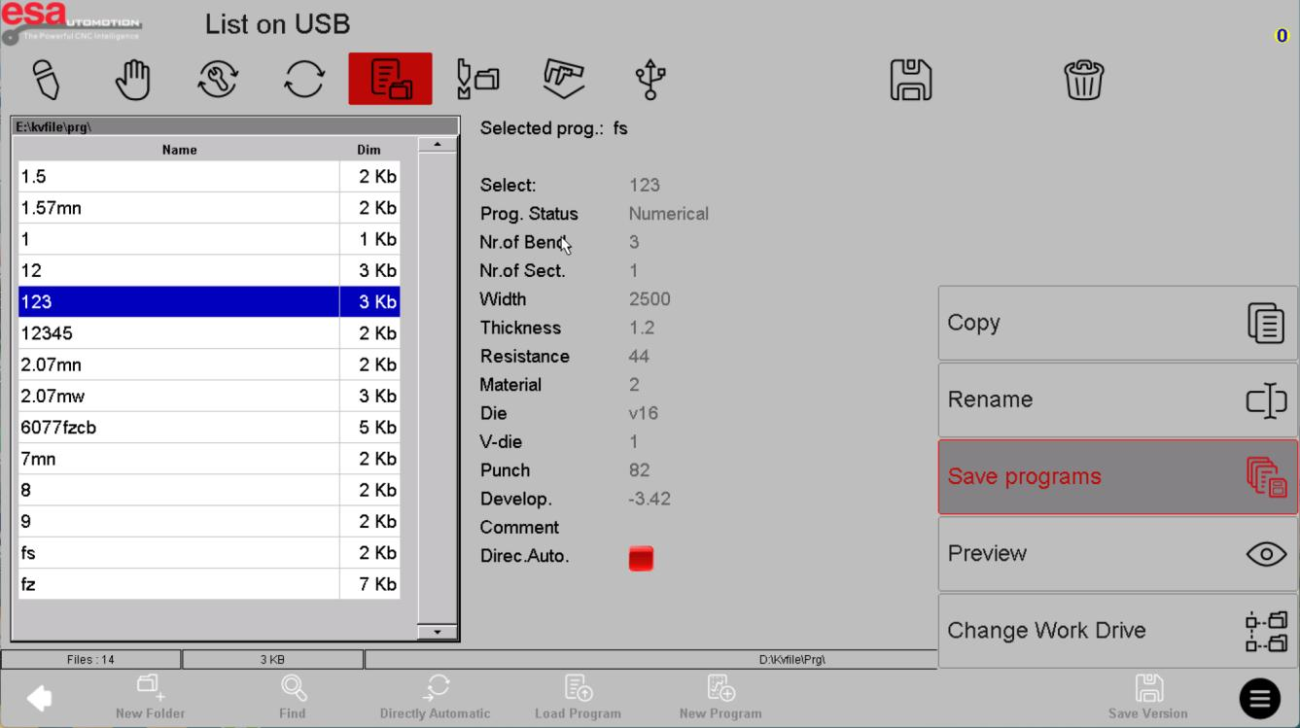
For a comprehensive ESA S840 Program Backup, you may prefer to save every product in the list to external storage. To do this, click the menu button in the bottom right corner of the interface without selecting any specific product. From the list, choose Save Program. At this point, all programs currently displayed in the product list will be saved to your external storage device. Performing this full backup regularly ensures you have a complete recovery point in case of system failure or accidental deletion.
Restoring Your ESA S840 Program Backup When Needed
A backup is only useful if you can restore it quickly and correctly. The ESA S840 system provides clear options for restoring both single products and entire program lists from external storage, ensuring minimal downtime during recovery.
Restoring a Single Product from External Storage
To restore an individual program, start by accessing your external storage. Click on the external storage option, and the list path will update to display the external storage directory.

Browse through the available programs, select the one you wish to recover, and then click the Save button. The selected product will be restored to your main product list, allowing you to resume work without having to reconfigure the program manually.
Restoring All Products from External Storage
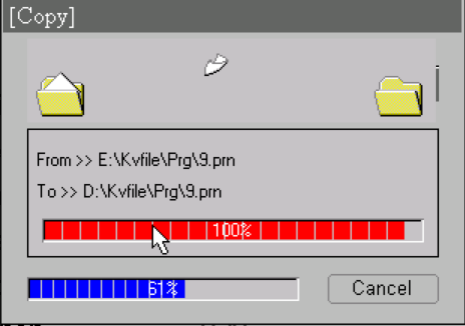
If you need to perform a full system recovery, restoring all products from your ESA S840 Program Backup is the most efficient approach. Begin by clicking on external storage so that the list path reflects the external storage location. Then, click the menu button in the bottom right corner of the interface and select Save Program from the list. At this point, every program stored on the external memory will be restored to your program list, bringing your system back to its previous state quickly and reliably.
Frequently Asked Questions(FAQ)
What should I do if my ESA S840 Program Backup fails to save to external storage?
If your ESA S840 Program Backup fails, first check that your external storage device is properly connected and has sufficient free space. Also, ensure the storage device is formatted in a compatible file system (such as FAT32). If the issue persists, try restarting the system and repeating the backup process. Regularly testing your backup by performing a test restore can also help confirm that the storage device is functioning correctly.
Can I restore a single product without overwriting my current program list?
Yes, when you restore a single product from external storage, the system adds the selected program back to your product list without deleting existing programs. This is ideal if you only need to recover one specific configuration. Simply access external storage, select the program, and click the save button. The restored product will appear alongside your current programs.
What is the difference between copying a product and backing up a single product?
Copying a product creates a duplicate within the internal product list, allowing you to create a new program based on an existing one without affecting the original. In contrast, backing up a single product saves it to external storage for safekeeping. For a complete ESA S840 Program Backup strategy, I recommend using both: copying for internal versioning and backing up to external storage for disaster recovery.
Conclusion
Managing your ESA S840 Program Backup doesn’t have to be complicated. By following the steps outlined above, you can confidently delete outdated products, copy and rename programs for better organization, and perform both single and full backups to external storage. Equally important is knowing how to restore your data—whether you need to recover a single program or your entire product list—so you can minimize downtime and keep your operations running smoothly.
I encourage you to make regular backups a standard part of your maintenance routine. A consistent ESA S840 Program Backup strategy is one of the most effective ways to protect your configurations and avoid unexpected disruptions. If you have further questions or need additional support, don’t hesitate to reach out to our team—we’re here to help you keep your system secure and efficient.


