


ESA S840 new program creation is a fundamental skill that every press brake operator needs to master for efficient production. Whether you’re setting up a new job for the first time or modifying an existing program to accommodate different part specifications, understanding how to create programs from scratch on the ESA S840 control will save you time and reduce errors.
In this article, I’ll guide you through both methods of program creation available on your HARSLE press brake: numerical programming and graphic programming. You’ll learn when to use each approach, how to navigate the creation interface, and step-by-step instructions for building your first program. Whether you’re new to the ESA S840 or looking to refresh your programming knowledge, this guide will help you start creating programs with confidence.
Understanding ESA S840 New Program Creation
ESA S840 new program creation offers two powerful methods for developing bending programs: numerical programming and graphic programming. Each approach has its strengths, and understanding both will make you a more versatile operator on your HARSLE press brake. When you click on “New Program” from the program list interface, you’ll be prompted to choose which method you want to use for your programming task.
The ESA S840 new program creation process begins with entering basic data, regardless of which programming method you select. This foundational information ensures your program has the correct parameters before you move on to editing angles and axis positions.
Getting Started with New Program Creation
Before diving into the specifics of each programming method, it’s important to understand the common first step in ESA S840 new program creation. When you initiate a new program, the system first asks you to complete essential basic data. This information forms the foundation upon which your entire bending program is built.
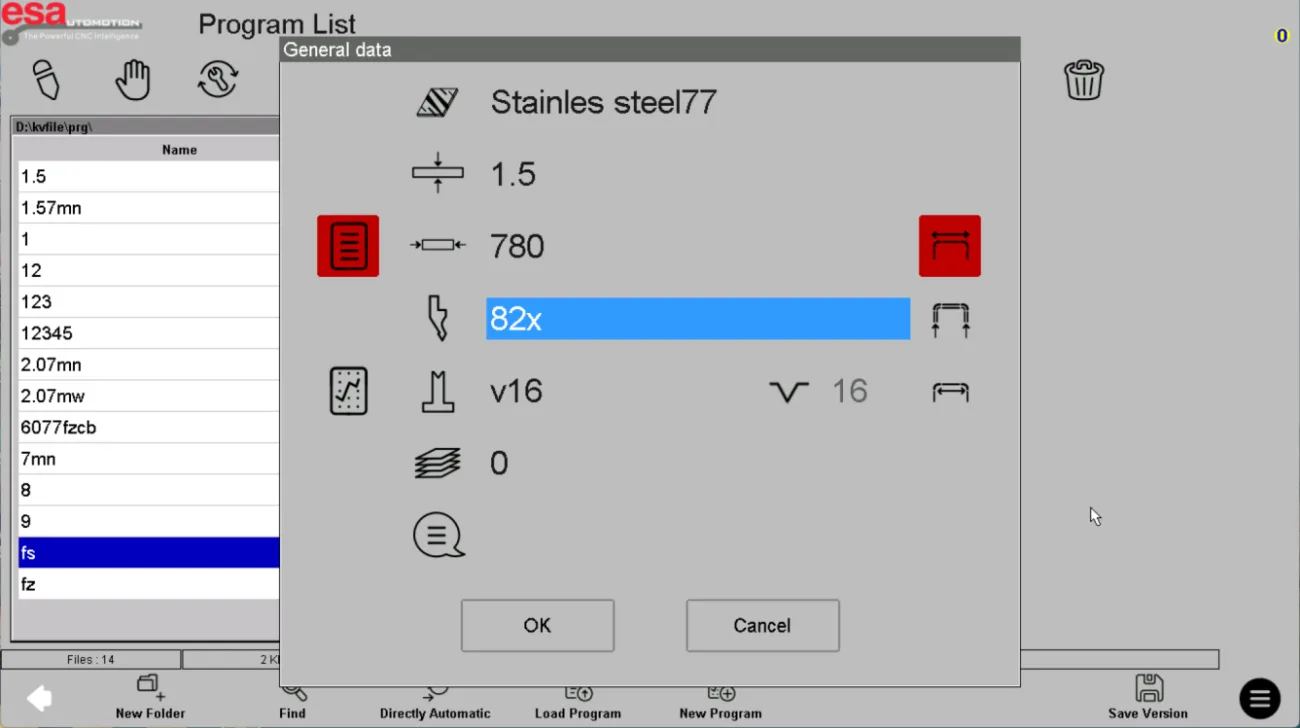
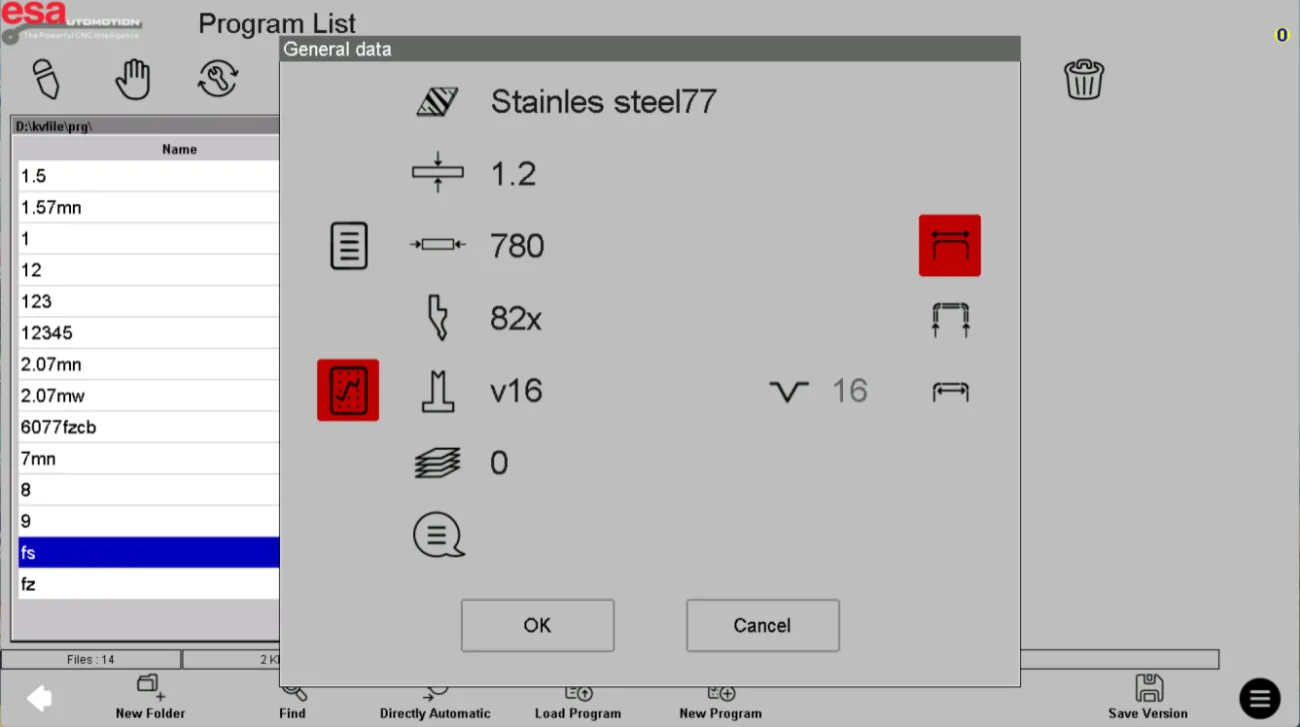
The basic data required during ESA S840 new program creation includes:
- Material thickness
- Material type
- Upper tool selection
- Lower die selection
- Processing quantity
- Measurement method
You must complete all basic data fields before you can proceed to the next stage of programming, where you’ll edit angles and axis positions. This sequential approach ensures that all subsequent programming decisions are made with the correct material and tooling parameters in mind.
Method 1: Numerical Program Creation
Numerical programming is one of the two primary methods available within ESA S840 new program creation. This approach is ideal for operators who prefer working with precise numerical values and have a clear understanding of the exact dimensions and angles required for each bending step.
How to Create a Numerical Program
To start a numerical program using ESA S840 new program creation:
- Click on “New Program” from the program list interface
- When prompted to choose a programming method, select Numerical Programming
- Complete all basic data fields (thickness, material, tooling, etc.)
- Proceed to angle and axis position editing
When to Use Numerical Programming
Numerical programming within ESA S840 new program creation is particularly useful when:
- You have precise engineering drawings with exact dimensions
- You’re replicating parts with known specifications
- You prefer working with numbers rather than visual representations
- You need to input data quickly from existing documentation
Editing Numerical Programs
Once you’ve completed the basic data phase of ESA S840 new program creation for a numerical program, you’ll move to the angle and axis position editing stage. Here you can:
- Enter specific bend angles for each step
- Define axis positions precisely
- Set backgauge locations
- Adjust processing parameters
The numerical approach gives you complete control over every dimension and position, making it ideal for high-precision applications where every fraction of a millimeter matters.
Method 2: Graphic Program Creation
Graphic programming offers a more visual approach to ESA S840 new program creation. This method is particularly helpful when you’re working with complex part geometries or when you prefer to see a visual representation of your part as you build the program.
How to Create a Graphic Program
To start a graphic program using ESA S840 new program creation:
- Click on “New Program” from the program list interface
- When prompted to choose a programming method, select Graphic Programming
- Complete all basic data fields (thickness, material, tooling, etc.)
- Proceed to the graphic editor for angle and axis position editing
Benefits of Graphic Programming
The graphic programming method within ESA S840 new program creation offers several advantages:
- Visual representation of the part as you build it
- Easier verification of complex geometries
- More intuitive for operators who think visually
- Reduced risk of data entry errors for complex shapes
Working in the Graphic Editor
After completing the basic data phase of ESA S840 new program creation for a graphic program, you’ll enter the graphic editor. Here you can:
- Draw the part profile visually
- See each bend represented graphically
- Modify dimensions by adjusting the drawing
- Verify tool collisions before production
The graphic approach within ESA S840 new program creation provides immediate visual feedback, helping you catch potential issues before they become production problems.
Completing Basic Data: The Critical First Step
Regardless of whether you choose numerical or graphic programming, the basic data entry phase of ESA S840 new program creation is identical and critically important. Let’s explore each field in more detail:
Material Thickness and Type
During ESA S840 new program creation, accurately entering material thickness and type ensures that the control calculates correct bending forces and springback compensation. The ESA S840 uses this information to optimize the bending process for your specific material.
Upper and Lower Tool Selection
Proper tool selection during ESA S840 new program creation prevents collisions and ensures quality bends. The system uses your tooling selections to calculate available space and verify that each bend is physically possible with the selected dies.
Processing Quantity and Measurement Method
These parameters within ESA S840 new program creation determine how the machine handles production runs and how finished parts are measured for quality control. Setting these correctly from the start saves time during production.
Moving from Basic Data to Angle Editing
Once you’ve completed all basic data fields during new program creation, the system allows you to proceed to the next stage. This is where the difference between numerical and graphic programming becomes apparent:
- In numerical programming, you’ll enter angles and positions as numerical values
- In graphic programming, you’ll manipulate visual elements to define the part geometry
Both methods within ESA S840 new program creation ultimately produce the same result: a complete bending program ready for production. The choice between them comes down to personal preference and the specific requirements of each job.
Tips for Successful New Program Creation
Based on experience with ESA S840 new program creation on HARSLE press brakes, here are some practical recommendations:
Always complete all basic data first. Attempting to skip ahead during new program creation will result in error messages and wasted time. The system is designed to ensure all foundational information is in place before proceeding.
Choose the right method for the job. For simple parts with straightforward dimensions, numerical programming may be faster. For complex geometries or when visual verification is helpful, graphic programming within ESA S840 new program creation is often the better choice.
Verify tooling selections. Double-check that the upper and lower dies selected during ESA S840 new program creation are actually installed on your machine before starting production.
Save your work. After completing ESA S840 new program creation, remember to save your new program with a descriptive name that makes it easy to find later.
By mastering both numerical and graphic methods within new program creation, you’ll be prepared to handle any programming task that comes your way, from simple brackets to complex multi-bend assemblies.
Frequently Asked Questions(FAQ)
What basic data do I need to complete during ESA S840 new program creation?
During ESA S840 new program creation, you must complete several essential fields before proceeding to angle editing. These include material thickness, material type, upper tool selection, lower die selection, processing quantity, and measurement method. The system requires all basic data to be entered first to ensure accurate bending calculations and tool collision prevention.
How do I select the correct tooling during ESA S840 new program creation?
During ESA S840 new program creation, you’ll have access to your saved tooling library for both upper tools and lower dies. Browse through the available options and select the tools that are physically installed on your machine for the job. The system uses these selections to verify bend feasibility and prevent collisions.
Conclusion
Mastering ESA S840 new program creation is essential for efficient press brake operation. By understanding the two programming methods—numerical and graphic—and following the proper sequence of completing basic data before moving to angle editing, you can create accurate bending programs quickly and confidently. Remember to always verify your material specifications and tooling selections during the basic data phase to ensure successful production runs.
For more detailed support on ESA S840 new program creation or any other questions about your HARSLE press brake, don’t hesitate to contact our technical support team. We’re here to help you optimize your programming workflow and get the most from your equipment.


