


If you’ve been searching for ways to streamline the programming process on your press brake, the DELEM DA-41T Settings Mode offers a solution that can significantly simplify your tasks. In this article, I’ll explore how the DELEM DA-41T Settings Mode can enhance your machine’s programming capabilities, providing you with the necessary tools to optimize your operations. By diving into the features of this settings mode, you’ll gain insights into how it improves programming efficiency, which is crucial whether you’re onboard a new team member or aiming to enhance productivity. Whether you’re a seasoned professional or just starting, understanding the DELEM DA-41T Settings Mode will empower you with the knowledge to elevate your metalworking projects.
Navigating DELEM DA-41T Settings Mode
To switch to Settings Mode, simply tap the Settings navigation button.
This mode unlocks various configurations that influence how new products and programs are programmed. Settings are logically organized across multiple tabs.
Each setting is housed under different tabs, allowing for segmented customization. These tabs can be navigated by tapping directly on them. If the total number of tabs exceeds the screen display, scroll horizontally to access all available options.
Customizing General Settings
Adjusting Language and Units
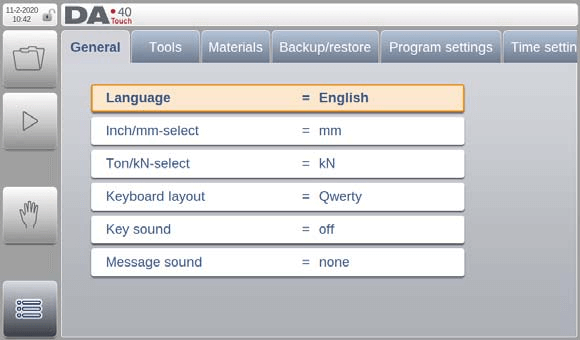
In the General tab, you can select your preferred user interface language from a list. There are more available languages than initially shown. Scroll vertically by dragging the list up and down to see all available languages. Tap to select the desired language for the user interface.
Similarly, choose between inch or millimeter units, and ton or kN for force measurements, ensuring alignment with your customary metrics.
Keyboard Layout and Sound Settings
- Keyboard layout
Select keyboard layouts such as QWERTY, QWERTZ, or AZERTY based on personal preference.
2. Key Sound
You can switch the sound function of the input panel on or off, allowing for a personalized typing experience. By default, the key sound is turned on to provide audible feedback with each keystroke, which some users find enhances their interaction with the device.
3. Message Sound
Even when the key sound is turned off, it’s still possible to have an acoustic alert for messages or warnings, ensuring you never miss important notifications. You have several options for message sounds:
- All Messages: An acoustic alert will sound in case of any message, keeping you informed of all activities.
- Errors + Warnings Only: The system will provide an acoustic alert only in the event of an error or warning, helping you focus on critical issues.
- Errors Only: Alerts will sound exclusively for errors, allowing you to prioritize immediate problems without distractions from less critical messages.
- None: Opt for no acoustic alerts in case of any message if you prefer a silent environment or rely solely on visual notifications.
These customizable settings ensure that your interaction with the system is tailored to your specific needs and preferences.
Managing Tools and Materials
Tools
On the ‘Tools’ tab the available tools are listed; a new tool can be created or an existing tool can be edited.

To edit an existing tool simply tab on the tool and the tool properties window opens. Here the required changes can be made and confirmed with the accept button.
Creating a New Tool
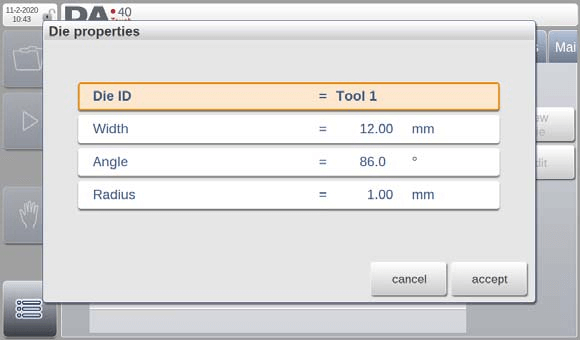
In the DELEM DA-41T Settings Mode, creating a new tool is straightforward. Simply press the ‘new die’ soft key to open a dialog where you can define tool properties such as Die ID, Width, Angle, and Radius. These parameters are crucial for automatic bend depth calculation during programming.
Managing Existing Tools
The DELEM DA-41T Settings Mode also streamlines tool management by allowing you to copy, rename, or delete tools with ease. Use the Edit function to manipulate a selected tool:
- Copy: Duplicate a selected tool, with the system prompting for a new name.
- Rename: Update the tool’s name directly from the interface, with easy keyboard access.
- Delete: Remove a tool permanently, with confirmation prompts preventing accidental deletions. Similarly, the ‘Delete all’ function removes all tools, providing a safeguard against unintended actions.
These features collectively make the DELEM DA-41T Settings Mode a powerful component for efficient press brake programming and management.
Materials
On the ‘Materials’ tab, 6 different materials with their properties can be programmed.
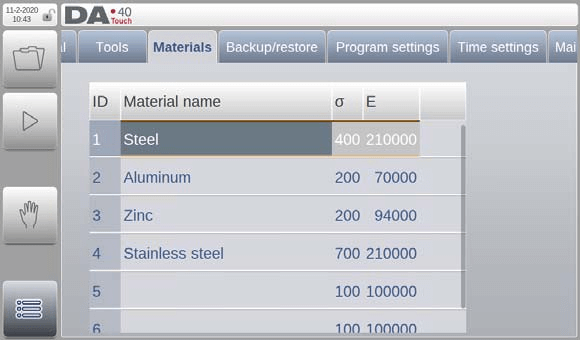
- Material name: Name of the material, as it will appear in the programming screens. The maximum allowed length of the material name is 25 characters.
- Tensile strength: Tensile strength of the selected material.
- E module: E-module of the selected material.
Backup and Restore Procedures
The DELEM DA-41T Settings Mode streamlines programming by incorporating an efficient ‘Backup/Restore’ feature. This tool allows users to seamlessly back up and restore products, tools, and settings via a USB device.
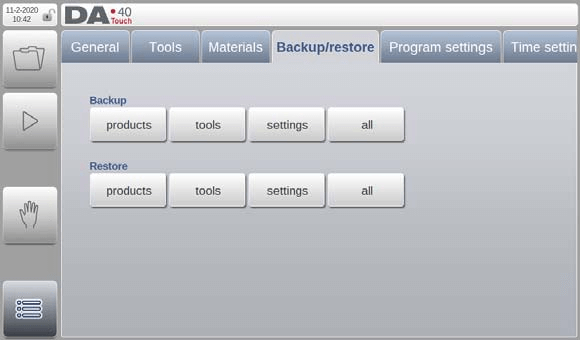
Upon selecting the backup or restore option, a user-friendly file browser window appears, enabling easy navigation through the backup device’s directory structure. Simply tap the directory on the right to explore subdirectories, or tap the left side to move up a level.
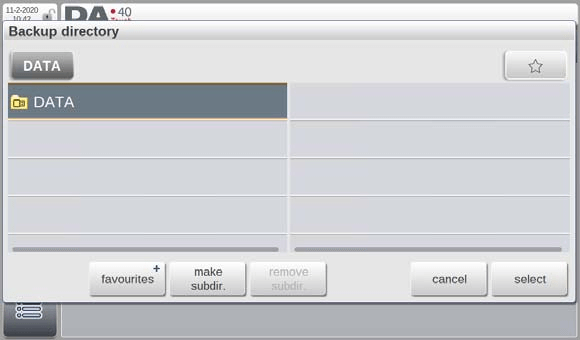
- Adding Favorites:
Easily mark specific directories as favorites using the ‘add to favourites’ option in DELEM DA-41T Settings Mode.

Once marked, a favorites button appears in the upper right corner for quick access to these directories.
2. Editing Favorites:
Assign logical names to your favorite directories for easy identification.
To open a favorite, simply tap the favorites button, and it will display with the assigned name. Unneeded favorites can be removed by tapping the ‘delete’ soft key.
3. Managing Subdirectories:
- Create new subdirectories with the ‘Make subdir.’ option.
- Remove existing ones by using ‘Remove subdir’.
4. Navigating the File Browser:
- Use ‘Cancel’ to exit the file browser.
- Use ‘Select’ to choose the current directory you’re in.
After selecting a backup (restore) directory, a new window displays all products available in memory for easy selection.
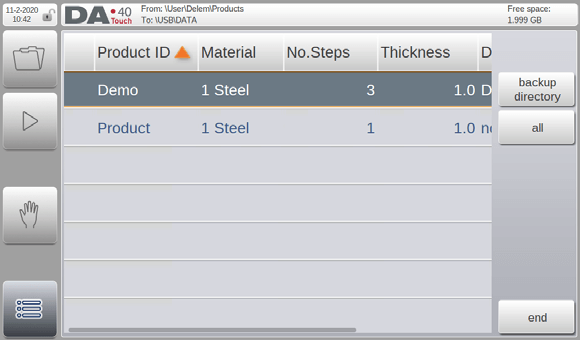
5. Backing Up Products:
- To back up (or restore) a single product, tap on it to save to your backup device.
- To back up (or restore) all products, use the ‘all’ soft key for comprehensive data management.
Program Settings
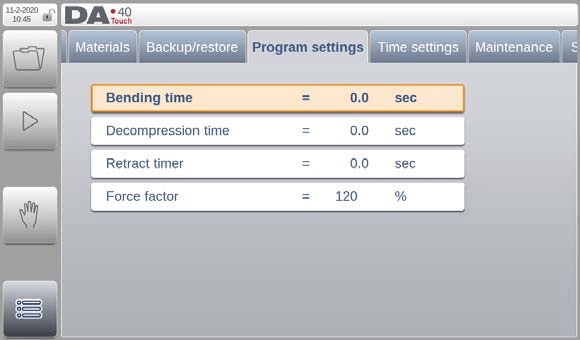
In the DELEM DA-41T Settings Mode, program settings offer precise control over various operational parameters. Here’s a breakdown:
- Bending Time: This parameter’s function varies with machine design. Consult machine documentation or your supplier for specific details.
- Decompression Time: Similar to bending time, its function is also machine-specific. Refer to relevant documentation or contact your supplier for guidance.
- Retract Time: Delays the X-axis retract based on the programmed value, allowing for optimal timing adjustments.
- Force Factor: Adjusts the percentage of calculated force applied to control the pressure valve, ensuring precise pressure management.
Using the DELEM DA-41T Settings Mode to adjust these parameters can enhance your machine’s performance and customization capabilities.
Time settings
In the ‘Time settings’ tab, the date and time as displayed in theupper left corner of the screen can be changed.
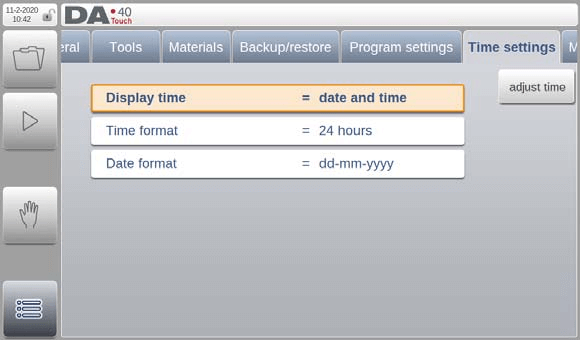
- Display Time Options: Choose to display either date and time, time only, or no time at all on the title panel.
- Time Format: Select between a 24-hour format or a 12-hour format for time display.
- Date Format: Opt for date formats including dd-mm-yyyy, mm-dd-yyyy, or yyyy-mm-dd.
- Adjust Time: Modify the date and time settings, which will also update the operating system’s clock.
Maintenance
In the DELEM DA-41T Settings Mode, the Maintenance tab offers essential functions that streamline machine upkeep and ensure optimal performance.
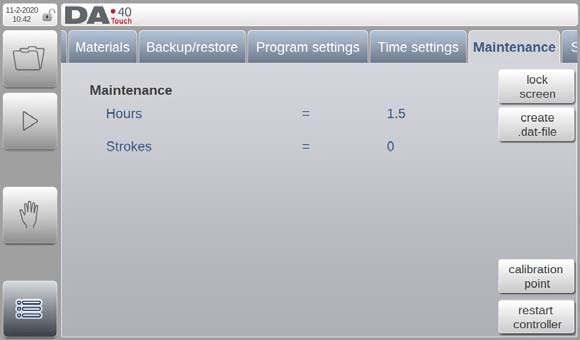
Key features include:
- Hours: Displays total machine running hours, crucial for maintenance scheduling.
- Strokes: Shows the number of strokes the press beam has executed, helping track machine usage.
- Lock Screen: Temporarily locks the screen for safe cleaning, automatically unlocking after 5 seconds.
- Create .dat-file: Saves essential product and control data to a USB stick, aiding in maintenance and troubleshooting.
- Calibration Point: Allows setting of the Y-axis calibration point for accurate bend calculations.
- Restart Controller: Provides a quick reboot option for the DA-41T system to ensure smooth operation.
These insights are crucial for scheduling preventative maintenance and predicting service needs.
Setting the calibration point
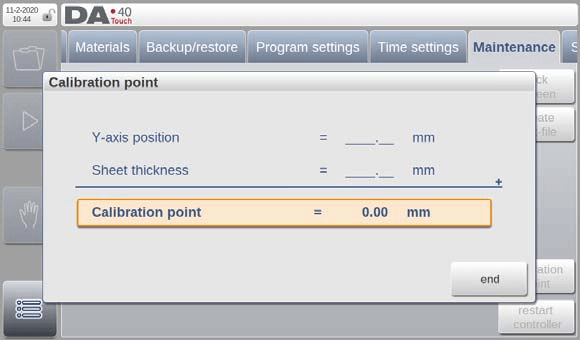
The DELEM DA-41T Settings Mode streamlines programming by offering efficient calibration of bending depth. This involves setting a calibration point to define the Y-axis position when the tools close, aligning the punch’s lowest point with the top of the V-die. Accurate calibration is essential whenever tool heights change. To achieve this, access the ‘calibration point’ option in the Maintenance tab.
A practical method involves using a known thickness sheet between the tools to manually find the Y-axis position where the punch just touches the sheet. Input the Y-axis position as the first parameter and sheet thickness as the second, allowing the system to automatically calculate the calibration point. This seamless process ensures precision in bending operations, enhancing programming efficiency.
System information
The DELEM DA-41T Settings Mode simplifies programming by providing streamlined access to system information and management. Within this tab, users can view software details and perform essential updates.
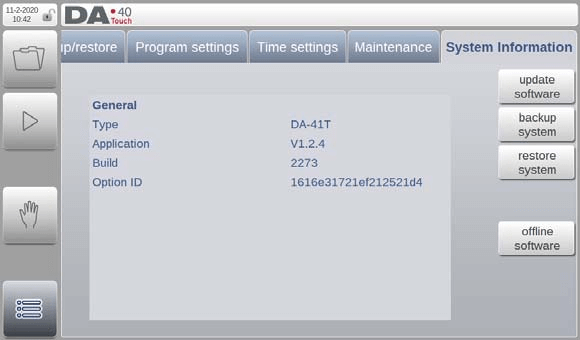
- Updating Software: Easily install software updates via a USB stick using the directory browser to select the required update, ensuring the system remains current and efficient.
- System Backup and Restore: Simplify data protection with the backup system feature, which creates a comprehensive system backup—complete with Delem software, OEM data, and user files—on a USB stick. The restore function allows for selective recovery of previous backups, maintaining system integrity and minimizing downtime.
- Offline Software Management: Generate an offline software setup file to update existing software versions, ensuring compatibility and smooth operation. This feature is crucial for maintaining optimal system performance.
Overall, the DELEM DA-41T Settings Mode enhances programming by making system management tasks intuitive and efficient, aiding in consistent and error-free operations.
Frequently Asked Questions(FAQ)
How can I update the software using the DELEM DA-41T Settings Mode?
To update the software, insert a USB stick with the update files into the machine, navigate to the update section in the DELEM DA-41T Settings Mode, and follow the on-screen instructions to complete the installation. This ensures that your system remains current and functional.
How do I restore my system to a previous state with the DELEM DA-41T Settings Mode?
To restore your system, access the restore function in the DELEM DA-41T Settings Mode. Insert the USB stick containing the backup file and select the elements you wish to restore. This allows for recovery of your system to a known, stable state, minimizing potential downtime.
Conclusion
In summary, the DELEM DA-41T Settings Mode significantly streamlines the programming process by offering intuitive access to system updates, backups, restoration, and offline software management. By utilizing these features, users can ensure their press brake machines operate efficiently and remain up-to-date with the latest software developments. These steps promote seamless maintenance and consistent performance, ultimately enhancing productivity.
For those looking to optimize their machine’s performance further, consider implementing regular checks and updates as outlined in this guide. If you need more detailed assistance or have specific questions, we encourage you to reach out to our team. Additionally, explore our documentation for further insights into harnessing the full potential of your DELEM DA-41T system.


