


If your Press Brake Touch Screen suddenly stops responding, I know how frustrating that can be—especially when it interrupts production and delays orders. This issue is actually more common than many operators think, and in most cases, it can be resolved quickly without replacing the entire control system. In this guide, I’ll walk you through the most common causes, how to diagnose the problem step by step, and practical solutions to get your press brake back to normal operation.
Common Causes of Press Brake Touch Screen Not Responding
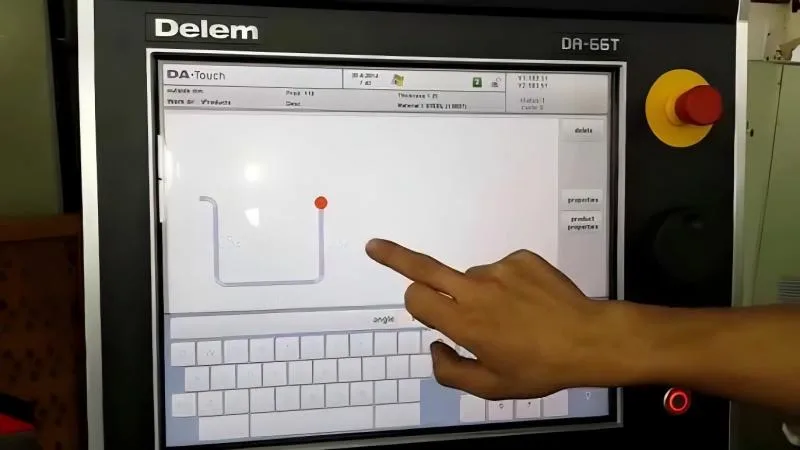
Before jumping into solutions, I always recommend understanding what’s causing the issue. A non-responsive Press Brake Touch Screen is usually related to hardware, software, or environmental factors.
Screen Surface Contamination or Damage
One of the simplest but most overlooked causes is dirt, oil, or metal dust on the screen. In metalworking environments, contamination can interfere with touch sensitivity.
- Oil film reduces conductivity
- Metal particles may block touch signals
- Scratches can damage touch layers
System Freeze or Software Glitch
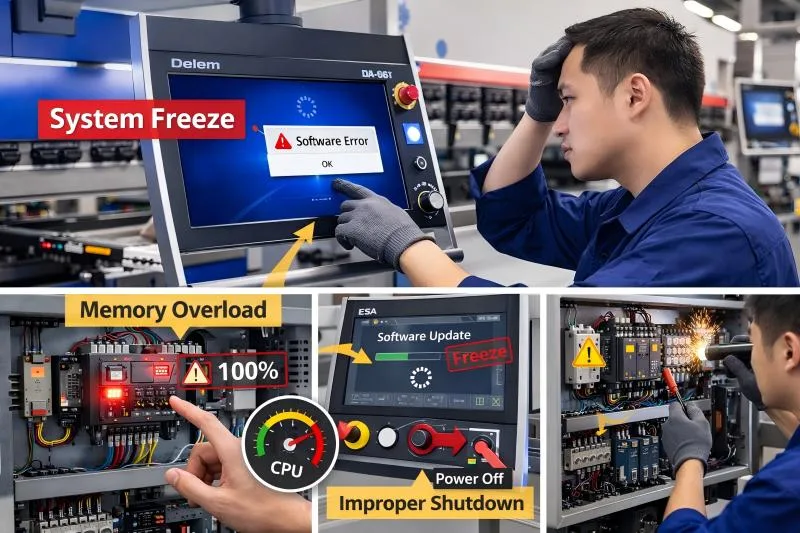
CNC controllers like Delem, ESA, or Cybelec systems may freeze due to:
- Software bugs
- Overloaded memory
- Improper shutdown
This can make the screen appear unresponsive even though the hardware is fine.
Loose or Damaged Electrical Connections
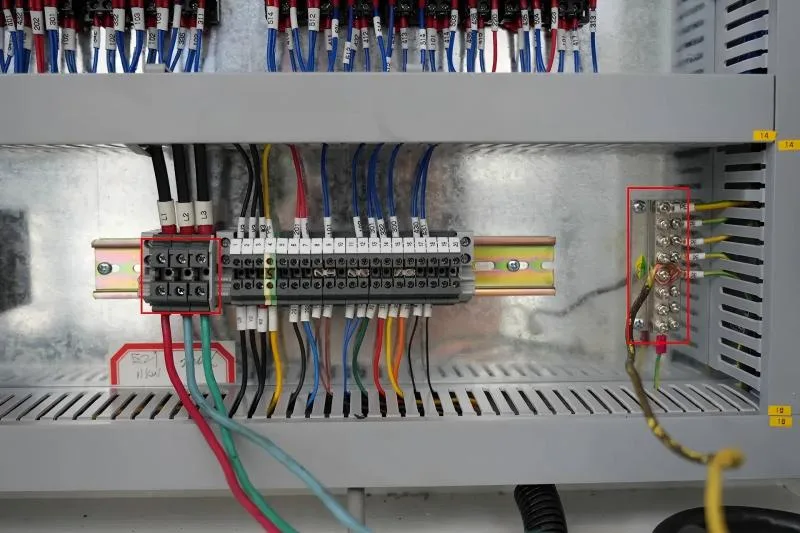
Touch screens rely on internal cables and connectors. If these become loose or damaged, the signal may not transmit properly.
- Loose ribbon cables
- Worn connectors
- Electrical interference
Touch Screen Hardware Failure
In some cases, the issue is due to aging hardware:
- Touch panel wear
- Controller board failure
- Internal sensor malfunction
Step-by-Step Guide to Fix Press Brake Touch Screen Issues
When I troubleshoot a Press Brake Touch Screen, I follow a structured process to quickly identify and fix the problem.
Step 1: Clean the Touch Screen Properly
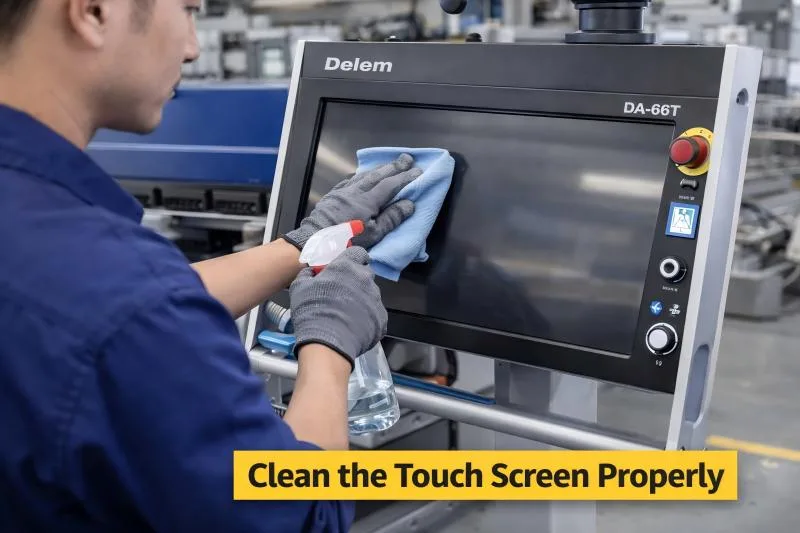
Start with the easiest solution.
- Power off the machine
- Use a soft microfiber cloth
- Clean with alcohol-based cleaner (avoid water)
This removes oil, dust, and debris that may block touch signals.
Step 2: Restart the CNC Controller System
A simple restart can fix many software-related issues.
- Turn off the machine completely
- Wait 2–3 minutes
- Restart the system
If the issue was caused by a temporary glitch, the touch function should return to normal.
Step 3: Check for Software Errors or Calibration Issues
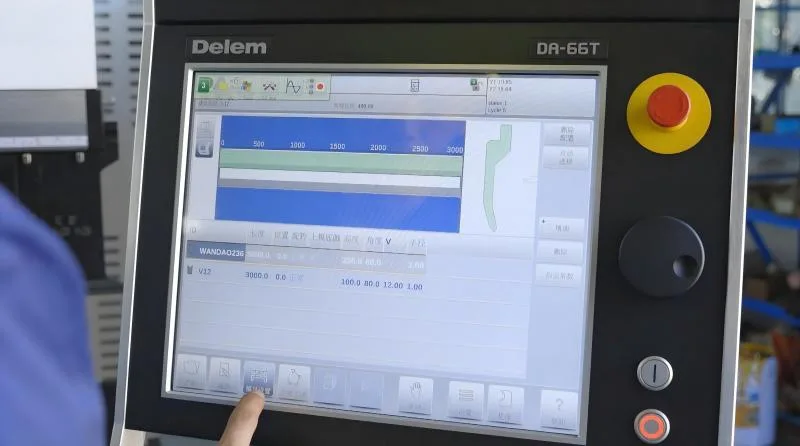
Sometimes the screen responds incorrectly due to calibration errors.
- Enter system settings
- Run touch screen calibration
- Update CNC software if needed
This step is especially important if touches are inaccurate rather than completely unresponsive.
Step 4: Inspect Internal Wiring Connections
If the issue persists, I usually check inside the control cabinet.
- Turn off power before inspection
- Check ribbon cables behind the screen
- Ensure connectors are firmly seated
Loose connections are a very common cause of intermittent touch failure.
Step 5: Test with External Input Devices
To confirm whether the issue is hardware-related:
- Connect a USB mouse (if supported)
- Try navigating the system
If the system works with a mouse, the problem is likely with the touch panel itself.
Step 6: Replace the Touch Screen Panel (If Necessary)
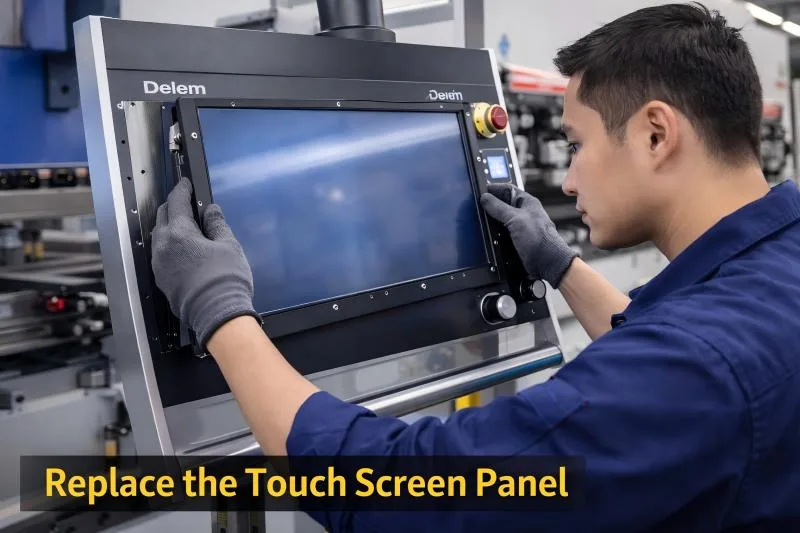
If none of the above steps work, the touch screen may be damaged.
- Replace only the touch panel if possible
- Avoid replacing the entire controller unless required
- Use original or compatible parts
Preventive Maintenance for Press Brake Touch Screen
From my experience, preventing issues is always easier than fixing them.
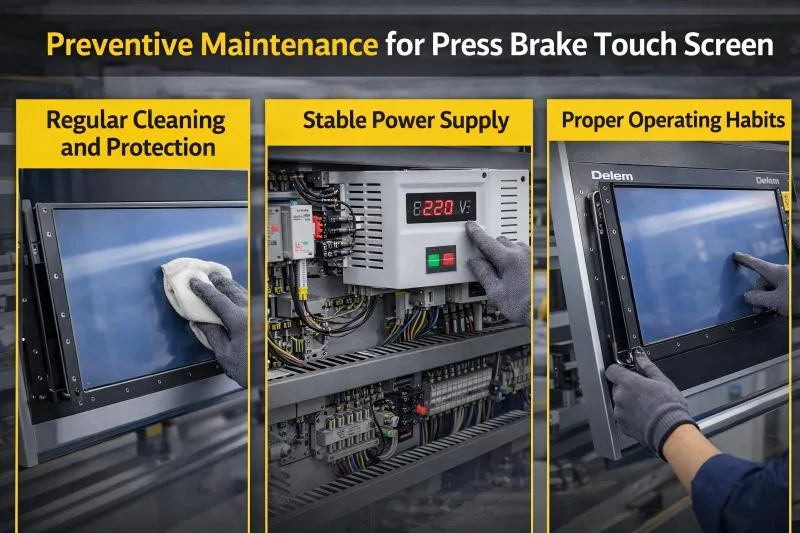
Regular Cleaning and Protection
- Clean the screen daily
- Avoid touching with oily gloves
- Use protective film if necessary
Stable Power Supply
Voltage fluctuations can damage electronic components.
- Use voltage stabilizers
- Avoid sudden shutdowns
Proper Operating Habits
- Do not press too hard on the screen
- Follow correct startup and shutdown procedures
- Keep control cabinets dust-free
FAQs
Why is my Press Brake Touch Screen not responding at all?
This is usually caused by system freeze, loose connections, or hardware failure. Start with cleaning and restarting before checking internal components.
How do I calibrate a Press Brake Touch Screen?
Enter the CNC controller settings, select the calibration option, and follow on-screen instructions to realign touch accuracy.
Can I operate the machine if the touch screen fails?
In some systems, you can use an external mouse or keyboard temporarily, but repairing the touch screen is recommended for full functionality.
How often should I maintain the touch screen?
I recommend daily cleaning and monthly inspection of connections to ensure stable performance.
Conclusion
A non-responsive Press Brake Touch Screen doesn’t always mean a serious failure. In many cases, simple actions like cleaning, restarting, or checking connections can solve the problem quickly. By following a structured troubleshooting process and performing regular maintenance, you can minimize downtime and keep your press brake running efficiently.
If you’re still experiencing issues or need professional assistance, feel free to contact our team for technical support or spare parts solutions.


