


If you’re looking to efficiently navigate the DELEM DA-41T Program Selection Mode, you’ve come to the right place. In this guide, I will walk you through the essentials of using the DELEM DA-41T Program Selection features, making it easier for you to select, copy, rename, or delete programs as needed. My aim is to provide you with clear and concise instructions, helping you maximize the potential of your DA-41T control system. Whether you’re an experienced user seeking a quick refresher or someone new to the system, this article will provide the insights you need to effectively manage your programs and improve your workflow.
Navigating the DELEM DA-41T Program Selection Mode

By tapping the navigation button Program selection, the control is switched to program selection mode.
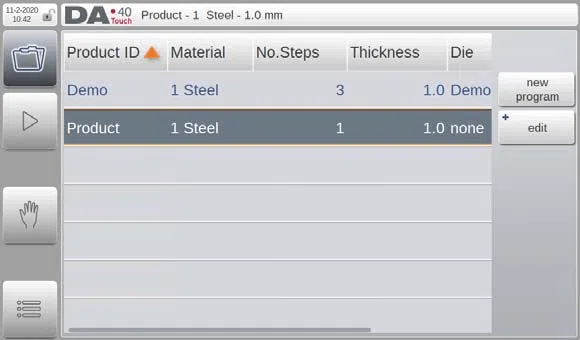
Selecting an Existing Program from Memory
To select an existing program from the memory of the DELEM DA-41T, simply tap on the program you wish to use. Once the program is successfully loaded, the system will display a confirmation message indicating that the program is ready. To run the selected program, you can then tap the Automatic mode icon. This step ensures that you are accurately choosing the program you need for your tasks.
Managing Programs: Copy, Rename, and Delete
Within the DELEM DA-41T Program Selection, managing your programs effectively can streamline your workflow.
Copying a Program: Create a duplicate of a program by selecting it and choosing the copy function. The system will prompt you to enter a new name using the keyboard, ensuring that each copy is distinct.
Renaming a Program: To change the name of a program, select it and use the rename function. Enter the new name when prompted, allowing for easier identification and organization.
Deleting a Program: If you need to delete an unwanted program, select it and confirm the delete action when prompted. Be mindful that this action cannot be undone.
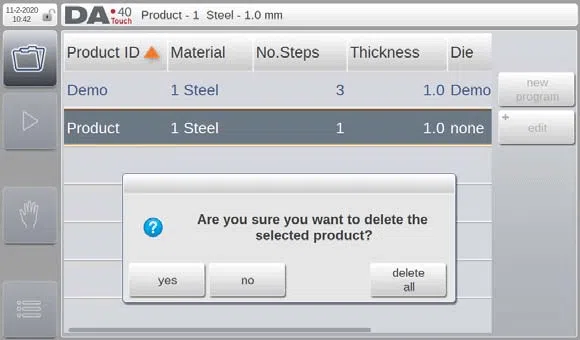
Delete All: For clearing space or starting anew, use the delete all feature. Confirm the action through the prompted pop-up, remembering that this will remove all programs permanently.
Creating a New Program
To start a new program, select the new program soft key. Enter a unique name when prompted; if the name already exists, the DELEM DA-41T will ask whether to overwrite the existing program. Once created, the system switches to automatic mode where you can define several program steps.
Customizing Column Settings in Program Selection Mode
Sorting and Changing Column Positions
In both program selection and automatic mode, customizing column views can enhance your control interface.

- Column Sorting: Tap the middle of the column header to sort the data. Tap again to toggle between ascending and descending order. An orange arrow will indicate the sorted column.
- Changing Column Width: Adjust the width by tapping the right end of the column header and dragging to resize. A box around the column will indicate that the resizing mode is active.
- Repositioning Columns: To change the position of a column, hold the middle of the header for three seconds. Once the color inverts, drag the column to your desired position, allowing for a tailored view.
By following these structured instructions utilizing the DELEM DA-41T Program Selection Mode, you can efficiently manage your programs and customize your working environment for improved productivity.
Frequently Asked Questions(FAQ)
How do I select a program from the DELEM DA-41T memory?
To select a program from the DELEM DA-41T memory, tap the program you want to use. A confirmation message will appear once the program is loaded. You can then execute the program by tapping the Automatic mode icon.
What should I do if I accidentally delete a program?
Unfortunately, deleted programs cannot be recovered. The DELEM DA-41T will prompt a confirmation before deleting to prevent accidental deletions. Always double-check before confirming any delete actions.
Can I customize how program data is displayed in the DELEM DA-41T?
Yes, you can sort and reposition columns for a customized view. Sort data by tapping the column header, and reposition columns by holding and dragging the column header after three seconds. Adjust column widths by tapping and dragging the right end of the column header.
Conclusion
In conclusion, effectively using the DELEM DA-41T Program Selection Mode involves understanding and executing key functions such as selecting, copying, renaming, and deleting programs, as well as creating new ones and customizing your column views. By mastering these steps, you can significantly enhance your operational efficiency and streamline your workflow on the DA-41T control system.
For additional support, further information, or answers to any questions you may have, please feel free to contact our team. We are here to ensure you get the most out of your DELEM DA-41T experience. Additionally, you can explore our documentation for more in-depth insights into optimizing your use of this versatile tool.


