


Navigating the DELEM DA-53T Settings can seem daunting at first, but it’s essential for efficient operation of your equipment. If you’re searching for guidance on how to efficiently manage and optimize these settings, you’re in the right place.
In this article, I’ll guide you through the necessary steps to understand and utilize the DELEM DA-53T Settings with ease. Whether you’re aiming to enhance performance or ensure precision in your operations, this documentation will provide you with the insights needed to master the DELEM DA-53T interface. This guide is tailored for both newcomers to the system and experienced users seeking to refine their skills.
Introduction
By tapping the navigation button, you can switch the control to DELEM DA-53T Settings Mode, easily accessible through the navigation panel.
This mode provides access to a variety of settings that directly influence the programming of new products and processes. Users can set default values and specific constraints according to their needs.
The settings are divided across several tabs logically organizing the different subjects. In the following sections the available tabs and detailed settings are discussed.
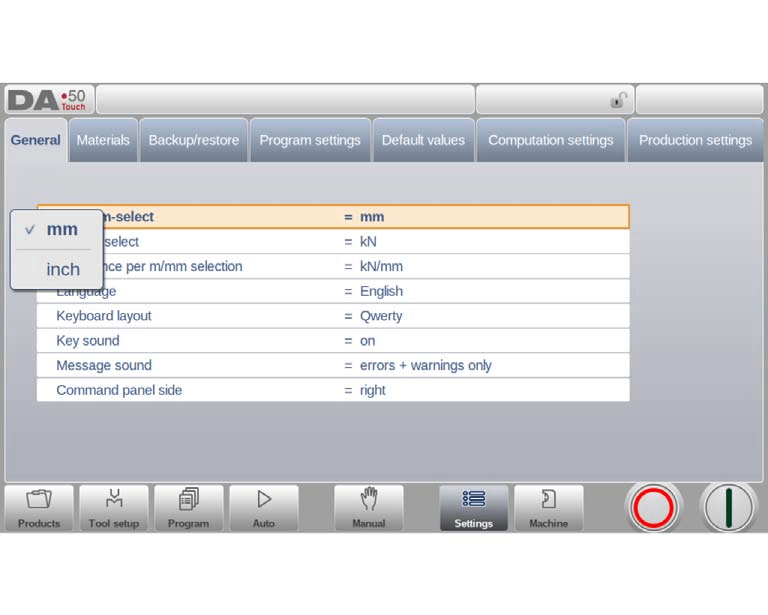
Navigation through the tabs can be done by just tapping them and selecting the required item to adjust. Since there can be more tabs than the screen can show in one view, dragging the tabs in horizontal direction enables to view and select all available tabs.
General Settings
Discover how to navigate and customize DELEM DA-53T Settings efficiently. Modify parameters by selecting the appropriate tab, where the adjustment of numerical or alphanumerical values is made easy with an on-screen keyboard. For list-based settings, simply tap to select options, with easy scrolling for longer lists. Key customizable settings include:
Unit Selection: Choose between millimeters or inches, and select force units as Ton or kN.
Resistance Measurement: Opt to measure resistance per meter or per millimeter.
Language Options: A wide array of interface languages is available. Select your preferred language and enjoy a tailored user experience. Note that languages with unique characters may require a system reboot.
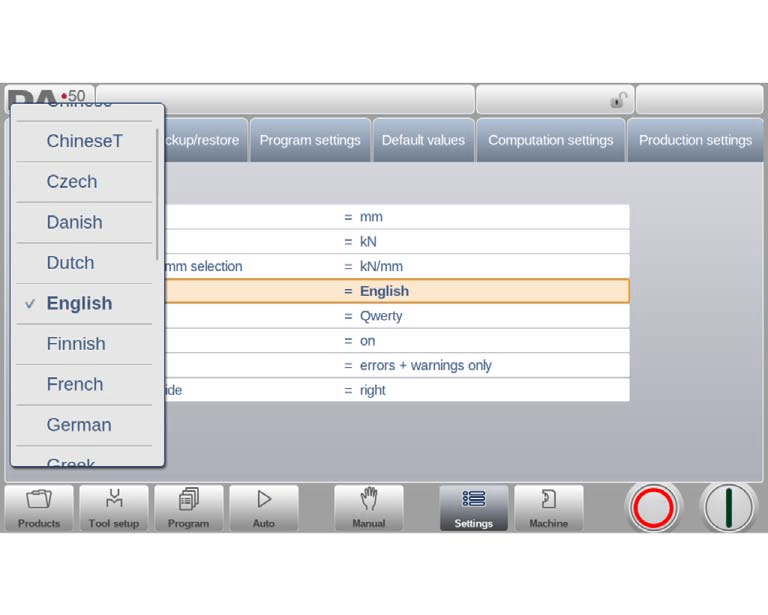
Keyboard Layouts: Customize the keyboard with Qwerty, Qwertz, or Azerty options.
Sound Settings: Personalize sound feedback. Control key sound responses and set message sounds to trigger for all, only errors and warnings, solely errors, or muted entirely.
Command Panel Positioning: Optimize your workflow by switching the command panel to the screen’s left side.
Material Settings
In the DELEM DA-53T Settings, the material tab allows you to program up to 99 materials, a crucial feature for customizing machine operations.
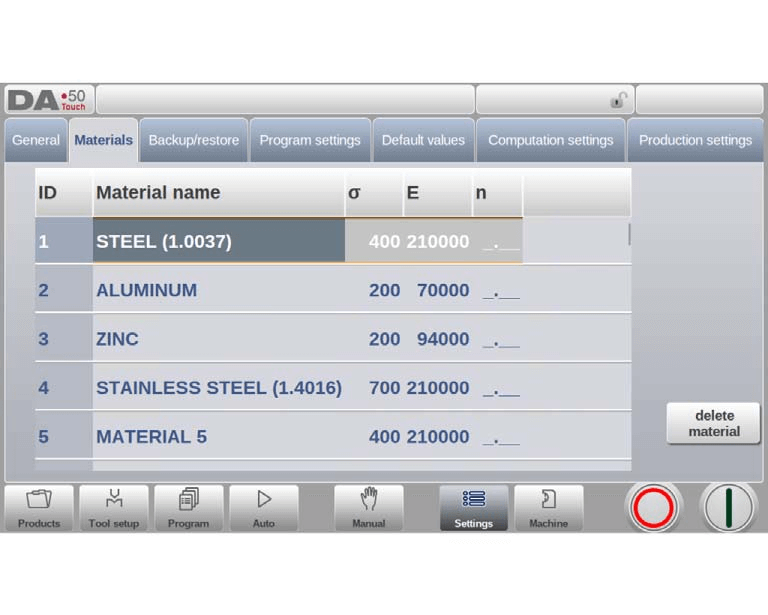
You can edit existing materials, add new ones, or delete any materials no longer needed. Each material includes three key properties:
- Material Name: Appearing on programming screens, it can be up to 25 characters long and must start with a letter.
- Tensile Strength: Defines the selected material’s strength.
- E Module: Refers to the modulus of elasticity of the material.
Strain hardening exponent
A crucial property is the strain hardening exponent (n), supplied by material providers. Accurate input of this value enhances inner radius and bending depth calculations, refining bend allowances and back gauge positions. Initially set to _.__, the parameter n ranges from 0.01 to 1.00, with typical mild steel having a value of 0.21.
Calculate n
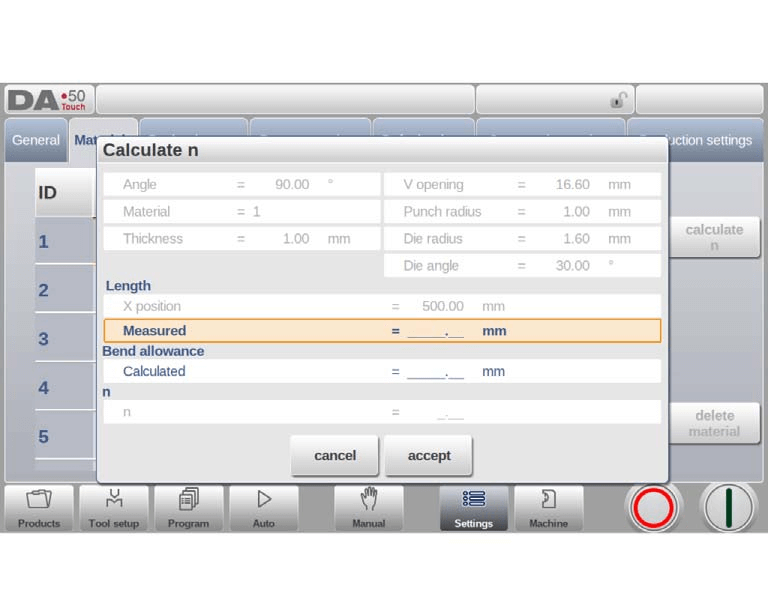
For greater precision, ‘calculate n’ can be used. Conduct a manual test bend and enter the resulting side length to derive the strain hardening exponent and bend allowance. Calculation accuracy hinges on the correct input of sheet thickness, tool parameters, and precise side length measurements.
Materials can be sorted in the list by tapping column titles, facilitating easy organization. To modify a material, select its line and adjust the values. Use ‘Delete Material’ for removal, and for new materials, select an empty line and program the required values. This streamlined process in DELEM DA-53T Settings optimizes your programming efficiency.
Backup and Restore Options
Explore the DELEM DA-53T Settings Mode to efficiently backup and restore products, tools, settings, and tables. If you’re dealing with items from older models, the system supports restoring DLC-file format products and tools with ease. Backup and restoration for materials are specifically catered for here.
The DELEM DA-53T Settings allows for unified procedures to save or read data across various backup media, such as USB sticks and networks.
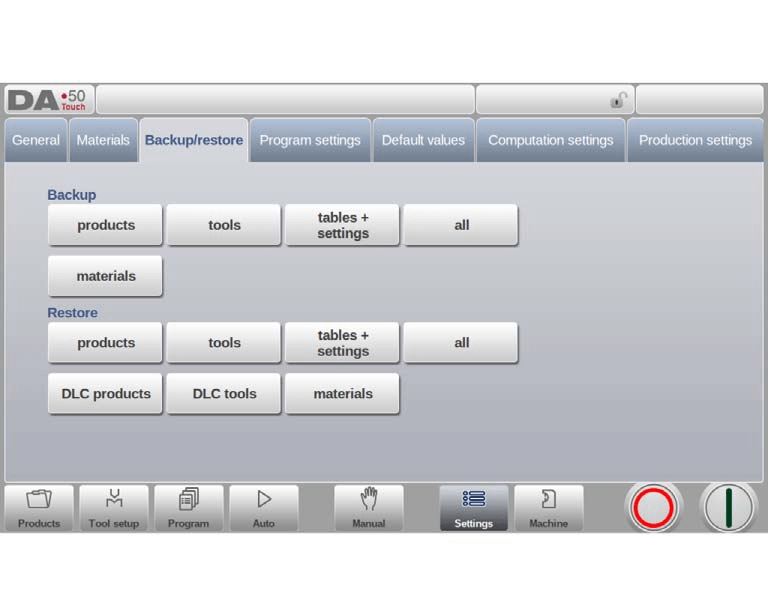
Your actual backup directory is determined by the connected device and chosen directory, which can be tailored as needed. This ensures you have independent backup locations for products and tools, enhancing operational flexibility.
Product backup
To make a backup of programs to disk, choose ‘products’ in the Backup section on the Backup/restore page.
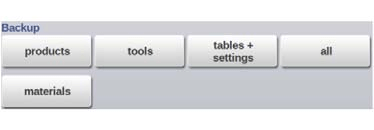
When the initial backup directory has been set, the products backup screen appears.
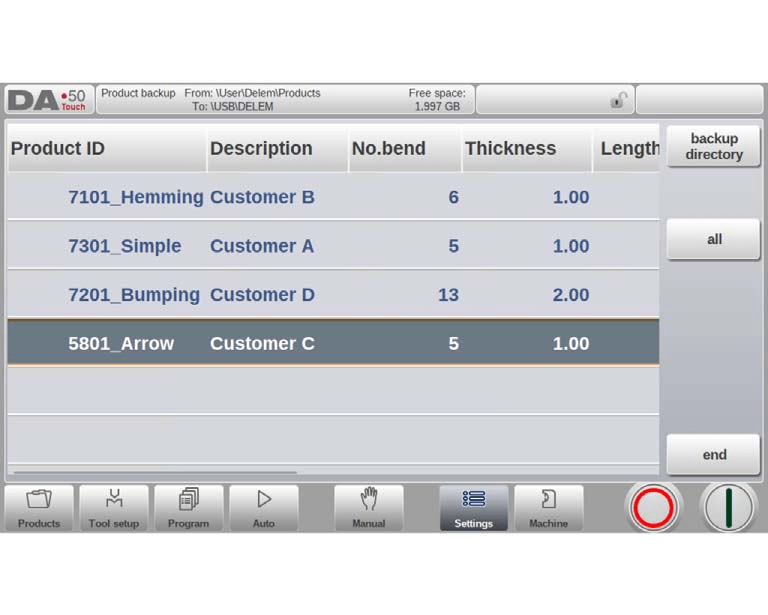
In the backup screen of DELEM DA-53T Settings, products in the selected directory are displayed. Utilize view options similar to Products mode to easily locate items for backup.
- Source and Backup Locations: The current source and backup locations are prominently displayed at the top. To back up a product, simply tap the desired item in the list. A backup marker will confirm the selection. If a duplicate file exists, you will be prompted to choose whether to replace it.
- Batch Backup: Easily back up all listed products at once by tapping “All”.
- Changing Source Directory: Adjust the source directory by using the Source Directory option. Navigate through the directory browser to select your preferred source.
- Defining Backup Destination: Similarly, the backup destination can be modified via the Backup Directory option. Use the directory browser to choose the desired destination for your backups.
Product restore
To restore programs to the control, choose ‘products’ in the Restore section on the Backup/ restore page.
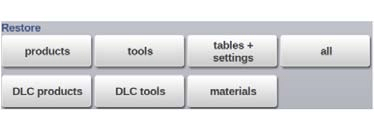
When the initial restore directory has been set, the products restore screen appears.
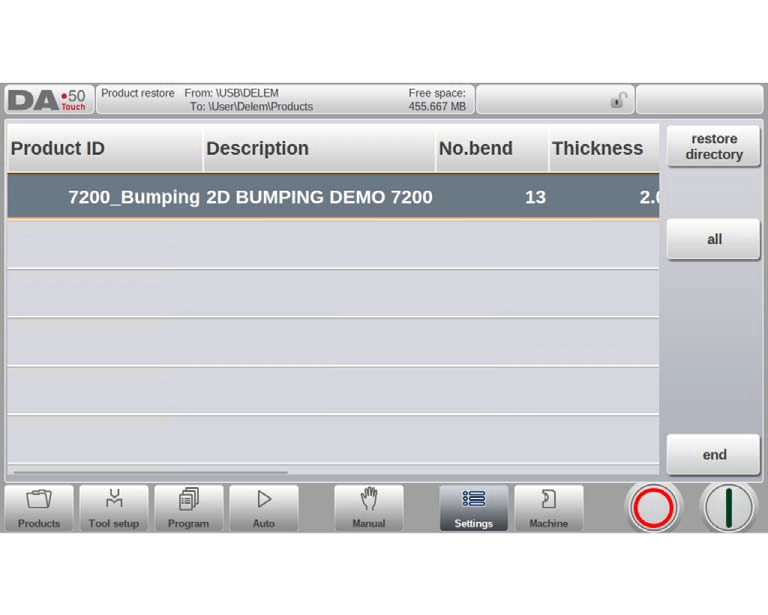
In the DELEM DA-53T Settings, the restore screen displays products from the selected directory, similar to the Products mode, making it easy to find items for restoration. The current restore source and destination locations are visible at the top of the screen.
Steps to Efficiently Navigate the Restore Process:
- Viewing Products:
- Easily browse products for restoration using familiar view-changing functions.
- Selecting Products:
- Tap on a product in the list to restore it. A confirmation marker will appear to indicate the action. If a product with the same name exists on the control, you’ll be prompted to replace it.
- Changing Source Location:
- Use the “Restore Directory” to open the directory browser and select a new source location if needed.
- Setting Destination:
- Adjust the destination directory via the “Destination Directory” to specify where the restored products should go.
These steps ensure efficient navigation and use of the DELEM DA-53T Settings for product restoration, enhancing operational workflow.
Tool backup
To make a backup of tools to disk, choose ‘tools’ in the Backup section on the Backup/restore page.
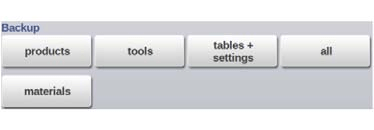
When the initial backup directory has been set, the tools backup screen appears.
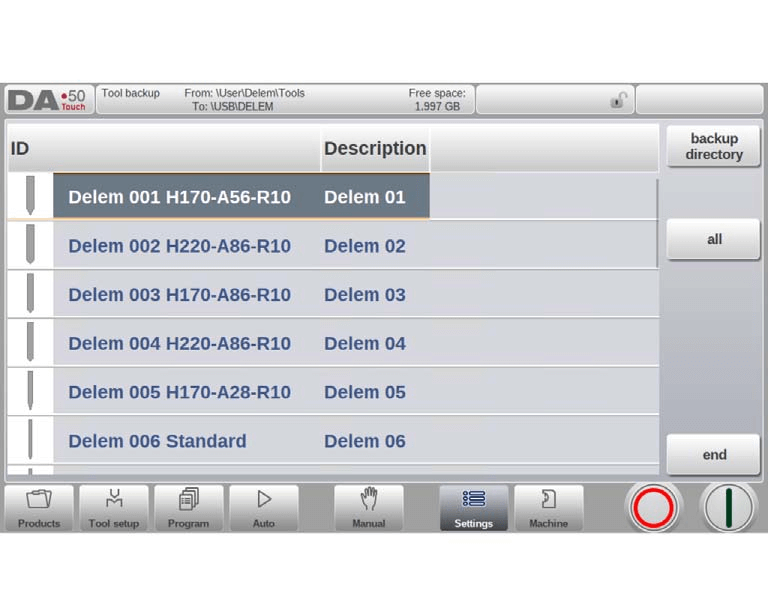
With this menu a back-up of tools on the control can be made: punches, dies or machine shapes. The procedures for a tool back-up run similar to the procedures for a product back-up.
Tool restore
The restore procedures for tools run similar to the procedures for a product restore.
Backup and restore for Tables and Settings
To backup user specific settings and tables the Backup/restore tab offers specific functionality. The procedure is again similar to the backup and restore of products and tools. The special function All will automatically execute all steps sequentially for either Backup or Restore (Products + Tools + Tables + Settings).
Directory navigation
When accessing the Backup Directory in the DELEM DA-53T Settings, a new window lists the available backup directories.
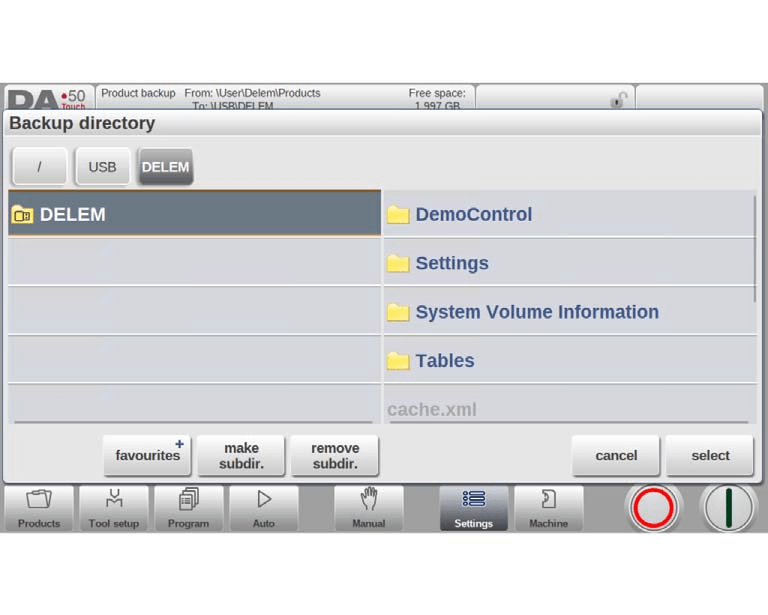
- Browse Directories: Navigate through your backup device’s directory structure to find your desired directory. Tap “Select” to choose the directory.
- Switch Devices: To change backup devices, tap the highest-level option, select the desired device, and then choose the correct subdirectory.
- Network Connections: If you’re using a network connection, first tap “Network” to access available network volumes, then proceed as with other devices.
- Manage Directories: Create new subdirectories by tapping “Make Subdir” or delete existing ones with “Remove Subdir”. To enter a subdirectory, tap it and select “Select” to confirm.
Incorporating these steps will enhance your ability to efficiently navigate the DELEM DA-53T Settings.
Program settings
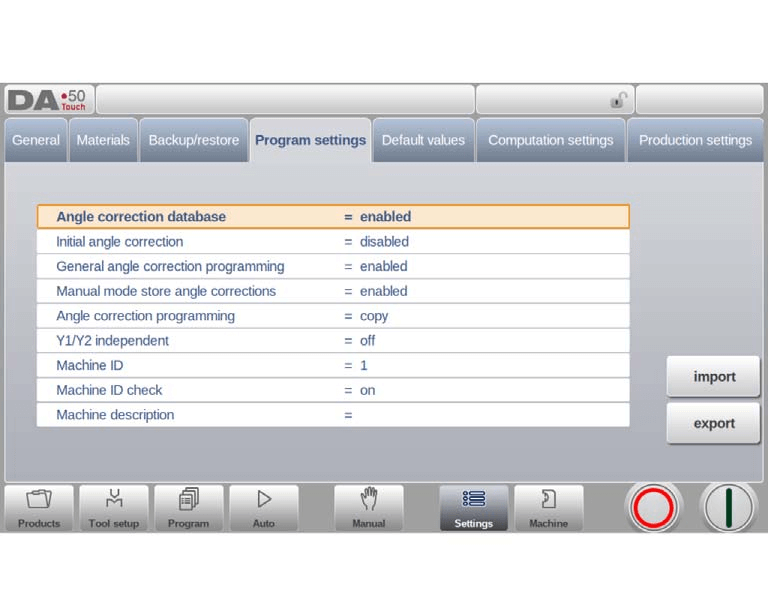
Angle Correction Database
- Enable Database: Activating this feature stores angle corrections entered in production mode for reuse in future bends. The DELEM DA-53T Settings ensure angle corrections are accessible and suggest corrections for similar bends detected during production.
- Correction Storage: New corrections update the database, provided material properties, thickness, die opening and radius, punch radius, and angle match the active bend.
- Comparison and Interpolation: For offers, the bend’s angle needs similarity, with interpolation happening when angle differences within 10° fall below 5° in correction variance.
Initial Angle Correction
- Correction Programming: This independent feature is invisible in standard views but is programmable via the corrections page in both Automatic and Manual modes. It adds to visualized corrections, refining total bend accuracy.
General Angle Correction Programming
- Universal Program Adjustments: Applies corrections across all bends without storing them in the database. Options include:
- Disabled: No general corrections.
- Enabled: Apply singular or double general corrections (G-corr. α1 and G-corr. α2).
Manual Mode Store Angle Corrections
- Correction Retention: Allows saving manual mode angle corrections for future product programming in DELEM DA-53T Settings.
Angle Correction Programming
- Adjustment Options: Choose whether to copy, maintain delta values, or change angle corrections independently:
- Copy: Mirrors corrections between Cα1 and Cα2.
- Delta: Maintains the difference when adjusting Cα1.
- Independent: Adjusts Cα1 and Cα2 separately.
X Correction Programming
- X-Axis Adjustments: Mirrors angle correction options, with applicability when an X2-axis exists:
- Copy: Mirrors corrections between CX1 and CX2.
- Delta: Maintains delta during adjustments.
- Independent: Separately adjusts CX1 and CX2.
Y1/Y2 Independence
- Axis Programming: Control the Y-axes, choosing between:
- Off: Single-axis control.
- On: Independent programming for Y1 and Y2.
Machine Identification
- Machine ID : Assign unique IDs to avoid confusion in facilities with multiple machines, ensuring program compatibility checks.
- Machine ID Check: Enable warnings for mismatched machine IDs, allowing manual confirmation to proceed with loading or aborting.
- Machine Description: Annotate which machine corresponds with the control within the DELEM DA-53T Settings, aiding in the identification in offline profiles.
Default values
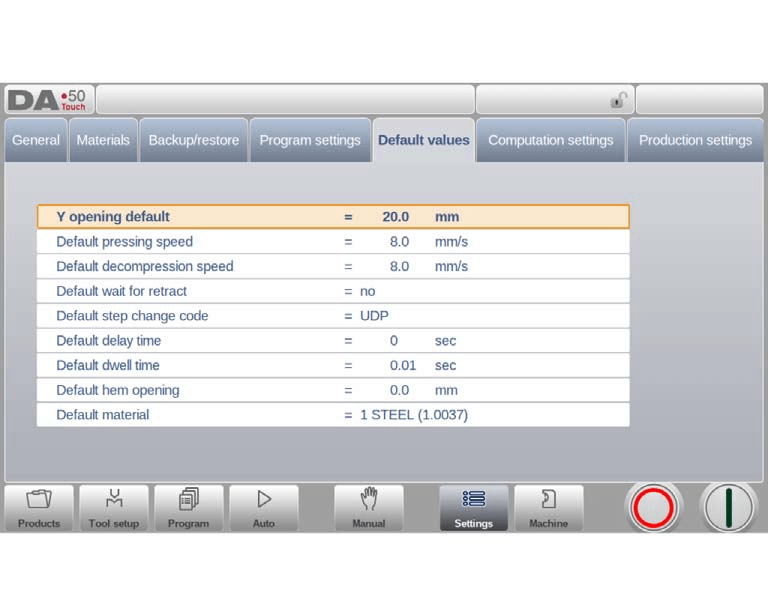
Navigating the DELEM DA-53T Settings Mode allows users to efficiently customize machine settings for optimal performance. Below is a structured list of default settings that can be configured:
- Default Y Opening
- Sets the initial Y-axis opening value for new programs.
- Default Pressing Speed
- Establishes the starting speed for bends, influencing program efficiency.
- Default Decompression Speed
- Defines the initial decompression speed in a bending sequence.
- Default Wait for Retract
- Controls the default delay before retraction in a bend program, affecting operational timing.
- Default Step Change Code
- Determines default step change moments in programs, with extensive details available in the Program mode.
- Default Delay Time
- Allows presetting of X-axis wait times during step changes for enhanced product handling.
- Default Dwell Time
- Sets initial dwell time in a bending program, impacting cycle timing.
- Default Hem Opening
- Configures the opening distance for hem bends, ensuring precision in the hemming process.
- Default Material
- Selects the starting material for new programs, streamlining material handling.
By effectively managing these defaults in the DELEM DA-53T Settings, users can enhance their programming efficiency and ensure precise machine operation.
Computation settings
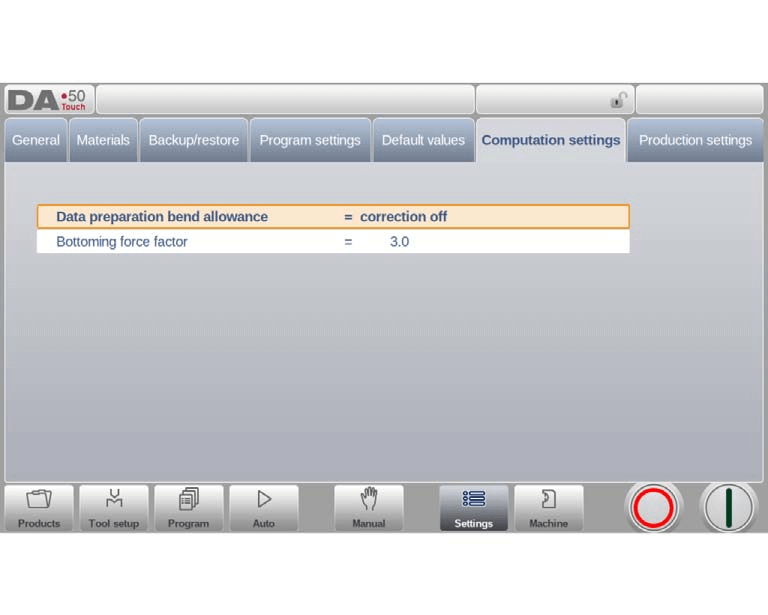
- Bend Allowance Correction:
- Correction Off: No bend-allowance is added to numerical programming.
- Correction On: Bend-allowance correction is included in numerical programming. This option determines if programmed values incorporate bend-allowance during product programming. When “Corrections On” is selected, axis corrections are calculated and saved within the program, viewable and editable in production mode (see ‘Auto mode’).
Bottoming Force Factor
- Calculate the necessary bottoming force by multiplying the air bend force by the bottoming force factor. This ensures the machine applies the correct force to the material.
Z-Distance in Settings
- The Z-distance measures from the finger’s edge to the sheet’s corner. In machines with automatic Z-axis features, this setting allows automatic calculation of finger positions relative to the sheet’s end, enhancing precision and workflow efficiency.
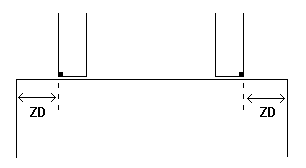
By carefully adjusting these parameters within the DELEM DA-53T Settings, operators can significantly improve the accuracy and efficiency of their programming and production processes.
Production settings
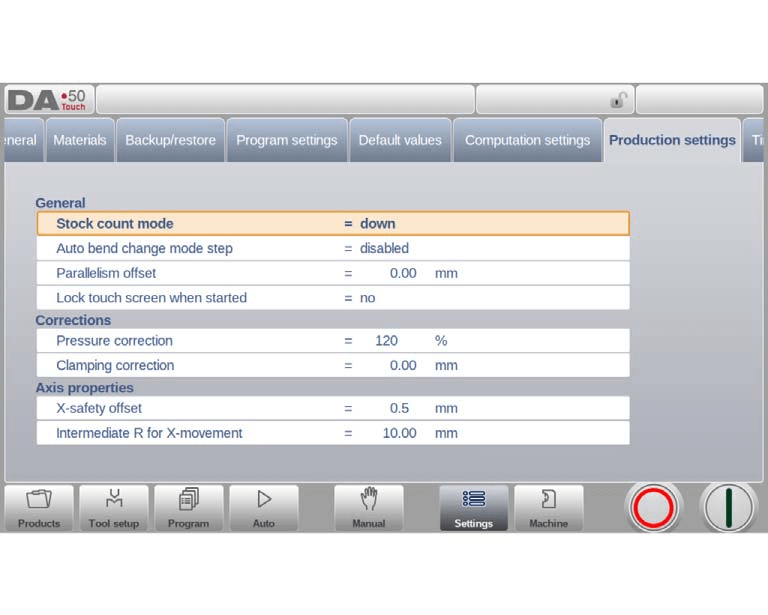
- Stock Count Mode
- In DELEM DA-53T Settings, configure the stock counter to count products up or down in production mode. Down counting helps meet pre-planned quotas by stopping the control at zero, while up counting tracks production progress.
- Auto Bend Change Mode Step
- Enable automatic step changes during bending in Step mode within DELEM DA-53T Settings. When enabled, subsequent bending parameters load automatically but require pressing the start button to commence.
- Parallelism Offset
- Program a parallelism offset for the Y-axis stroke, ensuring accuracy in bending operations. The DELEM DA-53T Settings allow for parameter adjustments that affect parallelism below the clamping point.
- Lock Touch Screen When Started
- Protect your DELEM system by locking the touch screen once the control starts, preventing accidental interference.
- Pressure Correction
- In DELEM DA-53T Settings, adjust the pressure valve control using a percentage of the calculated force to achieve desired bending results.
- Clamping Correction
- Fine-tune the beam’s clamping position in DELEM DA-53T Settings for a secure hold on sheets. Adjust the pinch point to ensure precision in sheet clamping.
- X-Safety Offset
- Set a safety zone for the X-axis, following the punch and die contour. This DELEM DA-53T Setting prevents collisions, especially when an R-axis is used.
- Intermediate X for Z-Movement
- Define a temporary safety zone for the X-axis during Z-axis movements. This DELEM DA-53T Setting is crucial when using varied die sizes to prevent collisions.
- Intermediate R for X-Movement
- Establish a temporary R-axis position to ensure safe X-axis movements within the die’s safety zone. Adjustments in DELEM DA-53T Settings prevent collisions during axis movements.
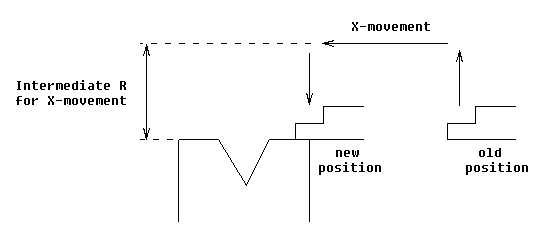
By expertly navigating and utilizing these settings in the DELEM DA-53T, operators can optimize machine performance and ensure safe, efficient production processes.
Time settings
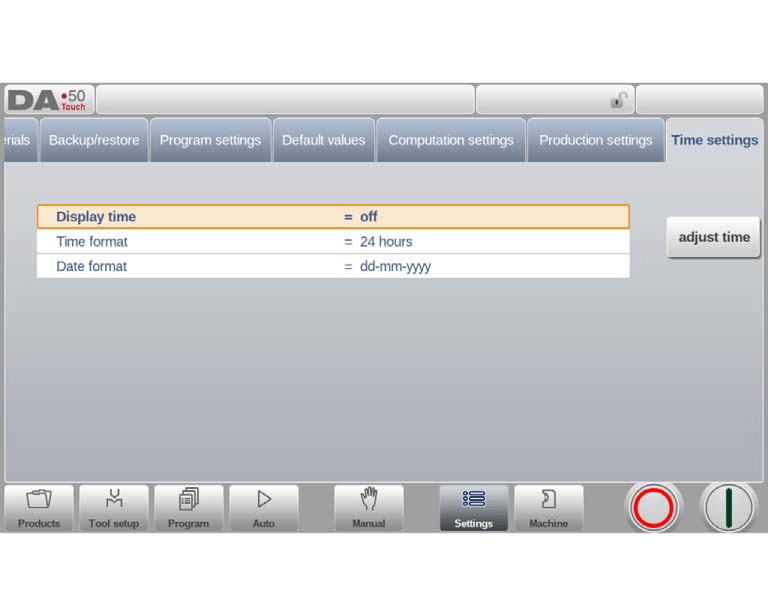
Display time: Display date and time on the title panel, time only or no time at all.
Time format: Display the time in 24 hours or 12 hours format.
Date format: Display the date in dd-mm-yyyy, mm-dd-yyyy or yyyy-mm-dd format.
Adjust time: To adjust the date and time. Adjusting the date and time will also adjust the date and time of the operating system.
Frequently Asked Questions(FAQ)
What should I do if I’m unsure about a specific DELEM DA-53T setting?
If you’re uncertain about any DELEM DA-53T setting, refer to the user manual first for detailed explanations of each parameter. If the manual does not clarify your doubts, contacting the manufacturer’s customer support for technical assistance is advised.
How can I ensure I am using the DELEM DA-53T settings correctly?
To use DELEM DA-53T settings correctly, begin by familiarizing yourself with the interface and learning the functionalities of each option. Regular training sessions can help grasp complex features. Additionally, keeping the software updated ensures access to the latest functionalities and improvements.
Can I save custom settings on the DELEM DA-53T for repeated operations?
Yes, the DELEM DA-53T allows you to save custom settings, which can be recalled for repeated operations. This feature helps in maintaining consistency and saving time in setting up the press brake for similar tasks.
Conclusion
In summary, efficiently navigating DELEM DA-53T settings is crucial for optimizing the operation and performance of your press brake system. Key steps include familiarizing yourself with the interface, understanding parameter inputs, and regularly updating software to maintain system accuracy and efficiency.
Proper setup and maintenance are essential to ensure the longevity and performance of your press brake machine. By following these guidelines and performing regular maintenance, you can minimize downtime and improve production efficiency. For more detailed support or questions, don’t hesitate to contact our team or explore our other documentation for further insights.


