


If you’re curious about how ESA S530 Data Management can enhance your workflow efficiency, you’ve come to the right spot. I’ll explain how this integrated system revolutionizes the management of design data, ensuring your processes are not just faster but also more streamlined and accurate. With ESA S530 Data Management, you can expect significant improvements in your productivity and design precision. This article will highlight the key features and benefits that make ESA S530 a vital tool for optimizing your CAD operations. Whether you’re already leveraging CAD solutions or exploring new ways to boost efficiency, I’ll provide the insights you need to make informed decisions.
Introduction
In the context of ESA S530 Data Management, there are several critical categories of data that are fundamentally important for the optimal operation of the ESA/GV’s S530 numeric control system for bending presses.
- Configuration parameters of the machine (Menu 2). These parameters set the foundational settings that ensure the machine operates efficiently and accurately.
- Axes parameters (Menu 1). Accurate input and management of these parameters allow for precise control over movement and positioning, which is essential for maintaining high standards in production quality.
- Work programs (graphic or numeric), involves detailed instructions that the machine follows to execute tasks.
- Fixturing (punches and dies) is essential for shaping and molding materials accurately and consistently.
Memory Devices
Understanding Internal Memory (Buffered RAM)
In ESA S530 Data Management, internal memory refers to the device of the numeric control (located on the MULTIFUNCTION board) where all machine data are downloaded before use. Thanks to the battery, these data are preserved even when the numeric control is off, ensuring continuous ESA S530 Data Management reliability.
Utilizing SSD (Flash Hard Disk) for Enhanced Performance
As part of ESA S530 Data Management, the SSD functions as the storage device containing a copy of the operating system, the Kvara application program, and its backup copy. Additionally, it stores data saved by the Kvara application program, such as machine data and fixturing programs, highlighting the robust data management capabilities of the ESA S530 system.
Convenience of USB Key Storage
Within the framework of ESA S530 Data Management, a normal USB Key is used. It is employed for saving the machine’s configuration parameters and axes parameters. Furthermore, it serves as a medium for storing security copies of programs, punches, and dies. The USB Key enhances ESA S530 Data Management by allowing its contents to be easily viewed on any IBM-compatible Personal Computer.
Logical Structuring of Data within the CAD System
Logic site of the data means the storage device in which they reside on powering. At the time of use, the data reside in the internal memory.
Storage device
- Configuration parameters: Internal memory + SSD
- Axes parameters: Internal memory + SSD
- Work programs: SSD
- Punches: SSD
- Dies: SSD
Files associated with the data
All the machine data (Configuration and Axes) are memorized on files so that they can be recovered following a memory loss or incorrect entry.
Data Exchanging between Storage Devices
Data exchanging means moving data from the internal devices to the diskette (SAVING) or from the diskette to the internal storage devices (LOADING).
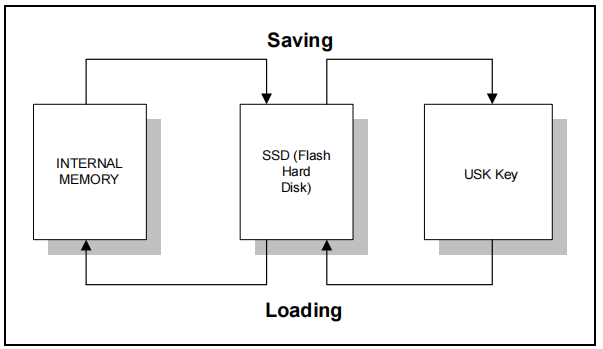
All the data handles by the KVARA program and listed in the previous sections can be Loaded and/or Saved as illustrated below:
CONFIGURATION PARAMETERS AND AXES PARAMETERS:
PROGRAMS AND FIXTURES:
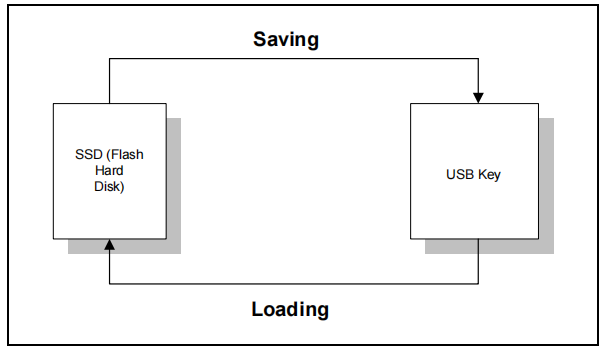
The ESA S530 Data Management system first stores files in the SSD. Files are then transferred to the target device when loading or saving Axes Parameters or Configuration Data, ensuring a backup is available if storage fails. Machine and configuration parameters can be saved or loaded automatically at the same time. Further details are provided in the “Saving/Loading all the parameters” section.
Saving / Loading the Axes Parameters
The machine parameters comprise the following data:
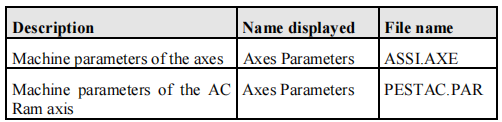
Loading and/or saving can be carried out in one of the following ways:
- Single saving/loading: the operation is carried out by accessing the parameters mask in Select Axes Parameters 1 Menu;
- Global saving/loading: the operation is carried out along with the Configuration Parameters in the global saving/loading procedure described in the previous paragraph.
Concrete operations:
- Single Saving: To save Axes Parameters individually, go to the Axes Parameters 1 Menu and press the save button to store the data on a USB Key.
- Single Loading: For loading Axes Parameters alone, access the Axes Parameters 1 Menu and click [Load from Disk] to retrieve the data from the USB Key.
- Save/Load All Parameters: To manage all configuration and axes parameters at once, navigate to the Configure 2 Menu and use the [Save All] or [Load All] function keys to save/load data via a USB Key.
Saving/Loading the Punches
In the context of ESA S530 Data Management, modifying punch data stored on the SSD is straightforward and does not need special loading or saving steps. To edit, select the desired punch from the list and access its drawing. Then:
- Press the save button to memorize your changes.
- Navigate to another screen to discard any modifications.
To save a punch using the USB Key in the context of ESA S530 Data Management:
- Access the punches list by pressing the

key.
- Navigate with the cursor to select the punch you wish to save.
- Press

To load a punch from the USB Key within ESA S530 Data Management:
Access the punches list by pressing the key
twice.
Press

to view the punches stored on the USB Key.
Use the cursor to select the punch to be loaded.
Press
Saving/Loading the Dies
In the context of ESA S530 Data Management, die data, which are stored on the SSD, do not need specific loading or saving procedures for modification. Once a die is selected from the list and accessed for drawing, users can either press to save the modified data or navigate away to discard changes.
To save or load a die using ESA S530 Data Management on a USB Key, follow these steps:
- Saving a Die: Access the die list, navigate to the desired die, and confirm the save action.
- Loading a Die: Access the die list, switch to the USB Key view, select the desired die, and confirm the load action.
Saving/Loading all the Tools
To save all punches and dies using ESA S530 Data Management on a USB Key:
- Access the list of punches or dies.
- Open the menu and select [Save tools] to save them onto the USB Key.
To load punches and dies from a USB Key using ESA S530 Data Management:
- Access the list of punches or dies.
- Display the list from the USB Key.
- Open the menu and select [Save tools] to load them from the USB Key.
Saving/Loading Programs
The programs can consist of several files:
- nomefile.PRG containing the workpiece drawing data;
- nomefile.PRN containing the axes targets and bending data.
For efficient ESA S530 Data Management, you can use a USB Key to save and load programs:
- Saving a Program:
- From the SET-UPS mask, choose the current program to save on a USB Key. Navigate the programs list, select the desired program, and save it.
- Loading a Program:
- Access the program list on the USB Key. Choose the program to load, and copy it to the SSD. Confirm the newly copied program is in the SSD list, then select it to access and load the data.
Saving/Loading all the Programs
Saving All Programs to a USB Key:
- Access the programs list.
- Open the menu and select [Save programs].
- All programs will be saved onto the USB Key.
Loading All Programs from a USB Key:
- Access the programs list.
- View the list of programs on the USB Key.
- Open the menu and select [Save programs].
- All programs will be loaded from the USB Key.
By integrating these steps, ESA S530 Data Management ensures efficient data storage and retrieval using a USB Key.
Recommended Security Practices
ESA S530 Data Management’s security saving involves memorizing the data that allows the bending press to operate on a USB Key.
- Parameters: Security saving of the parameters must be carried out at the time of shipment. Any successive modifications must be saved immediately.
- Programs: ESA S530 Data Management requires the security saving of programs to be performed periodically by the customer, depending on the number or importance of the programs he sets up.
- Fixturing: Security saving of the fixturing must be carried out after all the customer’s tools have been entered. The customer must save again whenever a new punch or a new die is entered.
Guidelines for Bending Press Manufacturers
When dealing with ESA S530 Data Management, it is advisable for bending press manufacturers to keep:
- A USB Key containing the machine parameters of each bending press sold (in duplicate or a copy on the hard disk of a personal computer).
- A USB Key containing the fixturing supplied with the bending press.
Incorporating these suggestions will enhance the reliability and accessibility of data within the ESA S530 Data Management framework.
Essential Tips for End Users
For optimal ESA S530 Data Management, it is advisable for end users to maintain:
- A USB Key containing a copy of all machine parameters, fixturing, and programs commonly used in the numeric control.
- A security USB Key identical to the one described above.
- A copy of the machine parameters stored on the hard disk of a Personal Computer.
- A USB Key containing the programs of each individual customer to free the greatest amount of memory possible, achieving faster search phases. This USB Key is only required when dealing with a large number of programs.
Frequently Asked Questions(FAQ)
Can ESA S530 Data Management handle complex design data?
Yes, ESA S530 Data Management is equipped to handle complex design data. It offers robust tools for managing intricate datasets and ensures that all design parameters are efficiently organized and accessible, improving overall productivity.
Is it difficult to integrate ESA S530 Data Management with existing CAD systems?
No, ESA S530 Data Management is designed for easy integration with existing CAD systems. Its user-friendly interface and comprehensive support documentation make the integration process smooth, with minimal disruption to ongoing projects.
What kind of support is available for ESA S530 Data Management users?
Users of ESA S530 Data Management have access to extensive support resources, including online tutorials, user manuals, and a dedicated support team. This ensures that any issues can be quickly resolved, aiding in maintaining consistent efficiency in your design operations.
Conclusion
In conclusion, ESA S530 Data Management significantly enhances efficiency by optimizing the management of design data, automating key processes, and ensuring precision in CAD operations. By streamlining these elements, it empowers businesses to improve workflow productivity and accuracy.
To fully leverage these benefits and elevate your operations, consider contacting our team for more detailed information or to explore how ESA S530 can be integrated into your existing systems. Whether you’re looking to enhance current capabilities or learn more, we’re here to assist you in maximizing your efficiency.


