


If you are looking to better organize bending sequences, review angle data, or create a new program efficiently, understanding the ESA S875 Bend Summary Mask is essential. The ESA S875 Bend Summary Mask allows you to view all bends in a structured list, quickly access bend parameters, and manage program data in a clear and centralized interface. Whether you need to enter the bend summary, modify existing bend information, or create a new program from scratch, mastering the ESA S875 Bend Summary Mask will significantly improve programming accuracy and workflow efficiency. In this article, I will clearly explain how to enter the ESA S875 Bend Summary Mask, how to use it correctly, and how to create a new program step by step.
Introduction
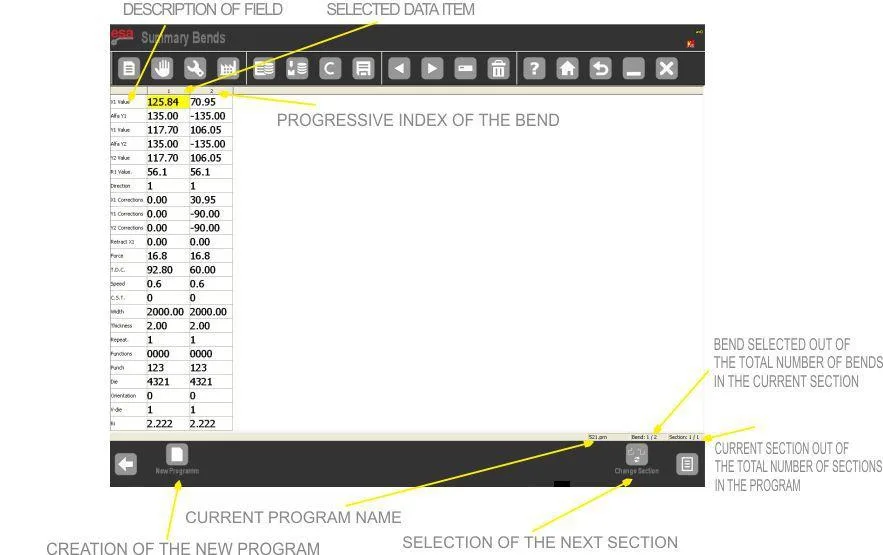
The ESA S875 Bend Summary Mask is a structured table interface that allows operators to simultaneously view all bends within the current programme. Instead of reviewing bends one by one, the Bend Summary Mask displays every bend in column format, making it easier to compare angles, axis positions, and section data in a single screen.
In the Bend Summary Mask, each column represents one bend in the programme, while each row corresponds to a specific parameter such as angle, axis position, or related bend data. The heading of each column shows the progressive bend number, allowing quick identification of the sequence. The first column on the left describes the parameter type for each row. The currently selected value is highlighted in yellow, ensuring clear visibility during editing.
The Bend Summary Mask also displays important contextual information, including:
- The name of the active programme
- The selected bend number compared to total bends in the current section
- The current section number compared to total sections in the programme
- The function key [New Program]
- The function key [Change Section]
Because the Bend Summary Mask centralizes all bending data, it is especially useful when working with complex multi-bend and multi-section programmes.
How to Enter Bend Summary Mask Step by Step
Accessing the ESA S875 Bend Summary Mask is simple and requires only a few steps from the Settings interface.
Step 1: Open the Settings Menu
From the Settings mask, press the menu key to display available options.

Step 2: Select Bend Summary
Select the item Bend Summary (8) from the list. The ESA S875 Bend Summary Mask will open immediately.
Once inside the Bend Summary Mask, you can begin reviewing or modifying bend data directly in table form.
How to Navigate and Modify Data
The ESA S875 Bend Summary Mask provides flexible navigation tools to move across bends and parameters.
Shifting the Selection Between Bends
To move from one bend to another inside the Bend Summary Mask:
- Use the navigation keys to move left or right between columns.
- If you press the forward key while positioned on the last bend, a new bend will automatically be added at the end of the queue.
If not all bends are visible width-wise, continue shifting right to scroll hidden columns into view. Similarly, if the monitor cannot display all parameter rows vertically, scroll upward or downward to access hidden rows.
This dynamic scrolling ensures the Bend Summary Mask can handle programmes with a large number of bends.
Changing a Parameter Value
To modify a value in the ESA S875 Bend Summary Mask:
- Move the selection to the desired cell.
- Enter the new value.
- Press the ENTER key to confirm.
The updated value will be stored immediately in the programme. This direct editing capability eliminates the need to return to the Settings mask for most parameter changes.
How to Change Sections
The ESA S875 Bend Summary Mask supports multi-section programme management.
To move the selection to the first bend of the next section:
- Press the [Change Section] key.
If the current section is already the last section in the programme, pressing [Change Section] will automatically create a new section. This makes the ESA S875 Bend Summary Mask particularly efficient for programming parts with sequential bending stages.
How to Create a New Programme
One of the most powerful features of the ESA S875 Bend Summary Mask is the ability to create a new numeric programme directly from this interface.
Step 1: Press New Program
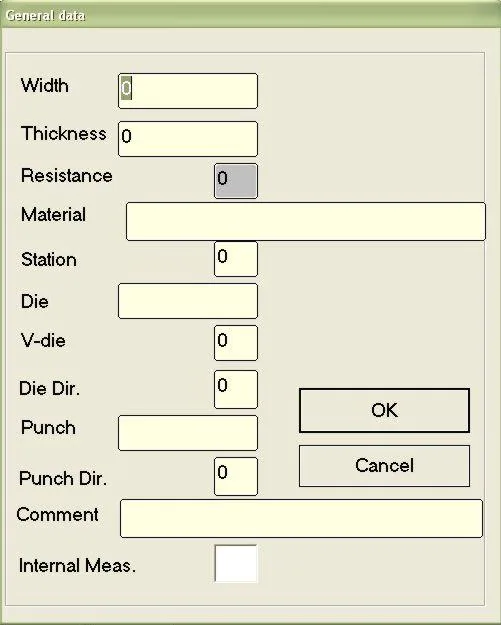
Inside the ESA S875 Bend Summary Mask, press the [New Program] key. A general data window will appear.
Step 2: Enter General Programme Data
You must enter the following information:
- Sheet width
- Sheet thickness
- Material resistance
- Die selection (must already be drawn)
- Die cavity number
- Punch selection (must already be drawn)
Material resistance values follow these general regulations:
- Aluminium: 0–30
- Sheet metal: 31–50 (ideal value 42)
- Stainless steel: more than 50
The system automatically calculates the material category based on the resistance entered.
If default bend data are enabled in the Settings mask, the general data window will not appear. Instead, the ESA S875 Bend Summary Mask will directly create a new bend using the default parameters.
Step 3: Enter Bend Parameters
After confirming general data, the cursor will automatically move to the Alfa Y1 field of the first bend. From here, you can continue entering angle and axis values within the ESA S875 Bend Summary Mask.
Step 4: Save the Programme
Once programming is complete:
- Press the save key.
- Enter the programme name in the pop-up window.
- Select [Confirm] and press ENTER.
The new programme will then be stored in the system memory.
Why Mastering ESA S875 Bend Summary Mask Improves Efficiency
The ESA S875 Bend Summary Mask significantly enhances workflow efficiency by centralizing bend data management. Instead of navigating between multiple screens, operators can:
- View all bends simultaneously
- Quickly compare angle values
- Add new bends
- Create new sections
- Generate new programmes
By mastering the Bend Summary Mask, operators gain better control over multi-bend parts, reduce programming time, and minimize input errors. The table-based structure ensures clarity, while integrated editing tools support fast and precise parameter modification.
For complex press brake operations, the ESA S875 Bend Summary Mask serves as a powerful programming and management tool that improves accuracy, organization, and overall production stability.
Frequently Asked Questions(FAQ)
What is ESA S875 Bend Summary Mask used for?
The ESA S875 Bend Summary Mask is used to view and manage all bends of the current programme in a table format. It allows operators to compare bend data, edit parameters directly, add new bends, and manage sections without switching between multiple screens.
Can I edit bend values inside ESA S875 Bend Summary Mask?
Yes. In the ESA S875 Bend Summary Mask, you can move to any cell, enter a new value, and press ENTER to confirm. The selected cell is highlighted in yellow, making it easy to identify and modify the required parameter.
How do I create a new programme using ESA S875 Bend Summary Mask?
Inside the ESA S875 Bend Summary Mask, press the [New Program] key. Enter the required general data such as sheet width, thickness, material resistance, die, cavity, and punch. After confirming the data and completing bend parameters, save the programme by entering a programme name and pressing confirm.
Conclusion
The ESA S875 Bend Summary Mask provides a structured and efficient way to manage bending programmes. By allowing operators to view all bends simultaneously, edit parameters directly, navigate between sections, and create new programmes from a centralized interface, the ESA S875 Bend Summary Mask significantly improves programming accuracy and workflow control.
Understanding how to enter the ESA S875 Bend Summary Mask, shift selections, modify values, and generate new programmes ensures smoother operation and better organization of complex multi-bend parts.
If you need further assistance with ESA S875 programming or advanced configuration, contact our technical team for professional support. You can also explore related technical guides to deepen your understanding of ESA S875 controller functions and optimize your press brake performance.


