


When you need to update ESA S875 General Data, you’re essentially modifying the core parameters that define how your press brake interprets material properties, tooling configurations, and bend calculations. If you’re looking for a quick and efficient way to update this information without disrupting your workflow, you’re in the right place. In this guide, I’ll walk you through the essential steps to access, modify, and save ESA S875 General Data efficiently, helping you minimize downtime and maintain consistent bending accuracy. Whether you’re adjusting material libraries or fine-tuning machine settings, this article will give you the practical knowledge you need.
Accessing the ESA S875 General Data Mask
Before making any modifications, you need to know how to access the correct interface. The ESA S875 General Data mask is where all parameter adjustments begin.
To open the General Data mask efficiently:
- From the Settings Mask, press the Menu key on your controller
- Select option 6: General Data from the menu
- The General Data mask will now display on your screen
This mask contains the same data fields as your current active bend, making it familiar and intuitive to navigate. Understanding this quick access method is fundamental to mastering ESA S875 General Data updates.
Understanding the General Data Mask Interface
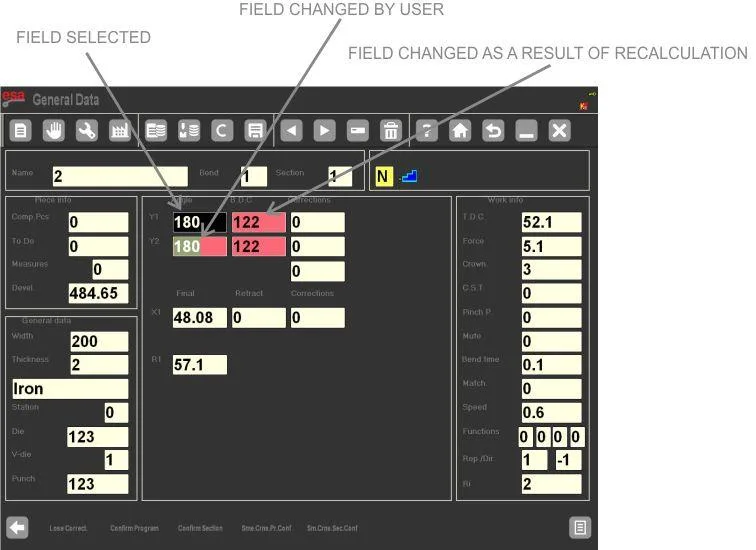
Once you’ve accessed the General Data mask, you’ll notice several visual indicators that help you track changes. These features are designed to prevent errors during the update process.
The system provides clear visual feedback:
- Reverse-colored fields: Indicate values you have manually changed
- Red background fields: Show values automatically recalculated by the program based on your changes
- Normal fields: Represent unchanged parameters
These color-coded indicators help you review modifications before applying them, reducing the risk of programming errors.
A critical concept to understand: the bend displayed in the General Data mask is not the active program bend—it’s a temporary copy. This safety feature means you can experiment with changes without affecting production until you’re ready to apply them.
How to Apply ESA S875 General Data Changes to Multiple Bends
One of the most powerful features of the ESA S875 General Data system is the ability to apply modifications across multiple bends simultaneously. This capability significantly reduces programming time for repetitive tasks.
Using the Four Confirmation Keys
The General Data mask includes four confirmation options, each serving a specific purpose:
- [Confirm Program] Key: Applies changes to all bends in the entire program
- [Confirm Section] Key: Applies changes to all bends in the current section only
- [Conf. Same Pr. Ang.] Key: Applies changes to all program bends with the same Y1 angle as the displayed bend
- [Conf. Same Sect. Ang.] Key: Applies changes to all section bends with the same Y1 angle as the displayed bend
Applying Changes to the Current Section
To update ESA S875 General Data for all bends in your current section:
- Make your desired parameter changes in the General Data mask
- Press the [Confirm Section] key
- The system copies your changes to every bend in the current section
- Each bend undergoes automatic recalculation based on the new parameters
After confirmation, all highlighted fields return to normal colors, indicating successful application.
Applying Changes to Bends with Matching Angles
For more selective updates:
- Modify the parameters as needed
- Press [Conf. Same Sect. Ang.] to affect only section bends matching the current Y1 angle
- Or press [Conf. Same Pr. Ang.] to affect matching bends throughout the entire program
This targeted approach is ideal when standardizing specific bend angles across your workpiece.
Correcting Bend Programs with ESA S875 General Data
The General Data mask serves as your primary tool for program corrections and optimizations.
How to Make Temporary Corrections
- From the Settings Mask, open General Data
- Change the data for the displayed bend copy
- Review the color-coded fields to verify your modifications
- Use the confirmation keys only when satisfied with the results
This workflow prevents accidental program corruption while allowing thorough testing of parameter changes.
Canceling Unwanted Changes
If you decide not to proceed with modifications:
- Simply press the [Ignore Corrections] key
- All temporary changes are discarded
- The mask returns to its original state
This safety feature encourages experimentation without fear of disrupting active programs.
Navigating Between Bends During Updates
Efficient navigation enhances your ability to update ESA S875 General Data quickly.
- Use the arrow keys to move between bends in the program
- Directly edit the Bend and Section fields for precise navigation
- Note that you cannot add or delete bends from this mask—return to Settings Mask for structural changes
Best Practices for Quick ESA S875 General Data Updates
To maximize efficiency when updating ESA S875 General Data, follow these professional recommendations:
- Plan changes in advance – Know which parameters need modification before accessing the mask
- Use the appropriate confirmation key – Avoid over-applying changes to unintended bends
- Verify color indicators – Always check reverse-colored and red fields before confirming
- Test on a single bend first – When uncertain, apply changes to one bend and verify results
- Document your modifications – Keep records of parameter changes for future reference
By mastering these techniques, you’ll significantly reduce programming time while maintaining precision across all your press brake operations. The ESA S875 General Data system, when used correctly, becomes a powerful ally in achieving consistent, high-quality bending results.
Frequently Asked Questions(FAQ)
How can I update ESA S875 General Data on the controller?
To update ESA S875 General Data, open the program settings interface on the ESA S875 controller, access the general data section, and modify the required parameters such as sheet thickness, material resistance, punch, or die information. After editing the values, confirm the changes and save the program so that the controller can apply the updated General Data during the bending process.
Can ESA S875 General Data be modified after a program has already been created?
Yes, ESA S875 General Data can be modified even after a program has been created. Operators can reopen the program settings, adjust the general parameters, and save the updated configuration. However, after modifying ESA S875 General Data, it is recommended to verify the bending results with a sample piece to ensure that the updated parameters work correctly.
Conclusion
Updating ESA S875 General Data correctly is essential for ensuring that the press brake calculates bending parameters accurately and operates efficiently. By reviewing and adjusting key fields such as sheet thickness, material resistance, and tooling information, operators can quickly keep the General Data aligned with the actual production requirements.
If you want to improve bending accuracy and maintain stable machine performance, make it a habit to review the ESA S875 General Data whenever materials or tools change. For more guidance on ESA controllers or press brake programming, feel free to explore our other technical guides or contact our team for professional support.


